A malicious attachment is a file sent with a message that tries to harm your device once opened.
This guide is for anyone who gets email or messages with files attached. You do not need to be technical to be affected: one opened file can let a criminal into a whole office.
In short
- Criminals hide harmful software in files that look like invoices, delivery notes or CVs.
- Some file types run programs when opened. Office documents can carry small programs called macros.
- A document that asks you to "Enable content" or "Enable editing" before you can read it is a strong warning sign.
- If a file was unexpected, check with the sender on a number you already have before you open it.
What you will learn
- Spot the file types and prompts that should make you stop.
- Explain what a macro is and why it can be risky.
- Check a file's real type before you open it.
- Know what to do if you have already opened a bad file.
- File type ending (file extension)
- the letters after the last dot in a file name, such as .pdf or .exe, that show what kind of file it is.
- Small built-in program (macro)
- a set of instructions saved inside an Office file that can run tasks automatically.
What is a malicious attachment?
Think of a sealed envelope from a stranger with a note inside. The envelope itself does no harm. The risk comes when you open it and do what the note asks.
A malicious attachment works the same way. It is a file sent by email, chat or text that carries malware, which means harmful software. The file is dressed up to look normal, such as an unpaid invoice or a missed parcel.
Some files are programs in disguise. When you open them, they run. Others are ordinary documents that hold a small program called a macro. A macro only runs if it is allowed to, so criminals write messages that persuade you to allow it.[1]
Where the comparison stops working: you can feel an envelope for something odd. A file looks the same from the outside whether it is safe or not, so the clues are in the message and the file name.
Why does it matter?
Attachments are one of the most common ways harmful software spreads.[2] One opened file can lead to stolen passwords or locked files.
If you use email at home
What could happen: a fake delivery note installs software that watches what you type, including bank passwords.
Check this: keep your device and its security software up to date.
Next: Antivirus for Beginners
If you work in an office or reception
What could happen: you open an "invoice" that lets a criminal into the shared computers, not just yours.
Check this: know who to tell straight away if a file behaves oddly.
Next: Phishing for Beginners
If you run a small business
What could happen: one infected file spreads to your files and backups, and a criminal demands payment to unlock them.
Check this: ask whoever sets up your computers whether Office macros are turned off for staff who do not need them.
Next: Ransomware for Beginners
What does it look like?
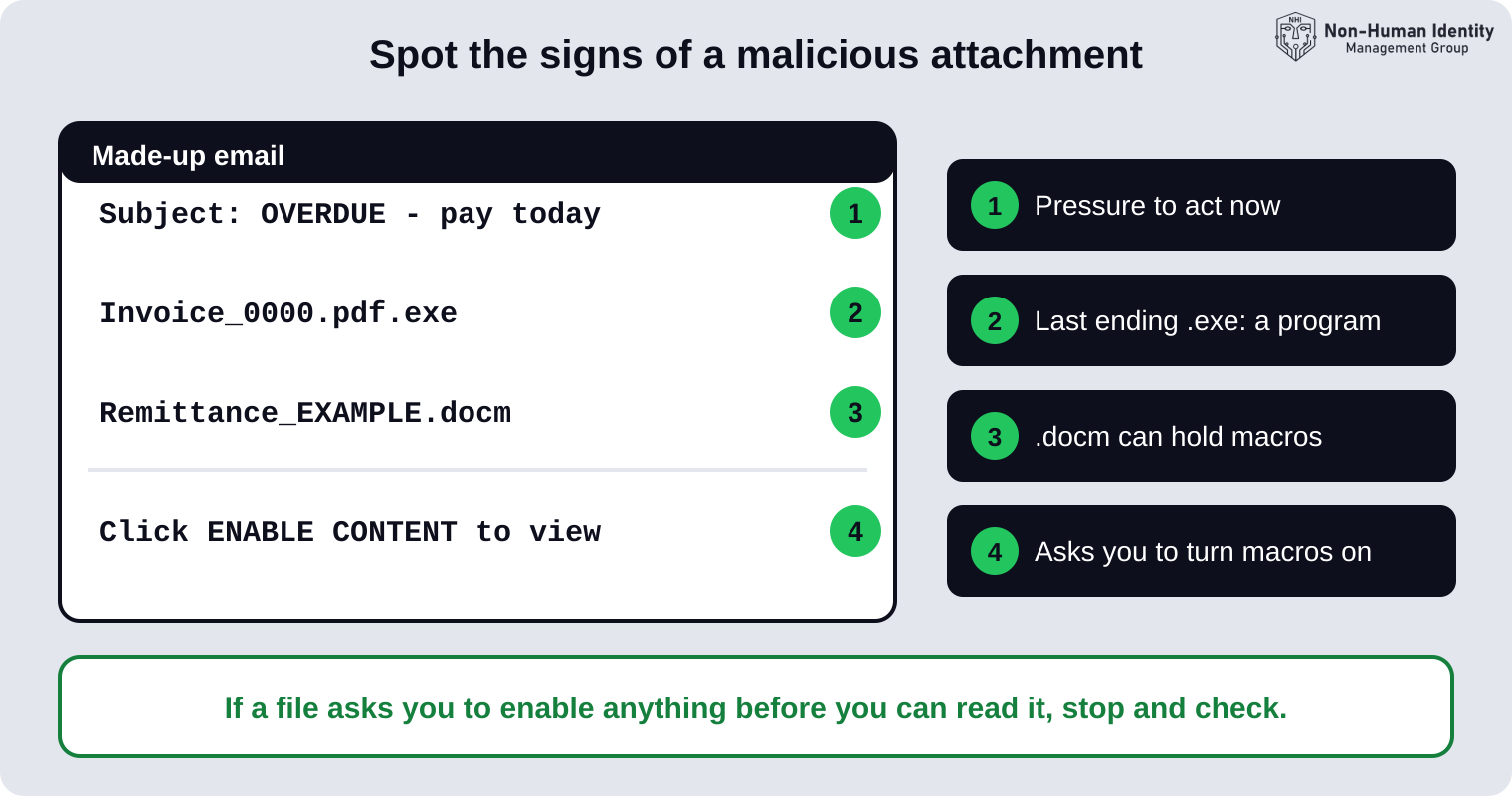
Example only. All values are made up.
From:    "Accounts" <[email protected]>
Subject: OVERDUE: invoice 0000 - pay today         (1)
Attached: Invoice_0000.pdf.exe                     (2)
Attached: Remittance_EXAMPLE.docm                  (3)

[ Inside the document ]
  This file was made in a newer version.
  Click ENABLE CONTENT to view the invoice.       (4)
- Pressure to act today, so you do not stop to check.
- Two endings. The last one, .exe, means this is a program, not a PDF.
- The "m" in .docm means the document can hold macros.
- A made-up excuse to get you to turn macros on.
Why this is risky: opening the first file runs a program. Pressing the button in the second lets its macro run.
The safer way: do not open either file. Call the supplier on the number you already have and ask if they sent it.
How does it work?
This is a simple view so you can spot it. It is not a guide to doing it.
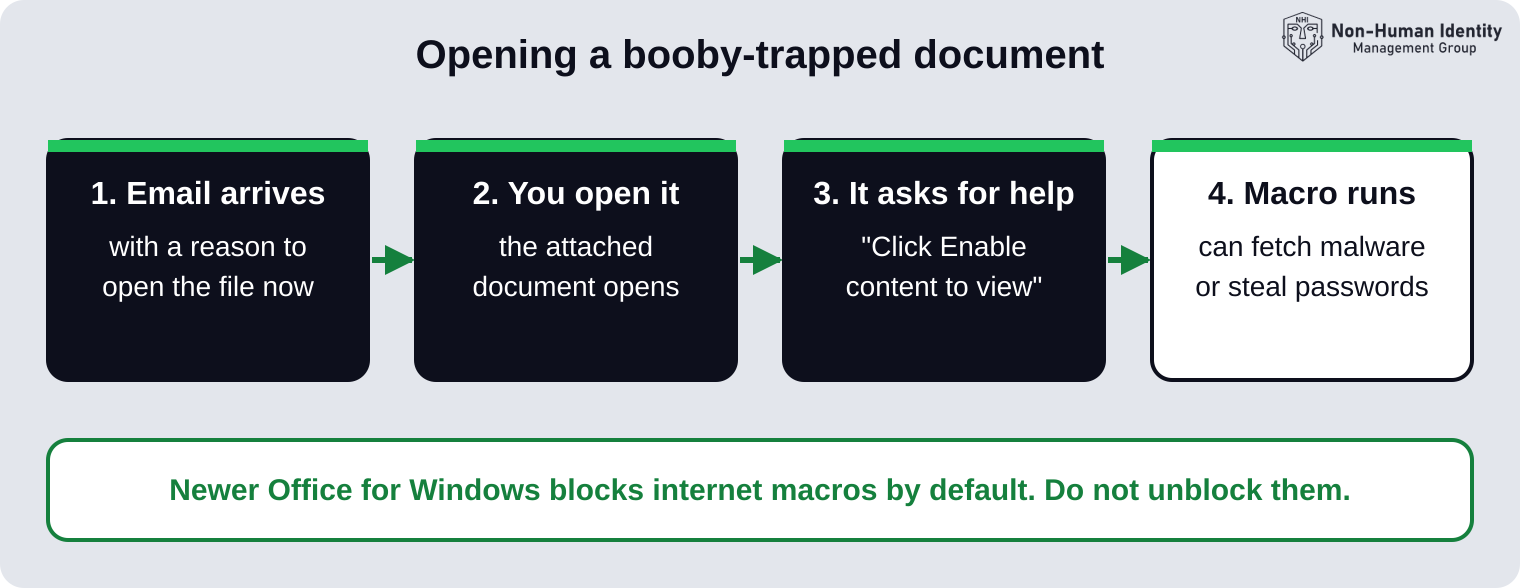
- The message arrives. It looks like it comes from a supplier, a courier or a colleague, and gives a reason to open the file now.
- You open the file. If it is a program in disguise, it may start straight away. Your email app may block some of these types, such as .exe, .js and .bat files.[2]
- The document asks for help. If it is an Office file with a macro, it shows a message asking you to enable content.
- The hidden program runs. It can download more malware, steal saved passwords or lock files. A UK cyber agency says harmful macros can do almost anything other malware can.[1]
Newer versions of Microsoft Office on Windows help here. Windows adds a hidden tag to files from the internet or email, called the Mark of the Web. Office uses that tag to block macros by default and shows a Security Risk banner, with no Enable content button.[3] Older or differently set up copies of Office may still show the button, so the habit of not pressing it still matters.
A worked example
This story is made up to show how it can happen.
Freya Lindgren works on reception at Riverbend Vets, a busy practice with four computers. On Thursday morning she gets an email headed "Unpaid invoice: final reminder". It names a pet food supplier the practice really uses.
The email has a Word file attached. Freya opens it. The page is blank except for a grey box: "This document was created in a newer version. Click Enable content to view."
Freya pauses. Last month the practice manager showed staff this exact trick. Real invoices from that supplier come as PDFs through its online account, not as Word files.
She does not click the button. She closes the file and does not forward it to anyone. Then she rings the supplier on the number in the practice's contact list. They say they have not sent any reminders this week.
Freya tells the practice manager, who reports the email to their IT company. The IT company checks Freya's computer and finds no sign that anything ran, in the records it can see. It also blocks the sender's address for everyone at the practice.
The manager reports the scam email to the national cyber agency.[4] She then asks the IT company to turn off macros for all staff, since nobody at the practice uses them.[1]
What made the difference: Freya treated "Enable content" as a reason to stop, not a step to get past.
Myths and mistakes
| What people think | What is true |
|---|---|
| PDFs and Word files are always safe. | They can still carry tricks, such as macros or links to fake sites. Treat unexpected files with care whatever the type. |
| If it comes from someone I know, it is fine. | Their account may have been taken over. Check by phone if the file was not expected. |
| Clicking "Enable content" just fixes the layout. | It lets the macros in the file run. Real documents rarely need it to be read. |
| A file called invoice.pdf must be a PDF. | Only the last ending counts. "invoice.pdf.exe" is a program. Turn on file name extensions to see it.[5] |
| If nothing happens when I open it, there is no problem. | Harmful software often works quietly. Tell your IT contact anyway. |
What can I do this week?
- Turn on file name endings in File Explorer, so you can see the full name of each file.[5]
- Make "never press Enable content on an unexpected file" a rule for you and your team.
- Check that your computer and its apps update by themselves.
- Save phone numbers for your main suppliers, so you can check an odd file fast.
- If you run a business, ask your IT helper to turn off macros for staff who do not use them.
Checklist
- I can see file name extensions on my computer.
- I check the last ending of a file name before opening it.
- I do not press "Enable content" or "Enable editing" on unexpected files.
- I check unexpected files with the sender by phone, not by replying.
- My device, Office and security software update automatically.
- I know who to tell if I open a file I am unsure about.
- Macros are turned off for people who do not need them.
Common questions
Are Office macros dangerous?
They can be. Many businesses use macros for honest tasks. But criminals also hide harmful ones in documents. A UK cyber agency advises turning macros off if your firm does not use them. Otherwise, turn them on only for staff who need them every day.[1]
Should I block macros?
For most people, yes. If you never use macros, there is little to lose by keeping them off. At work, ask your IT team before changing settings, as some teams rely on macros. Newer Office on Windows already blocks macros in files from the internet by default.[3]
What should I do if I opened a bad attachment?
Tell your IT contact straight away, or at home, run a full scan with your security software. Disconnect from the internet if the device acts oddly. Change passwords you use on that device from a different, trusted device. If you lost money, tell your bank and report it.[4]
Is it safe to preview an attachment without opening it?
Previewing is not a reliable safety check, so do not rely on it. If a file is unexpected, the safest choice is to check with the sender first and not open or preview it at all. At work, your IT team can tell you how your email handles previews.
Why does my email block some files?
Email apps such as Outlook block file types that can run programs, such as .exe and .bat. They do this because attachments are a common way viruses spread. If you really need such a file, ask the sender to share it another, agreed way.[2]
Where next?
Ready for the detail? Read the practitioner guide: Office Macro Blocking Guide. It goes further into finding which teams use macros, setting the block policies, and handling safe exceptions.
Also useful:
- Attachment Sandboxing vs CDR
- Malware for Beginners
- Email Security for Beginners
- Patch Management for Beginners
Related NHI Mgmt Group resources: Email Security Guide · CIS Control 10 Malware Defenses Guide · Lookalike Domains for Beginners
Key terms
- Malicious attachment
- A file sent with a message that carries harmful software or tricks you into running it.
- Malware
- Harmful software that damages, spies on or takes control of a device.
- Macro
- A small set of instructions saved inside an Office file that can run tasks automatically.
- File extension
- The letters after the last dot in a file name, which show what kind of file it is.
- Executable file
- A file that runs as a program when opened, such as one ending in .exe.
- Mark of the Web
- A hidden tag Windows adds to files from the internet or email, so apps can treat them with more care.
- Phishing
- Using fake messages or websites to trick people into giving away passwords, money or access.
Sources and further reading
- Macro security for Microsoft Office. National Cyber Security Centre (NCSC). https://www.ncsc.gov.uk/guidance/macro-security-for-microsoft-office, accessed 28 Nov 2026.
- Blocked attachments in Outlook. Microsoft Support. https://support.microsoft.com/en-us/office/blocked-attachments-in-outlook-434752e1-02d3-4e90-9124-8b81e49a8519, accessed 28 Nov 2026.
- Macros from the internet are blocked by default in Office. Microsoft Learn. https://learn.microsoft.com/en-us/microsoft-365-apps/security/internet-macros-blocked, accessed 28 Nov 2026.
- Report a scam email. National Cyber Security Centre (NCSC). https://www.ncsc.gov.uk/collection/phishing-scams/report-scam-email, accessed 28 Nov 2026.
- Common file name extensions in Windows. Microsoft Support. https://support.microsoft.com/en-us/windows/common-file-name-extensions-in-windows-da4a4430-8e76-89c5-59f7-1cdbbc75cb01, accessed 28 Nov 2026.