A virtual machine is a pretend computer made of software, and a hypervisor is the program that runs it.
This guide is for students, new IT hires and anyone who keeps hearing "VM" at work. You do not need to manage servers to be affected: many of the apps and websites you use each day run on virtual machines.
In short
- A virtual machine (VM) is a whole computer, with its own operating system, that runs as software on a real computer.
- The hypervisor shares out the real machine and keeps each VM apart from the others.
- Because one hypervisor can run many VMs, anyone who takes it over may be able to reach all of them at once.
- Protect the hypervisor's admin logins, keep it updated, and keep real backups as well as snapshots.
What you will learn
- Explain what a virtual machine and a hypervisor are in one sentence each.
- Spot why the hypervisor is a high-value target for attackers.
- Check who can sign in to the systems that manage your VMs.
- Ask whether your VMs have real backups, not only snapshots.
- Pretend computer (virtual machine or VM)
- a full computer made of software that runs on a real one.
- VM manager (hypervisor)
- the program that creates VMs, shares out the real hardware and keeps VMs apart.
- Real computer underneath (host)
- the physical machine whose processor, memory and disks the VMs share.
What are virtual machines and hypervisors?
Think of a large office building. A building manager gives each company its own locked floor, with its own staff and its own front door. The companies share the lifts, power and heating, but they cannot walk into each other's floors.
A virtual machine, or VM, is like one of those floors. It is a full computer with its own operating system, the main program that runs a computer, such as Windows or Linux. But it is made of software and runs on top of a real computer, called the host.
The hypervisor is the building manager. A US standards body describes it as the part that manages the guest operating systems on a host. It controls the flow of instructions between them and the physical hardware.[1] One real server can run many VMs at once, which can make better use of the hardware.[3]
Where the comparison stops working: a building manager's master key is one physical key. A hypervisor's "master key" is its admin login, and that can be copied or guessed from far away if it is not protected.
Why does it matter?
Many company servers, cloud services and test labs run as VMs. So many systems can depend on one hypervisor.
If you are new to IT work
What could happen: you get the admin password by email. Later, someone breaks into that inbox.
Check this: ask for your own named admin account with a second sign-in step.
If you are a student building a lab
What could happen: a test VM with a weak password is left reachable from the internet.
Check this: keep lab VMs on a private network and switch them off when not in use.
If you manage a team or budget
What could happen: one attack on the hypervisor locks every VM, so many services stop at once.
Check this: ask whether VM backups are kept away from the hypervisor and have been tested.
Next: Ransomware for Beginners
What does it look like?
Here is a made-up summary of one host and its VMs. An admin might see a view like this.
Example only. All values are made up.
Host: host-01.example.invalid    Hypervisor version: 0.0 (2 updates waiting)  (1)
Admin sign-in: "root" shared by 4 people, 2-step off                        (2)
Management screen reachable from: any network                               (3)
VMs on this host:
  web-shop-EXAMPLE      running
  payroll-EXAMPLE       running
  test-old-EXAMPLE      running, owner unknown                              (4)
Snapshots: payroll-EXAMPLE "before-update" taken 9 months ago               (5)
Last full backup copied off this host: none recorded                        (6)
- Updates for the hypervisor may include security fixes.
- With one shared login, nobody can tell who made a change.
- Only a small admin network should reach this screen.
- Forgotten VMs are easy to miss when updating.
- An old snapshot is a change log, not a backup.
- In a real file, this line would show the last safe copy.
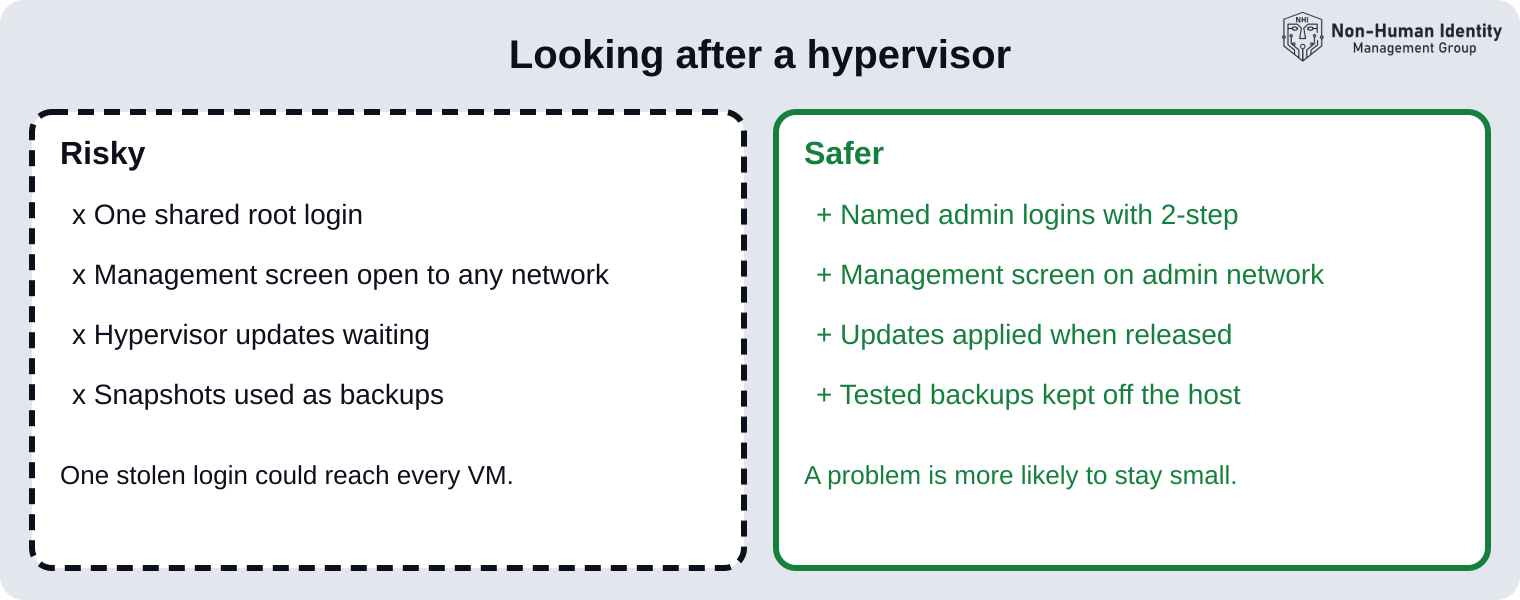
Why this is risky: one stolen login could reach every VM on this host. That includes payroll.
The safer way: apply the updates. Give each admin a named login with a second sign-in step. Keep the screen on a private admin network. Remove unknown VMs. Keep tested backups away from the host.
How does it work?
- The hypervisor starts on the real computer. On servers it usually runs straight on the hardware, called bare metal. On a laptop it often runs as an app on top of the normal operating system, called hosted.[3]
- It shares out the hardware. Each VM is given a slice of the processor, memory, disk and network.
- It keeps the VMs apart. A US standards body lists keeping VMs on one host separated while they run as a core hypervisor job.[2]
- Admins manage it through a management screen. From there they create, start, stop, copy and delete VMs. The same guidance says only authorised admins should be able to reach it.[3]
- Snapshots save a point in time. A snapshot (a saved moment of a VM) lets an admin roll back after a change. One maker's guidance says snapshots are not backups and should not be kept for long.[5]
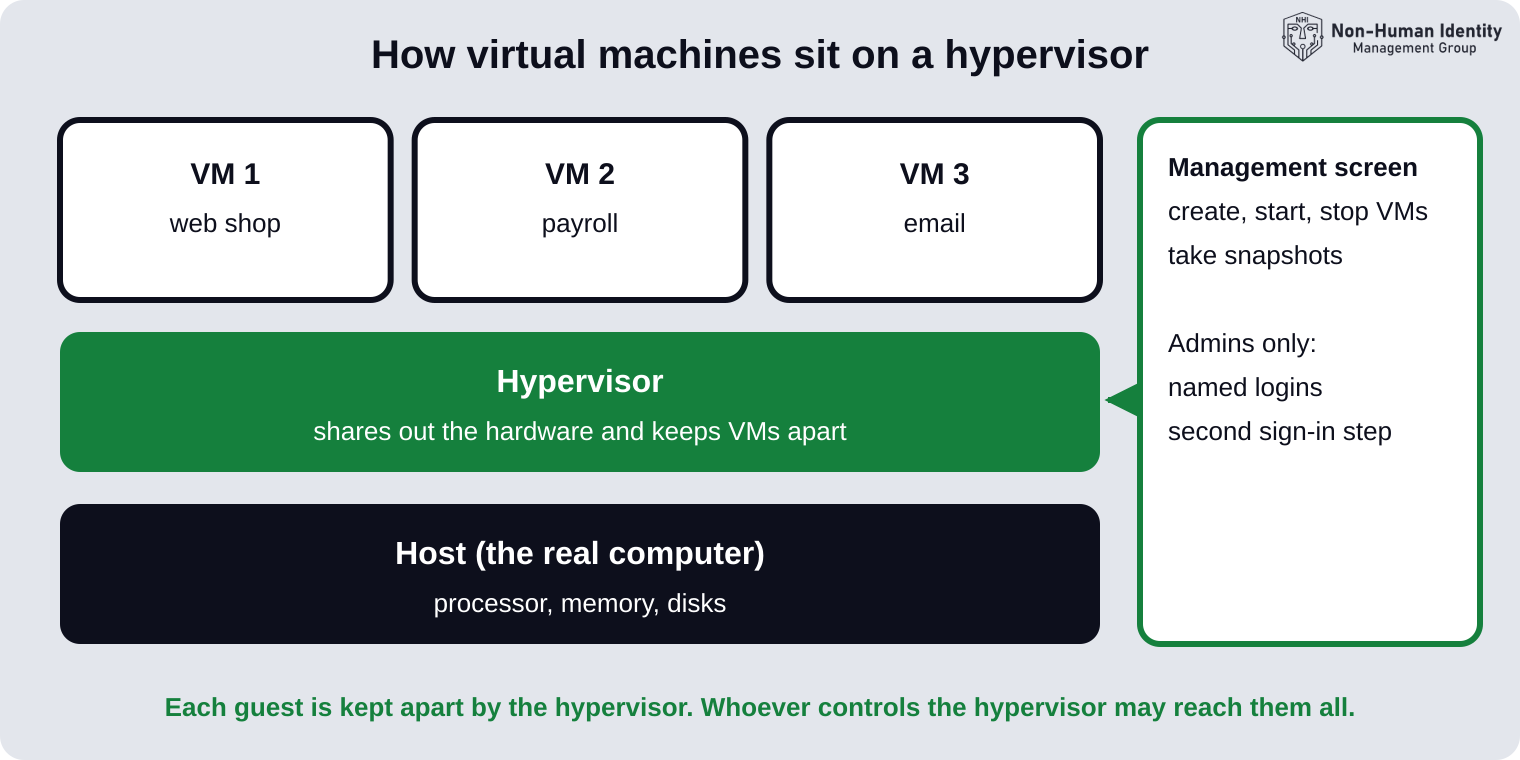
The same standards body warns that the hypervisor is a single point of security failure for all the guest operating systems it runs.[3] That is why its admin logins and updates get extra care.
A worked example
This story is made up to show how it can happen.
Yara Varga has just joined the IT team at a small accountancy firm as a junior. On her first day, her manager, Bodhi Tanaka, shows her the firm's one big server. It runs six VMs: email, files, payroll, the website and two old test machines.
Bodhi sends her the hypervisor admin password in a chat message. Yara has just read about hypervisors, so she asks two questions. Who else knows this password? And where are the backups kept?
Bodhi checks. Four people share the login, including a contractor who left last year. The "backups" are snapshots stored on the same server.
They agree a short plan. Bodhi creates named admin accounts with a second sign-in step and removes the shared one. He moves the management screen onto a small admin-only network. Yara looks up the two test VMs, finds nobody needs them and switches them off for deletion after a month.
Next, Bodhi asks the firm's IT supplier, run by Yusuf Rosen, to set up nightly backups to a separate system. Yusuf restores one VM as a test, and it starts up correctly.
A real case shows why this matters. In 2024, Microsoft reported ransomware groups abusing a flaw to gain full admin rights over one maker's hypervisors. They then encrypted the hypervisor's storage, which took down the hosted VMs.[4]
What made the difference: Yara asked simple questions on day one, and Bodhi treated the hypervisor login as the master key it is.
Myths and mistakes
| What people think | What is true |
|---|---|
| VMs are kept apart, so one attack can only hit one VM. | VMs are kept apart from each other, but whoever controls the hypervisor may reach all of them.[3] |
| A snapshot is a backup. | One maker says snapshots are change logs, not backups. Keep separate, tested backups away from the host.[5] |
| Antivirus inside each VM protects the hypervisor. | Microsoft notes many security products have limited view into some hypervisors. Protect the hypervisor in its own right.[4] |
| Only the VMs need updates. | The hypervisor is software too. Guidance says to install its updates as the maker releases them.[3] |
| Old test VMs are harmless if nobody uses them. | Forgotten VMs are often unpatched and may hold old data or passwords. Switch them off and remove them. |
What can I do this week?
- Find out which hypervisor your team uses and who can sign in to it.
- Ask whether each admin has their own login with a second sign-in step.
- Check whether hypervisor updates are waiting, and who applies them.
- List every VM and its owner, and flag any nobody can explain.
- Ask where VM backups are kept and when a restore was last tested.
Checklist
- Each hypervisor admin has a named account, not a shared one.
- A second sign-in step is on for every admin account.
- The management screen is reachable only from an admin network.
- Hypervisor updates are applied on a set schedule.
- Every VM has a named owner and a reason to exist.
- Snapshots are short-lived and not used as backups.
- Backups are stored away from the host and a restore has been tested.
Common questions
What is the difference between a virtual machine and a container?
A VM has its own full operating system and runs on a hypervisor. A container shares the host's operating system. It packs only an app and what it needs. Containers are usually lighter and quicker to start. VMs give a stronger wall between jobs.
Are cloud servers virtual machines?
Very often, yes. When you rent a server from a cloud firm, you usually get a VM on its hardware. The firm looks after the hypervisor. You look after what runs inside your VM, such as updates and logins.
Can a virus in one VM spread to the others?
Usually not directly, because the hypervisor keeps VMs apart. It can still spread over the network, like between real computers. Rare flaws can also let code break out of a VM into the hypervisor, which is one reason updates matter.
Is it safe to run VMs on my own laptop?
Yes, for learning and testing, with some care. Use a hypervisor from a known maker, keep it updated, and keep test VMs off the internet. Do not put real passwords or personal data in practice machines.
Why do attackers target hypervisors?
Because one hypervisor can run many VMs. Microsoft reported that locking one maker's hypervisor storage can hit every VM on it in one step.[4] Some security tools also see little of what happens there, so attacks can be harder to spot.
Where next?
Ready for the detail? Read the practitioner guide: Hypervisor and Virtualisation Security Guide. It goes further into attack paths, securing the management plane and the VM lifecycle, including images, snapshots and migration.
Also useful:
Related NHI Mgmt Group resources: Cloud Security for Beginners · How Operating Systems Work for Beginners · Privileged Access Management for Beginners
Key terms
- Virtual machine
- A full computer, with its own operating system, that runs as software on a real computer.
- Hypervisor
- The program that runs VMs, shares out the hardware and keeps VMs apart.
- Guest OS
- The operating system running inside a VM.
- Virtualisation host
- The real computer that the hypervisor and its VMs run on.
- Management plane
- The admin tools and logins used to control systems, such as a hypervisor's management screen.
- Snapshot
- A saved point in time of a VM, used to roll back changes, not a backup.
- Virtual machine isolation
- Keeping each VM separated from the others on the same host.
Sources and further reading
- NIST Computer Security Resource Center. "Hypervisor" (glossary entry, citing NIST SP 800-125). https://csrc.nist.gov/glossary/term/hypervisor (accessed 28 Nov 2026).
- NIST. SP 800-125A Rev. 1, "Security Recommendations for Server-based Hypervisor Platforms". June 2018. https://csrc.nist.gov/pubs/sp/800/125/a/r1/final (accessed 28 Nov 2026).
- NIST. SP 800-125, "Guide to Security for Full Virtualization Technologies". January 2011. https://nvlpubs.nist.gov/nistpubs/Legacy/SP/nistspecialpublication800-125.pdf (accessed 28 Nov 2026).
- Microsoft Threat Intelligence. "Ransomware operators exploit ESXi hypervisor vulnerability for mass encryption". Microsoft Security Blog, 29 Jul 2024. https://www.microsoft.com/en-us/security/blog/2024/07/29/ransomware-operators-exploit-esxi-hypervisor-vulnerability-for-mass-encryption/ (accessed 28 Nov 2026).
- Broadcom. "Best practices for using VMware snapshots in the vSphere environment" (KB 318825). https://knowledge.broadcom.com/external/article/318825 (accessed 28 Nov 2026).