Windows forensic artefacts are small traces Windows keeps that show which programs ran and which files were used.
This guide is for students, new IT staff and anyone curious about how investigators work out what happened on a computer. You do not need to be an expert to be affected: if your business uses Windows computers, these traces may be what an investigator reads after a problem.
In short
- Windows keeps many small records to make itself faster and easier to use, and these double as evidence.
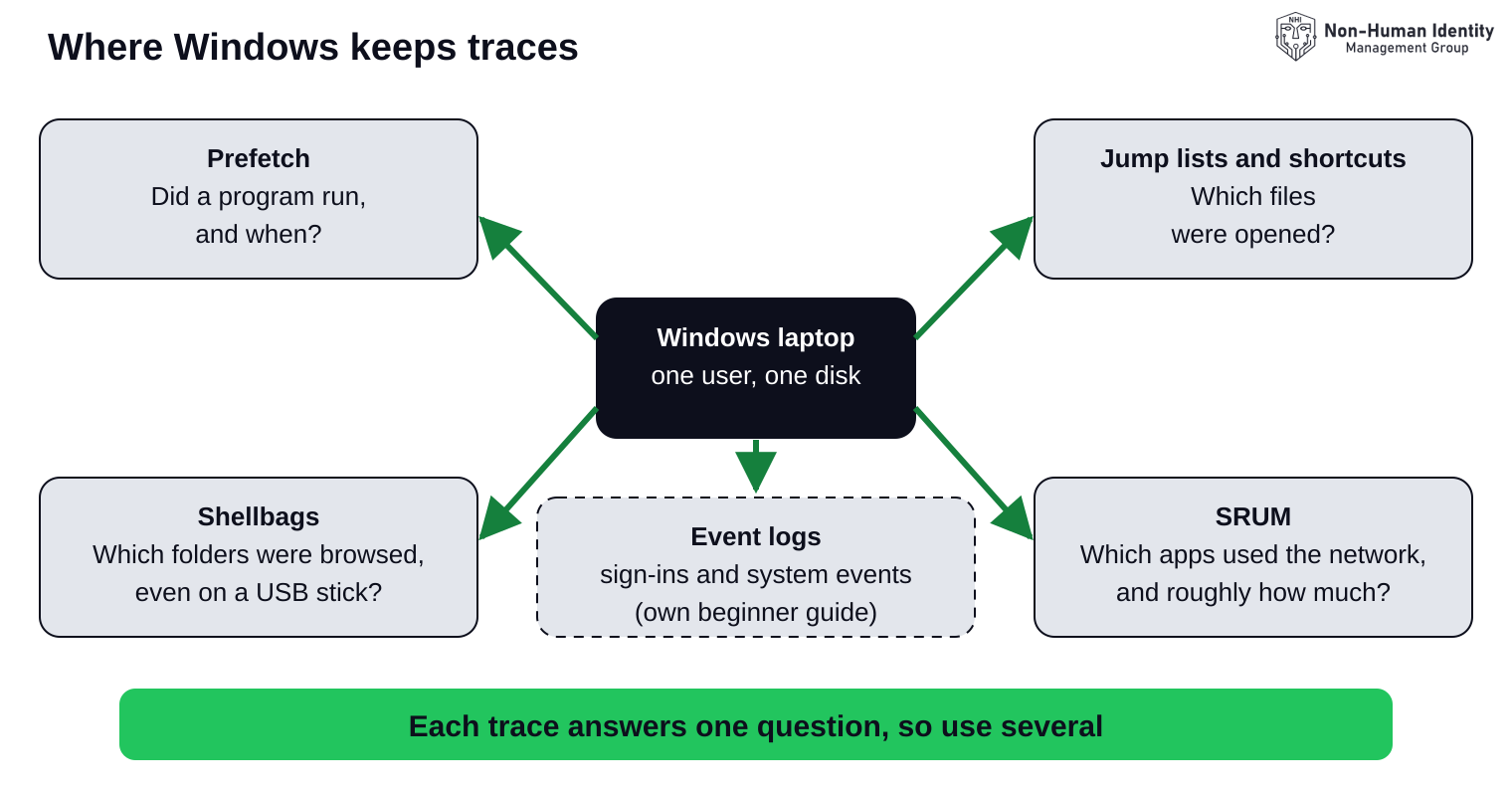
- Different traces answer different questions: which program ran, which file was opened, which folder was browsed, which app used the network.
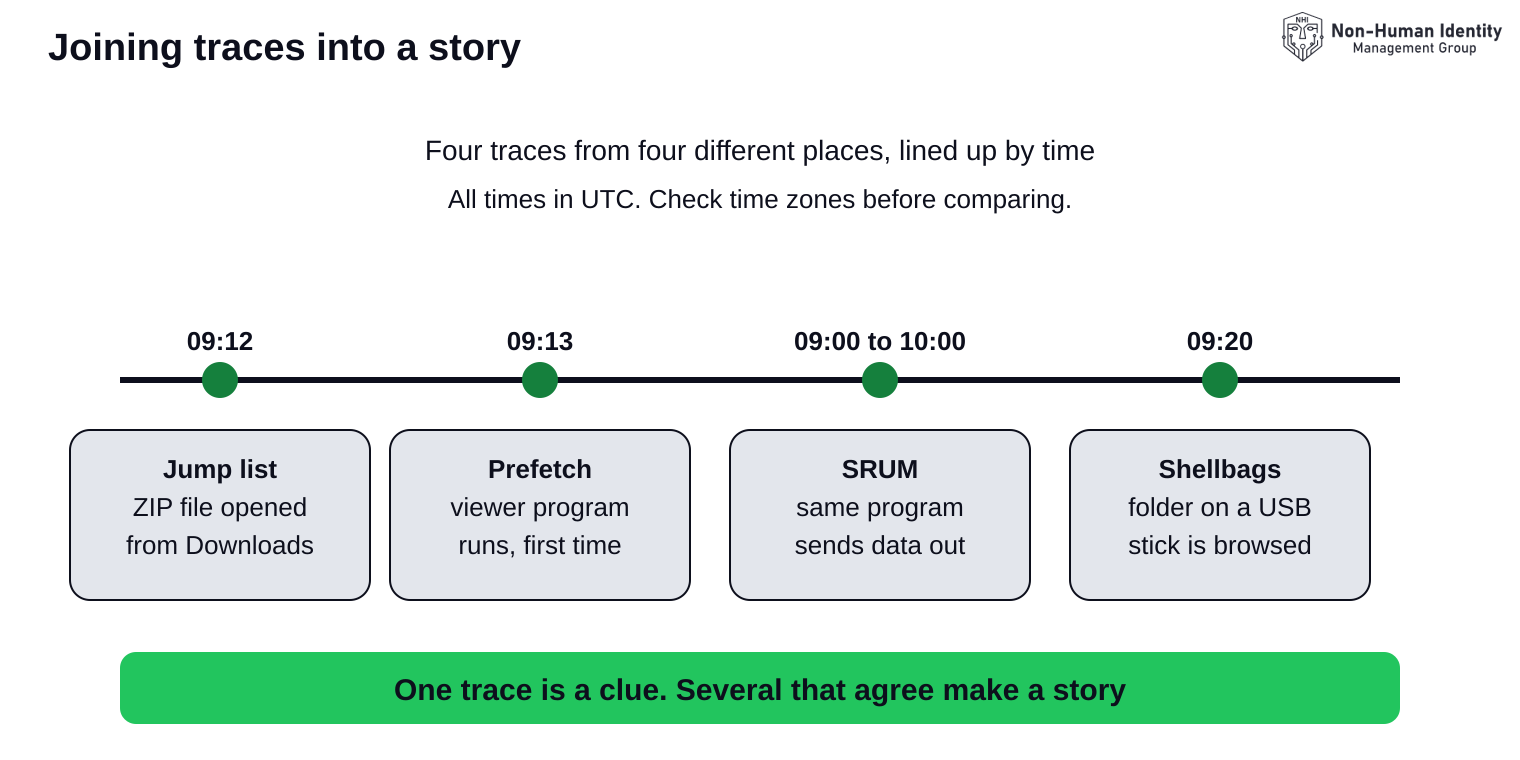
- One trace on its own is a clue. Several traces that agree make a much stronger story.
- Traces can be overwritten or changed, so investigators copy them first and work on the copy.
What you will learn
- Explain what a forensic artefact is in one sentence.
- Name four common Windows traces and the question each one helps answer.
- Spot why one trace alone is weaker than several that agree.
- Ask the right first question when a computer may hold evidence.
- Trace left behind (artefact)
- a file or record that shows something happened on a computer.
- Working out what happened (digital forensics)
- the careful study of computers and files to answer questions about past events.
- Exact copy (forensic image)
- a full copy of a disk, made so the original is not changed.
What are Windows forensic artefacts?
Think of the receipts and ticket stubs that pile up in a coat pocket. Nobody keeps them as a diary, but together they show where you went and when.
Windows works the same way. To start programs faster and to show you your recent files, it quietly writes small records as you work. A forensic artefact is any of these records that an investigator can use as evidence.
Each artefact answers a different question. One shows that a program ran. Another shows that a file was opened. A third shows that someone browsed a folder, even one on a USB stick that has since been removed.
Where the comparison stops working: you can empty a coat pocket in one go. Windows spreads its records across many places, and some are rewritten as normal use carries on, so traces fade unevenly rather than all at once.
Why does it matter?
After a security problem, people need answers fast. Did the strange program actually run? Was a file copied? These traces often hold the answer, even when nobody switched on extra logging beforehand.
If you are studying cyber security
What could happen: you learn the tools before the questions, and then cannot explain what a finding proves.
Check this: for each trace, learn the one question it answers and the one thing it does not show.
If you run a small business
What could happen: a well-meaning helper "cleans up" an infected laptop and wipes the traces that would have shown what was taken.
Check this: agree now that a suspect computer is unplugged from the network and left alone until someone decides whether to copy it.
If you are new to IT support
What could happen: running tools on a suspect computer changes the very records an investigator needs.
Check this: ask your team who decides when a computer is evidence, and what you should not touch.
If you manage people
What could happen: you look through a staff member's computer yourself and the findings are challenged later.
Check this: any look at a person's computer goes through HR and legal advice, with a written reason.
What does it look like?
Investigators use tools that read these records and turn them into readable lines. Here is a made-up summary of the kind of thing such a tool might show for one laptop.
Example only. All values are made up.
Laptop: EXAMPLE-LT-0000    Times shown in UTC
Prefetch     FAKEVIEWER.EXE    ran 2 times, last 09:13    (1)
Jump list    invoice_0000.zip  opened 09:12 from Downloads (2)
Shellbags    E:\EXAMPLE-USB\Projects  folder browsed       (3)
SRUM         FAKEVIEWER.EXE    sent data, hour of 09:00   (4)
- In a real system, this line would show the program's name, how many times it ran and its last run times.
- In a real system, this line would show a recently opened file and which program opened it.
- In a real system, this line would show a folder someone looked at in File Explorer, here on a removable drive.
- In a real system, this line would show roughly how much network data a program used in a given hour.
Why this is risky: any one line could be read wrongly. A program name can be faked, and times can be in a different time zone from the one you assume.
The safer way: line up several traces and check that they tell the same story. Here, a file was opened, a program ran a minute later, and that program then used the network. Each trace supports the others.
How does it work?
Windows writes these records for its own reasons, not for investigators. Here are four of the best known, and the question each helps answer.
- Prefetch: did a program run? To start programs faster, Windows keeps a small file for many programs that run, in a folder called Prefetch. These files can hold a run count and recent run times.[1]
- Jump lists and shortcuts: which files were opened? The recent files you see when you right-click a program on the taskbar are stored as small files in each user's profile.[2]
- Shellbags: which folders were browsed? File Explorer remembers how you like each folder laid out. It keeps those settings in the registry, the Windows settings database. They can show folders that were opened, even on removable drives or since deleted.[4] Each user's settings sit in their own registry file in their profile.[6]
- SRUM: which apps used resources? A Windows feature called System Resource Usage Monitor keeps a database of how programs used resources, including network data sent and received.[3]
- Put them together. An investigator copies the records, reads them with tools and lines them up by time. Where traces agree, the story gets stronger.[5]
Not every computer keeps every trace. Windows versions, settings and normal use all change what is there, and older entries can be replaced by newer ones. That is why investigators act quickly and copy first.
A worked example
Zola Fairweather looks after IT for a fictional design studio with fifteen staff. On Tuesday morning the studio's antivirus flags a program called invoice_viewer.exe on a designer's laptop.
Her manager, Hugo Lindahl, asks the obvious question. "Did it actually run, or was it just sitting there?"
Zola remembers the coat pocket. She does not start clicking around the laptop, because that would add new receipts on top of the old ones. She unplugs it from the network and calls the studio's IT support firm. They take a forensic image (an exact copy of the disk) and work on that copy.
The traces start to line up. A jump list shows a ZIP file opened from the Downloads folder at 09:12. Prefetch shows the viewer program ran for the first time at 09:13. SRUM shows the same program sent some data over the network in the hour after.
No single trace proves much. Together, they suggest the designer opened an email attachment, the program ran and it connected out.
Hugo asks whether anything was copied to a USB stick. The shellbags show no removable-drive folders opened that day, in the records available. The firm notes that this does not rule out other ways of copying files.
The studio changes the designer's passwords, blocks the address the program contacted and reminds staff about invoice emails. Zola writes down what she did and when, so the firm's report can show the laptop was handled carefully from the start.
Myths and mistakes
| What people think | What is true |
|---|---|
| If a program was deleted, there is no trace of it. | Records such as Prefetch and SRUM can outlast the program itself, at least for a while. |
| One trace proves what happened. | One trace is a clue. Investigators look for several that agree. |
| I should look around the computer myself first. | Every click can change or overwrite records. Copy first, then look at the copy. |
| Every Windows computer keeps the same traces. | Versions and settings differ, so some traces may be missing or switched off. |
| A time on a trace is always local time. | Many traces store times in UTC (a world standard time). Check before comparing.[1] |
What can I do this week?
- Write down who you would call if a work computer might hold evidence.
- Agree a simple rule: unplug a suspect computer from the network, leave it on and do not "clean it up".
- If you are learning, open the Prefetch folder on your own computer and see which programs have files there.
- Read the Windows event logs beginner guide to see how logs fit alongside these traces.
Checklist
- Staff know not to clean up or reinstall a suspect computer before someone decides about evidence.
- There is a named person or firm to call for forensic help.
- Investigators work on a copy, not the original disk.
- Findings rely on several traces that agree, not one.
- Time zones are checked before traces are compared.
- Any look at a staff member's computer has HR or legal approval and a written reason.
- Every step taken on a suspect computer is written down with the time.
Common questions
Is a forensic artefact the same as a log?
Not quite. A log is written on purpose to record events, such as sign-ins. Most artefacts are side effects of Windows trying to be faster or more helpful, like remembering recent files. Investigators use both, because they often cover different questions.
Can these traces show what someone typed or looked at on a website?
Usually not. The traces in this guide show that programs ran, files were opened and folders were browsed. Website history lives in the browser's own records, which are a separate topic, and typed content is not normally kept in these traces.
How long do these traces last?
It varies. Some are replaced as normal use carries on, others can last months. Windows version, settings and how busy the computer is all play a part. That is why investigators copy the disk as soon as they reasonably can.
Do I need special tools to read them?
Yes, for most of them. Many traces are stored in formats people cannot read directly. Free and paid forensic tools turn them into readable tables. See Free Digital Forensics Tools for Beginners for a starting point.
Can an attacker remove these traces?
Sometimes, partly. An attacker with enough access can delete or change some records. Removing traces often leaves its own signs, and traces in other places may survive.[7] See Anti-Forensics Detection Guide.
Where next?
Ready for the detail? Read the practitioner guide: Windows Prefetch Forensics Guide. It goes further into file naming, format versions and what Prefetch can and cannot prove.
Also useful:
- Jump Lists and LNK Files Forensics Guide
- Shellbags Forensics Guide
- SRUM Forensics Guide
- Amcache and ShimCache Forensics Guide
- Windows Event Logs for Beginners
Related NHI Mgmt Group resources: Digital Forensics for Beginners · EZ Tools Guide · Forensic Readiness Guide
Key terms
- Forensic artefact
- A file or record on a computer that shows something happened.
- Prefetch
- Small Windows files that help programs start faster and can show that a program ran.
- Jump list
- The list of recent files Windows shows for a program, stored in the user's profile.
- Shellbags
- Folder view settings in the registry that can show which folders someone browsed.
- SRUM
- A Windows database of how programs used resources, including network data.
- Forensic image
- An exact copy of a disk, made so the original stays unchanged.
- Chain of custody
- A written record of who handled evidence, when and why.
Sources and further reading
- Windows Prefetch File (PF) format. libscca project documentation, Joachim Metz, version 0.0.24, July 2026. https://github.com/libyal/libscca/blob/main/documentation/Windows%20Prefetch%20File%20(PF)%20format.asciidoc, accessed 28 Nov 2026.
- Jump lists format. dtformats project documentation, Joachim Metz. https://github.com/libyal/dtformats/blob/main/documentation/Jump%20lists%20format.asciidoc, accessed 28 Nov 2026.
- System Resource Usage Monitor (SRUM). esedb-kb project documentation, Joachim Metz. https://github.com/libyal/esedb-kb/blob/main/documentation/System%20Resource%20Usage%20Monitor%20(SRUM).asciidoc, accessed 28 Nov 2026.
- Forensic Analysis of Windows Shellbags. Magnet Forensics blog (one vendor's write-up), 7 August 2014, updated 2026. https://www.magnetforensics.com/blog/forensic-analysis-of-windows-shellbags/, accessed 28 Nov 2026.
- Guide to Integrating Forensic Techniques into Incident Response (SP 800-86). NIST, August 2006. https://csrc.nist.gov/pubs/sp/800/86/final, accessed 28 Nov 2026.
- Registry Hives. Microsoft Learn, Microsoft. https://learn.microsoft.com/en-us/windows/win32/sysinfo/registry-hives, accessed 28 Nov 2026.
- Indicator Removal (T1070). MITRE ATT&CK, MITRE. https://attack.mitre.org/techniques/T1070/, accessed 28 Nov 2026.