Deleted file recovery means getting back files that were deleted, often because the data is still on the drive.
This guide is for anyone who has lost a file by mistake, and for people new to IT or forensics work. It also matters if you sell or give away an old device: what you can bring back, someone else may bring back too.
In short
- Deleting a file usually removes the computer's note of where it is, not the file's contents.
- The contents can often come back until new data is saved over the same space.
- If you lose a file, check the bin and your backups first, then stop using that drive.
- Solid-state drives clean up deleted space by themselves, so recovery from them is less likely.
What you will learn
- Explain why a deleted file can often be brought back.
- Check the easy places to find a lost file before trying anything else.
- Spot the mistakes that make recovery less likely.
- Ask the right questions before you sell or give away a device.
- Writing over old data (overwriting)
- saving new data into the space an old file used, which replaces it.
- Rebuilding files from raw data (file carving)
- finding files by their contents, without the computer's list of file names.
- Drive with no moving parts (SSD)
- a solid-state drive, the fast storage found in most new laptops and phones.
What is deleted file recovery?
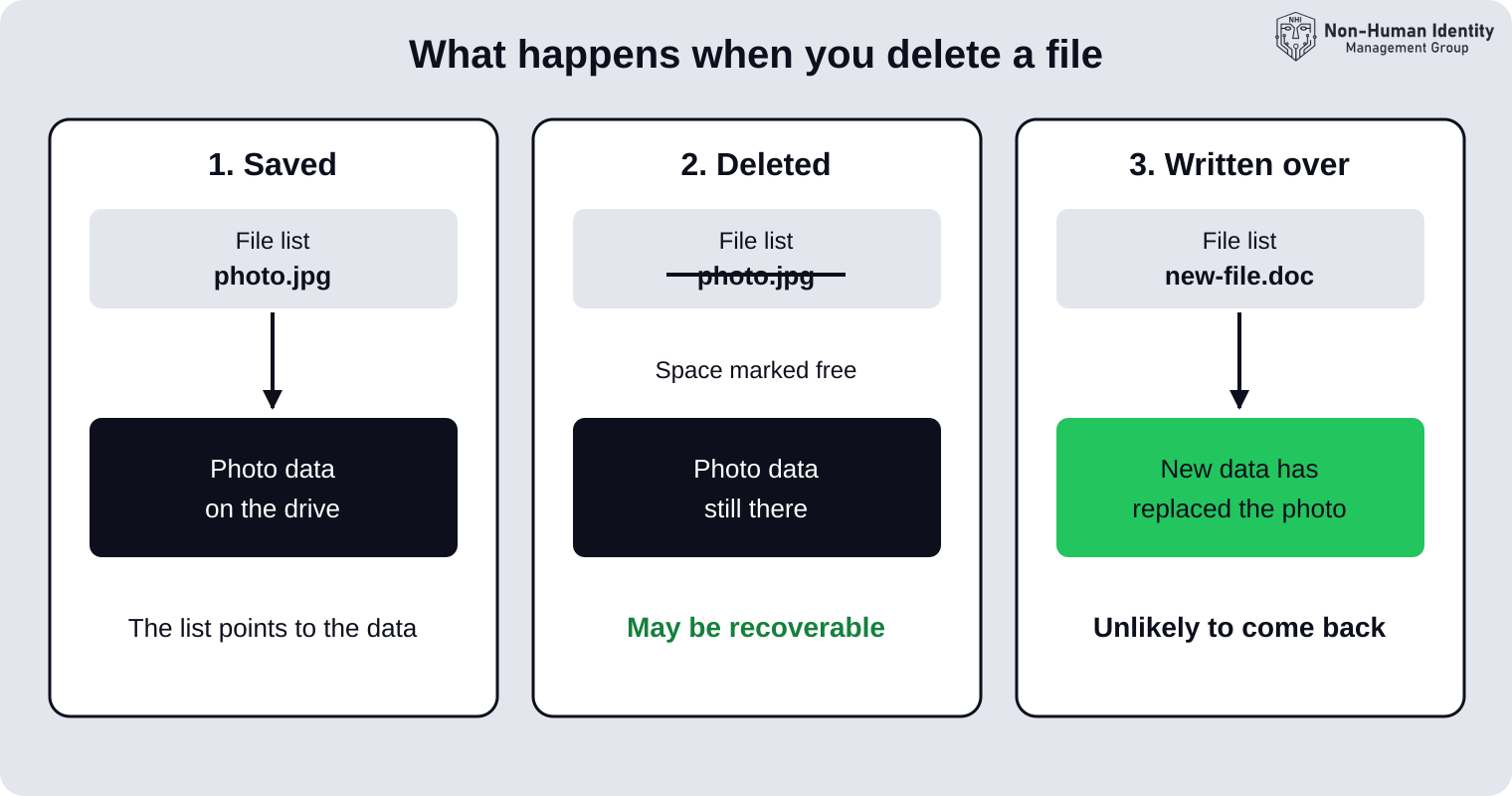
Think of a notebook with a contents page at the front. If you cross out a line on the contents page, you cannot find that chapter quickly any more. But the pages of the chapter are still there until you write over them.
Deleting a file often works the same way. The computer keeps a list of every file and where its data sits on the drive. When you delete a file, the computer usually removes it from the list and marks its space as free to reuse. The data itself may stay put for some time.[2]
Deleted file recovery is the work of finding that leftover data and turning it back into a usable file. Sometimes it is as easy as opening the Recycle Bin. Sometimes it needs a special tool that reads the drive piece by piece.
Where the comparison stops working: you can see writing on a notebook page. On a drive, nobody can see which free space still holds old data without a tool. And some drives quietly wipe free space on their own, which a notebook never does.
Why does it matter?
Lost files are one of the most common computer problems people face. The same fact that helps you get a file back also means a device you pass on can still hold your data.
If you use a computer or phone at home
What could happen: you delete family photos by mistake, then keep using the device and save over them.
Check this: do you know where your bin, your cloud bin and your backups are?
If you run a small business
What could happen: an old laptop is sold on, and the buyer recovers customer files that staff had deleted.
Check this: ask how your old devices are wiped before they leave the building.
If you are new to IT or forensics work
What could happen: you install a recovery tool on the same drive you want to recover, and it writes over the lost file.
Check this: put tools and recovered files on a different drive.
What does it look like?
Here is a made-up result screen from a recovery tool. It has just scanned a camera memory card. Tools look different, but most show these kinds of results.
Example only. All values are made up.
Scan of: EXAMPLE camera card (32 GB)
Found 214 files
  holiday_0001.jpg   Good                     (1)
  holiday_0002.jpg   Good
  file0000417.jpg    Good, name not found     (2)
  file0000418.mp4    Damaged                  (3)
Save recovered files to: [ choose another drive ]  (4)
- The tool found the file and its name, so it comes back as it was.
- The contents were found, but the name was lost. In a real screen, this line would show a number in place of the name.
- Part of this file was written over or stored in pieces, so it may not open.
- Recovered files go to a different drive, so they do not land on top of other lost files.
Why this is risky: saving results back to the same card is a trap. Each saved file could land on top of another lost photo.
The safer way: stop using the card or drive, scan it with a trusted tool and save the results somewhere else.
How does it work?
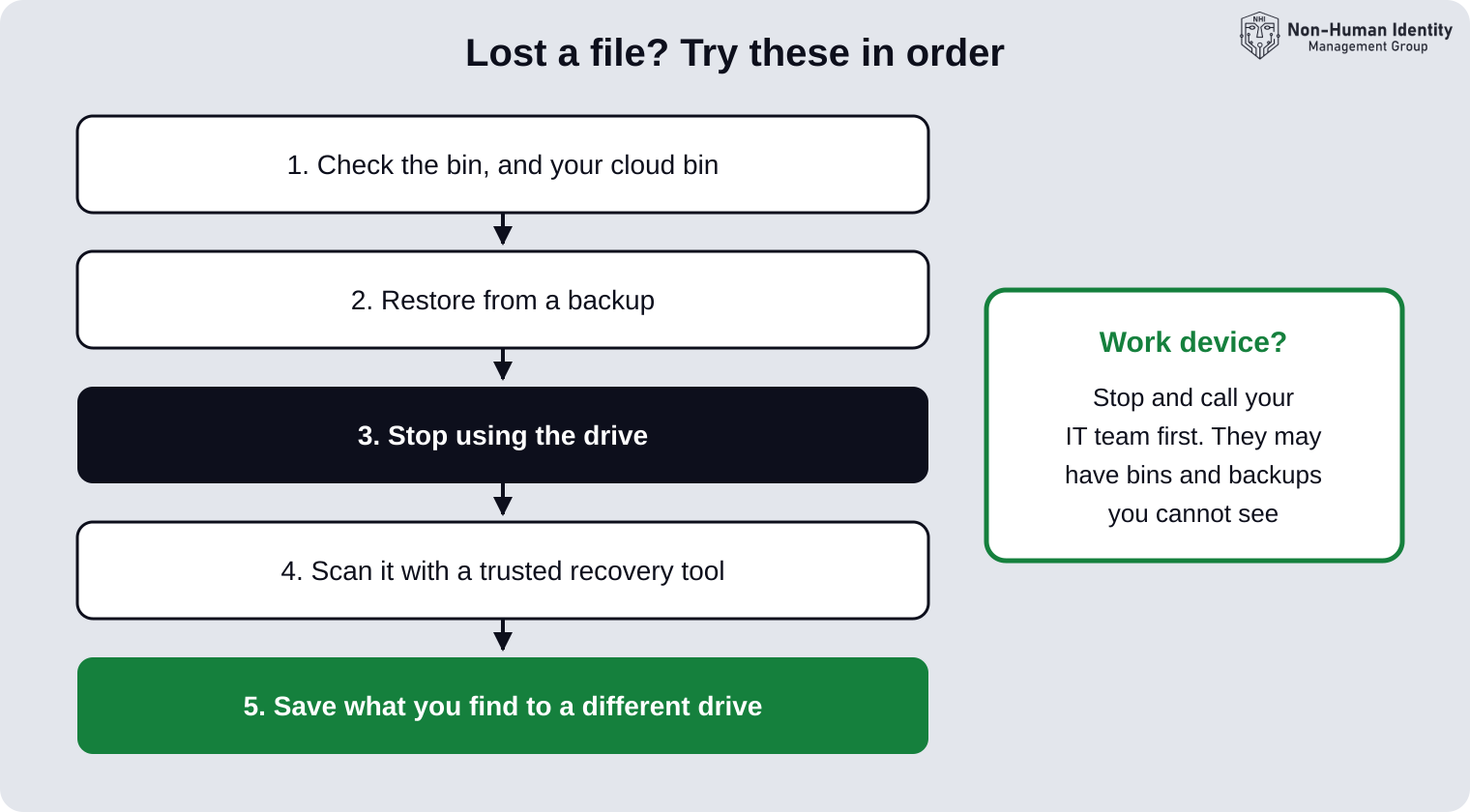
The steps below go from easiest to hardest. Most lost files come back at step 1 or 2.
- Look in the bin. On a computer, a deleted file usually goes to the Recycle Bin or Trash first. Cloud services have their own bin too. Microsoft OneDrive keeps deleted files for 30 days on personal accounts and 93 days on work or school accounts, which an administrator can change.[4]
- Restore from a backup. A backup is a separate copy of your files. For example, Apple's Time Machine can restore any or all files from its backup.[7]
- Stop using the drive. Any use of the computer can create new files, and those may write over the free space where your file sits.[1]
- Scan with a recovery tool. Some tools read the computer's file list for deleted entries. Others ignore the list and look through the raw data for the known start of a file type, such as a photo. This second method is called file carving.[2]
- Save to another drive. Microsoft's own tool needs the source and the destination to be different drives.[1] The makers of the free tool PhotoRec give the same warning.[2]
Two things lower the chances. The first is time and use: the longer you keep using the drive, the more free space gets reused. The second is the type of drive. A solid-state drive (SSD), the fast storage with no moving parts in most new laptops, often clears freed space in the background to stay fast. Microsoft warns that free space may already be overwritten, especially on an SSD.[1]
Files stored in pieces are also harder. PhotoRec's makers say recovery works best when a file's data sits in one run, and is less reliable when it is split up.[2]
Investigators use the same ideas. Forensic tools such as Autopsy, which is free, can recover deleted files from unused space on a drive.[3] They work on an exact copy of the drive, called a forensic image, so the original is not changed.
A worked example
Umar Osei takes photos at weddings at weekends. After a long Saturday, he puts the memory card back in his camera. Without thinking, he presses "format", which clears the card. Two hundred photos from Elif Ueda's wedding seem to be gone.
His first thought is to take a few test shots to check the camera still works. Then he stops. He remembers reading that new photos could land on top of the old ones. He takes the card out and puts it in a drawer.
He calls his friend Wren Novak, who works on an IT help desk. Wren asks two questions first. Is there a backup? No, Umar had not copied the card yet. Has anything been saved to the card since? No.
That evening Wren puts the card in a card reader on her laptop. She uses a free recovery tool that searches the raw data for the start of each photo. She sets it to save everything to an external drive, not to the card and not to her laptop.
The scan finds 196 photos that open normally. A few more come back damaged, and some short videos are missing. The file names are gone, so Wren and Umar sort the photos by the time stored inside each one.
Umar sends Elif her photos a day late, with an apology. He now copies every card to two places before he formats it. He also learns the other side of the lesson. Before he sells his old camera cards, he wipes them properly instead of just pressing format.
Myths and mistakes
| What people think | What is true |
|---|---|
| Once I empty the bin, the file has gone. | Often the data is still on the drive until it is written over.[2] |
| I should install a recovery tool on the same drive straight away. | Installing anything can write over the lost file. Use another drive or computer.[1] |
| Formatting a memory card wipes it clean. | A quick format often leaves the data behind. That is why tools can bring photos back from a formatted card.[2] |
| Recovery always works if I am quick. | Speed helps, but an SSD may clear freed space soon after deletion. Damaged or split files may only come back in part.[1] |
| Deleting my files is enough before I sell a device. | Pressing delete is not enough. Use a proper wipe or the device's full reset.[5][6] |
What can I do this week?
- Find the bin on your computer. Then find the deleted items area of your cloud storage.
- Check that your key files have a backup. Try opening one file from it.
- Write a short note to yourself: if I lose a file, stop using the drive.
- Before you sell or give away a device, look up how to wipe it properly.
- If you work in IT, practise with a free recovery tool. Use a spare card that holds only test files.
Checklist
- I know where the bin is on each device I use.
- I know how long my cloud service keeps deleted files.
- Important files have a backup on a separate device or service.
- I have tried restoring a file from my backup at least once.
- If I lose a file, I stop using that drive before doing anything else.
- Recovered files are saved to a different drive.
- Work devices go to the IT team, not a home recovery tool.
- Old devices are wiped properly before they are sold, given away or recycled.
Common questions
Can a permanently deleted file be recovered?
Often, yes, at least in part. Deleting usually removes the file's entry from the computer's list, not the data. Until new data is saved over that space, a recovery tool may find it. The chances drop with time, with use and on solid-state drives.
Why is recovery harder on an SSD?
Many solid-state drives clear space that has been freed, to keep the drive fast. Once that happens, the old data is usually gone. Microsoft warns that free space may already be overwritten, especially on an SSD, so recovery tools find less.
Should I pay a data recovery company?
Consider one if the files matter a lot, and especially if the drive is damaged, clicking or will not start. Do not keep trying tools on a failing drive, as that can make things worse. Ask for a clear price and what happens to your data.
What should I do if I deleted a work file?
Tell your IT team quickly and stop using the computer if they ask you to. Work files are often in a shared drive or cloud service with its own bin and backups. Installing your own recovery tool on a work device may break company rules.
Is it legal to recover deleted files?
Recovering your own files from your own device is normal. Recovering data from a device that belongs to someone else, or that you found or bought, raises privacy and legal questions. If in doubt, do not look, and take advice.
Where next?
Ready for the detail? Read the practitioner guide: Autopsy and The Sleuth Kit Guide. It goes further into recovering deleted files from a forensic copy, file carving settings and how investigators record what they find.
Also useful:
- Disk Imaging and Forensic Acquisition Guide
- Data Retention and Secure Deletion for Beginners
- Free Digital Forensics Tools for Beginners
- Types of Backup for Beginners
Related NHI Mgmt Group resources: File System Forensics Guide · Media Sanitisation Guide · Lost or Stolen Devices for Beginners
Key terms
- File carving
- Finding and rebuilding files from raw data on a drive, without using the list of file names.
- Overwriting
- Saving new data into space an old file used, which replaces the old data.
- Solid-state storage
- Storage with no moving parts, such as an SSD, which may clear deleted space by itself.
- Forensic image
- An exact copy of a drive that investigators examine, so the original is not changed.
- Data sanitisation
- Treating storage so that the data on it is very hard to recover.
- Digital forensics
- Finding, keeping and examining digital evidence to work out what happened.
Sources and further reading
- Recover lost files with Windows File Recovery. Microsoft Support, Microsoft. https://support.microsoft.com/en-us/windows/recover-lost-files-with-windows-file-recovery-61f5b28a-f5b8-3cc2-0f8e-a63cb4e1d4c4, accessed 28 Nov 2026.
- PhotoRec. CGSecurity. https://www.cgsecurity.org/wiki/PhotoRec, accessed 28 Nov 2026.
- Autopsy. Basis Technology / The Sleuth Kit. https://sleuthkit.org/autopsy/, accessed 28 Nov 2026.
- Restore deleted files or folders in OneDrive. Microsoft Support, Microsoft. https://support.microsoft.com/en-us/office/restore-deleted-files-or-folders-in-onedrive-949ada80-0026-4db3-a953-c99083e6a84f, accessed 28 Nov 2026.
- Secure sanitisation of storage media. National Cyber Security Centre (UK). https://www.ncsc.gov.uk/guidance/secure-sanitisation-storage-media, accessed 28 Nov 2026.
- NIST SP 800-88 Rev. 2, Guidelines for Media Sanitization. National Institute of Standards and Technology, September 2025. https://csrc.nist.gov/pubs/sp/800/88/r2/final, accessed 28 Nov 2026.
- Back up your Mac with Time Machine. Apple Support, Apple. https://support.apple.com/en-us/104984, accessed 28 Nov 2026.