Discovery is the look-around an intruder does after getting in, to learn what they can reach.
This guide is for anyone who wants to know what happens in the minutes and days after a break-in, and how defenders can spot it. You do not need to be technical to be affected: if one staff computer or one software account is taken over, discovery is usually what comes next.
In short
- After getting in, attackers often ask simple questions first: which account am I, what can it do, and what else is here?
- They often use tools already built into the computer, so the activity can look like normal admin work.
- One check on its own is usually harmless. A sudden burst of them from an unexpected account is a warning sign.
- Defenders spot it by knowing what normal looks like, keeping records and asking quickly when the pattern changes.
What you will learn
- Explain what attacker discovery is in one sentence.
- Name the five questions an intruder often asks first.
- Spot the difference between normal admin work and an unusual look-around.
- Check that your computers keep the records defenders need.
- Look-around (discovery)
- an intruder gathering facts about the computer and network they have broken into.
- Built-in tools
- programs that come with the computer, which admins and attackers can both use.
- Normal pattern (baseline)
- a record of what usual activity looks like, so odd activity stands out.
What is attacker discovery?
Think of a stranger who slips into an office building after hours. Before taking anything, they read the staff list, check which doors their pass opens and look at the floor plan.
Discovery is that same step in a cyber attack. The attacker has already got in, perhaps through a stolen password or a bad link. Now they want to learn about the computer and the network around it. That helps them decide what to do next.[1]
It is different from network scanning from the outside, which happens before anyone gets in. Discovery happens inside. It often comes just before lateral movement, which means moving from the first computer to others.
Where the comparison stops working: a stranger in a building may be seen by a guard. On a computer, the attacker uses the same tools that real staff use every day, so their look-around can blend in.
Why does it matter?
Discovery is often one of the first things an intruder does inside, so it is one of the first chances to catch them. A widely used public list of real attacker behaviour names 34 separate discovery techniques.[1]
If you look after IT for a small firm
What could happen: an intruder lists every staff and admin account in minutes, and nobody sees it.
Check this: make sure your computers record which programs run, and that someone looks at those records.
If you are new to security work
What could happen: you dismiss an alert because the tool involved is a normal Windows program.
Check this: ask who ran it, from which computer, and whether that is usual for them.
If you manage cloud or software accounts
What could happen: someone uses a leaked software key to ask the cloud what it can reach.
Check this: give each software account only the access its job needs, so there is less to find.
What does it look like?
Security tools can raise an alert when one account asks lots of look-around questions in a short time. Here is a made-up alert, written in plain words.
Example only. All values are made up.
ALERT-EXAMPLE-0000   Unusual look-around activity
Computer:  RECEPTION-PC-EXAMPLE
Account:   [email protected]
09:02  Asked which account it is using        (1)
09:03  Listed all staff accounts              (2)
09:04  Listed the admin groups                (3)
09:06  Listed other computers on the network  (4)
Usual for this account?  No                   (5)
- A built-in Windows program called whoami shows the user name, groups and permissions of the account in use.[3]
- In a real screen, this line would name the program that listed the accounts.
- Admin groups show which accounts hold the most power.
- A map of other computers helps the intruder choose where to go next.
- This is the key line. The same checks from an IT admin's computer might be normal.
Why this is risky: each check is small. Together, in four minutes, from a reception computer, they look like someone getting their bearings.
The safer way: keep records of which programs run, and know what normal looks like. When a pattern like this appears, ask the account owner quickly.
How does it work?
Attacks differ, but the look-around often follows the same questions.
- Who am I? The attacker checks which account they have and which groups it belongs to.[3]
- What can I do? They check the account's permissions, to see if it can change settings or reach other computers.
- Who else is here? They list staff and admin accounts, looking for powerful ones to target.[1]
- What else is here? They list other computers, shared folders and running services on the network.[1]
- Where is the data? They look for files, databases and cloud storage worth stealing or locking.
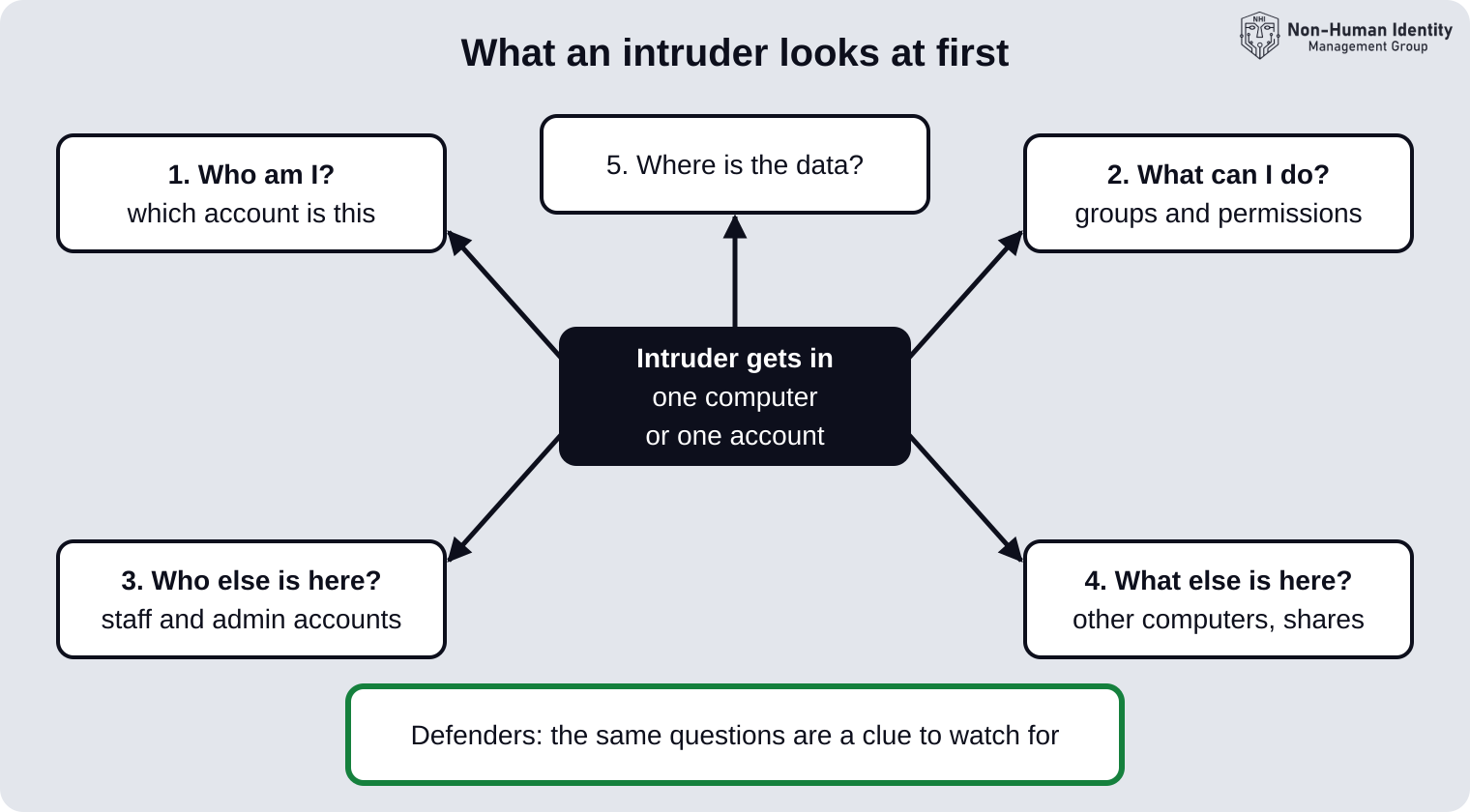
Attackers often answer these questions with programs that are already on the computer. This is called living off the land. In 2024, US agencies and partners, including the UK's National Cyber Security Centre, warned about a state-backed group called Volt Typhoon. They said it used built-in tools to list users, groups, systems and services, and rarely used malware.[2]
The same thing can happen with software accounts in the cloud. Say someone steals a key that belongs to a non-human identity (NHI), such as a service account. They may use it to ask the cloud which services and storage it can reach.[1]
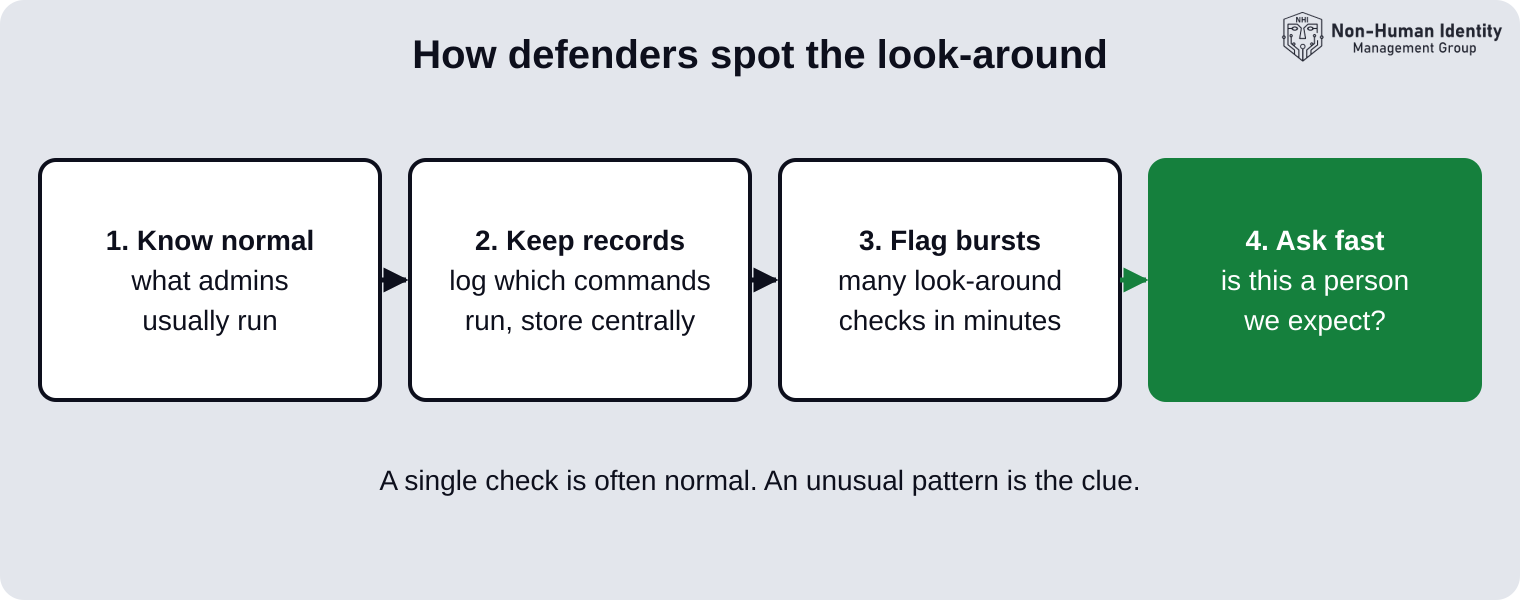
The Volt Typhoon advice tells defenders to keep logging switched on and stored in one central place. It also says to keep a baseline of normal software, account behaviour and network traffic, so odd activity stands out.[2]
A worked example
Gideon Osei looks after IT for a small, fictional accountancy firm with twenty staff. The firm pays a security company to watch its alerts. Reza Yilmaz is the analyst on shift.
At 9:10 one morning, Reza sees an alert like the one above. The reception computer has listed every staff account, the admin groups and the other computers on the network, all in four minutes.
Reza thinks of the stranger reading the staff list. A receptionist has no reason to do this. He calls Gideon.
Gideon walks to reception. The receptionist says she opened an invoice from an email an hour earlier, and the file did nothing she could see.
Following the firm's plan, Gideon unplugs the computer from the network. Reza checks the records for the same account on other computers. He finds no sign in the records available to him that it reached them.
Next, Gideon resets the receptionist's password and asks the security company to examine the computer. They find a harmful program from the invoice and remove it.
Last, Gideon checks the admin groups. Two old accounts from a past supplier are still there, so he removes them.
Gideon later tells the team that the alert was useful because it came early, before the intruder moved on.
Myths and mistakes
| What people think | What is true |
|---|---|
| Attackers need special hacking tools. | Many use programs already on the computer, which can blend in with normal work.[2] |
| We should block every built-in admin tool. | IT staff need many of them. Limit who can run them and watch for unusual use. |
| One "who am I" check means we are under attack. | One check is usually harmless. Look for a burst of checks from an unexpected account or computer. |
| Discovery only happens on office computers. | It also happens in the cloud, using stolen keys for software accounts.[1] |
| If no files were taken, nothing happened. | A look-around can be an early sign. Treat it as a reason to check further. |
What can I do this week?
- Check that your computers keep records of which programs run, and that those records are kept somewhere central.
- Ask your IT team or supplier who would see an alert like the one above, and how fast.
- Review your admin groups and remove accounts that are no longer needed.
- Check that software accounts and keys have only the access they need.
Checklist
- Computers keep records of programs run and sign-ins.
- Records are stored centrally, where an intruder cannot easily delete them.
- Someone knows what normal admin activity looks like.
- Alerts flag bursts of look-around checks from unusual accounts.
- Admin groups are small and reviewed regularly.
- Software accounts have only the access their job needs.
- There is a simple plan for what to do when an alert appears.
Common questions
Is discovery the same as reconnaissance?
Not quite. Reconnaissance usually means research done from the outside, before an attack, such as reading a firm's website or scanning its internet-facing systems. Discovery is the look-around done from the inside, after the attacker has already got in.
Why don't companies just block these tools?
Because IT staff use the same tools every day to run the network. Blocking them all would break normal work. A better approach is to limit who can run them, keep records and look for use that does not fit the usual pattern.
How quickly do attackers do this?
It varies. Some look around soon after getting in. Others move slowly over days or weeks to avoid notice. That is why keeping records over time matters, not only watching live alerts.
Can discovery be done with a stolen software key?
Yes. If a key for a software account leaks, someone may use it to ask a cloud service what the key can reach. Giving each software account only the access it needs limits what they can find. Watching for unusual use of the key helps too.
What is MITRE ATT&CK?
It is a free, public list of the ways real attackers behave, grouped into stages such as getting in, looking around and moving on. Defenders use it to plan what to watch for. See MITRE ATT&CK for Beginners.
Where next?
Ready for the detail? Read the practitioner guide: ATT&CK Discovery Tactic Guide. It goes further into each discovery technique, the records that show them and how to tune alerts so normal admin work does not drown out real warnings.
Also useful:
- T1018 Remote System Discovery
- T1087 and T1069 Account and Permission Group Discovery Defensive Guide
- Lateral Movement for Beginners
- Cyber Kill Chain for Beginners
- EDR, XDR and MDR for Beginners
Related NHI Mgmt Group resources: Discovery and Reconnaissance Techniques Guide · T1033 System Owner/User Discovery · Living off the Land Guide
Key terms
- Discovery
- The look-around an intruder does after getting in, to learn about the system and network.
- Reconnaissance
- Research about a target, often done from the outside before an attack.
- Living off the land
- Using tools already on a computer to carry out an attack, so it looks like normal activity.
- Lateral movement
- An intruder moving from the first computer or account they reached to others.
- Privilege escalation
- Getting more access than the account was first given.
- Endpoint detection and response
- Software on each computer that records activity and flags suspicious behaviour.
- SIEM
- A system that gathers security records in one place and raises alerts.
Sources and further reading
- Discovery, Tactic TA0007. MITRE ATT&CK Enterprise (v20), The MITRE Corporation. https://attack.mitre.org/tactics/TA0007/, accessed 28 Nov 2026.
- PRC State-Sponsored Actors Compromise and Maintain Persistent Access to U.S. Critical Infrastructure (AA24-038A). CISA, NSA, FBI and partners, 7 February 2024 (updated 7 March 2024). https://www.cisa.gov/news-events/cybersecurity-advisories/aa24-038a, accessed 28 Nov 2026.
- whoami. Windows Commands, Microsoft Learn, Microsoft. https://learn.microsoft.com/en-us/windows-server/administration/windows-commands/whoami, accessed 28 Nov 2026.