Malvertising is a harmful online advert, and a drive-by download is harm picked up just by visiting a website.
This guide is for anyone who searches the web, downloads apps or runs a small business. You do not need to be careless to be caught: these tricks sit on search pages and websites that people use every day.
In short
- Criminals pay for search adverts that look like a real brand, then send you to a copy of its website.
- The copy offers a download that looks right but carries harmful software, called malware.
- A hacked or harmful website can also try to attack an out-of-date browser while you read the page.
- Type known web addresses yourself, get apps from the official site or app store, and keep your browser updated.
What you will learn
- Explain what malvertising and drive-by downloads are in plain words.
- Spot a search advert that may lead to a fake website.
- Check that your browser and computer are set up to warn you and update themselves.
- Know what to do first if you think you have downloaded something harmful.
- Harmful software (malware)
- a program made to damage a device, spy on it or steal from it.
- Harmful advert (malvertising)
- an online advert that leads to a fake site or to malware.
- Infection by visiting (drive-by download)
- harmful content that reaches a device because someone opened a web page.
What are drive-by downloads and malvertising?
Think of a fake shop sign hung on a real high street. It looks like the shop you wanted, so you walk in. Inside, the goods are not what they seem.
Malvertising works like that sign. Criminals buy adverts that show up at the top of search results. The advert uses a name and web address that look almost like a real company's. It leads to a copy of that company's site.
A drive-by download is a close cousin. Here the trap is in the website itself. A real site may have been hacked, or the site may have been built to cause harm. Code hidden in the page can try to break in through a weak spot in an old browser. Your browser is the app you use to visit websites, such as Chrome, Edge, Firefox or Safari.
Both tricks often end the same way: harmful software, called malware, ends up on the device.
Where the comparison stops working: a fake shop has to sit somewhere you can walk past. A fake advert can be shown to one person and hidden from the next, so it can be hard for anyone to spot and report.
Why does it matter?
Most people trust the top of a search page. The US Federal Bureau of Investigation (FBI) has warned about these fake adverts. They can appear at the very top of results and look very like the real ones.[1]
If you use a computer at home
What could happen: you search for a free app, click the top advert and install a copy that steals your saved passwords.
Check this: look at the web address before you click, and download apps only from the maker's own site or the app store.
Next: Malware for Beginners
If you bank or shop online
What could happen: an advert sends you to a fake bank or crypto login page, and you type in your details.
Check this: type your bank's address yourself or use its app, not a search advert.
If you run a small business
What could happen: one staff member installs a fake tool, and the criminals reach your email or files from there.
Check this: tell staff where to get the apps you use, and who to ask before installing anything new.
If your business has a well-known name
What could happen: criminals copy your name and website in adverts, and your customers get tricked.
Check this: publish one clear page that says where your official downloads live.
What does it look like?
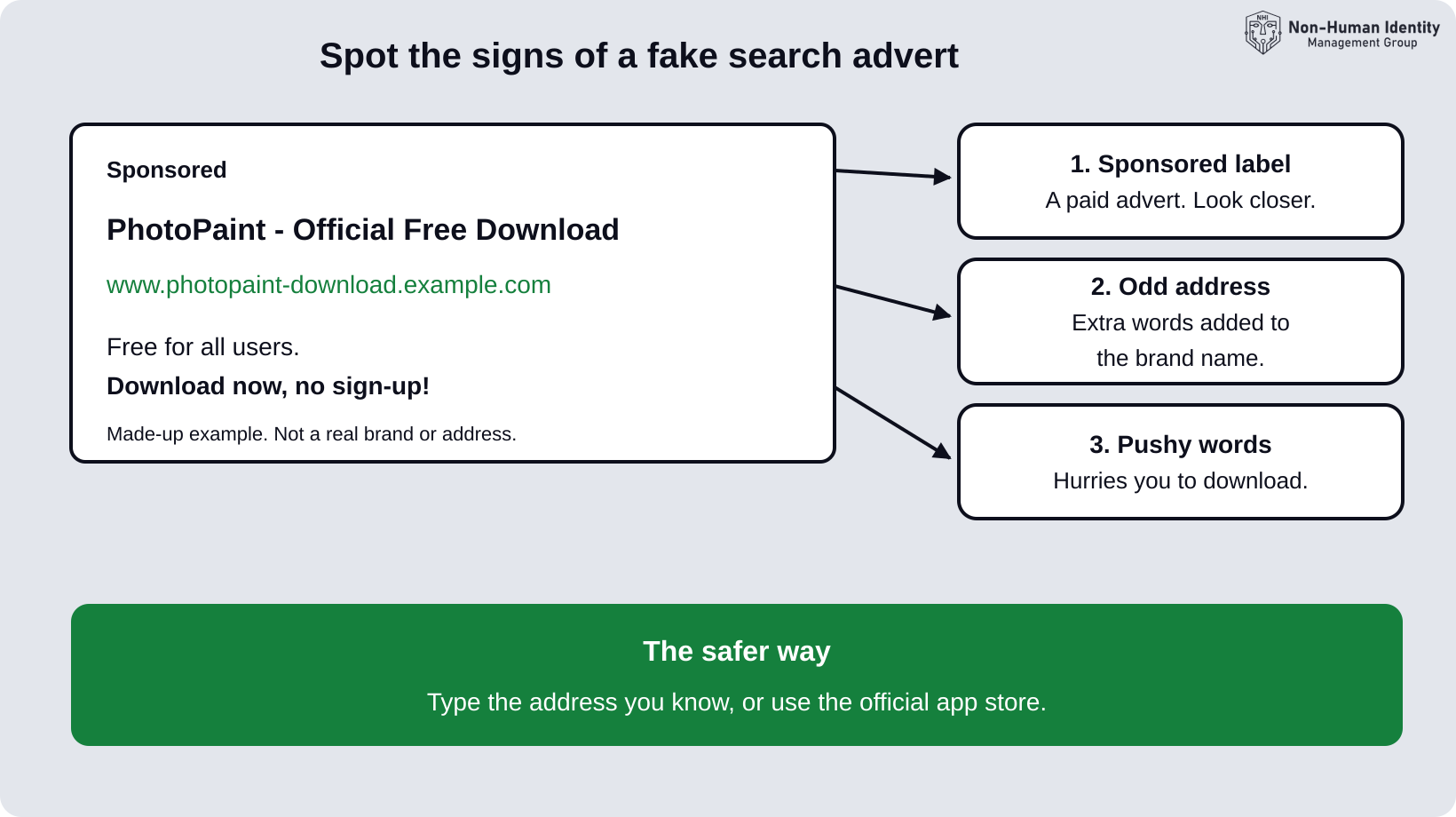
Here is a made-up search page. The person searched for a free photo editor.
Example only. All values are made up.
Search: free photo editor download

Sponsored                                   (1)
PhotoPaint - Official Free Download
www.photopaint-download.example.com         (2)
Free for all users. Download now, no sign-up! (3)

PhotoPaint - Home
www.photopaint.example                      (4)
The free photo editor. Download for Windows and Mac.
- A label saying the result is a paid advert. Many adverts are genuine, so this is a reason to look closer, not proof of a scam.
- The web address has extra words added to the brand name. In a real screen, this line would contain the address the advert leads to.
- Pushy wording that hurries you to download.
- The ordinary result below, with the plain brand address you may already know.
Why this is risky: the advert sits at the top and looks official, but its address is not quite the brand's own.
The safer way: skip the advert, go to the address you know or the app store, and download from there.
How does it work?
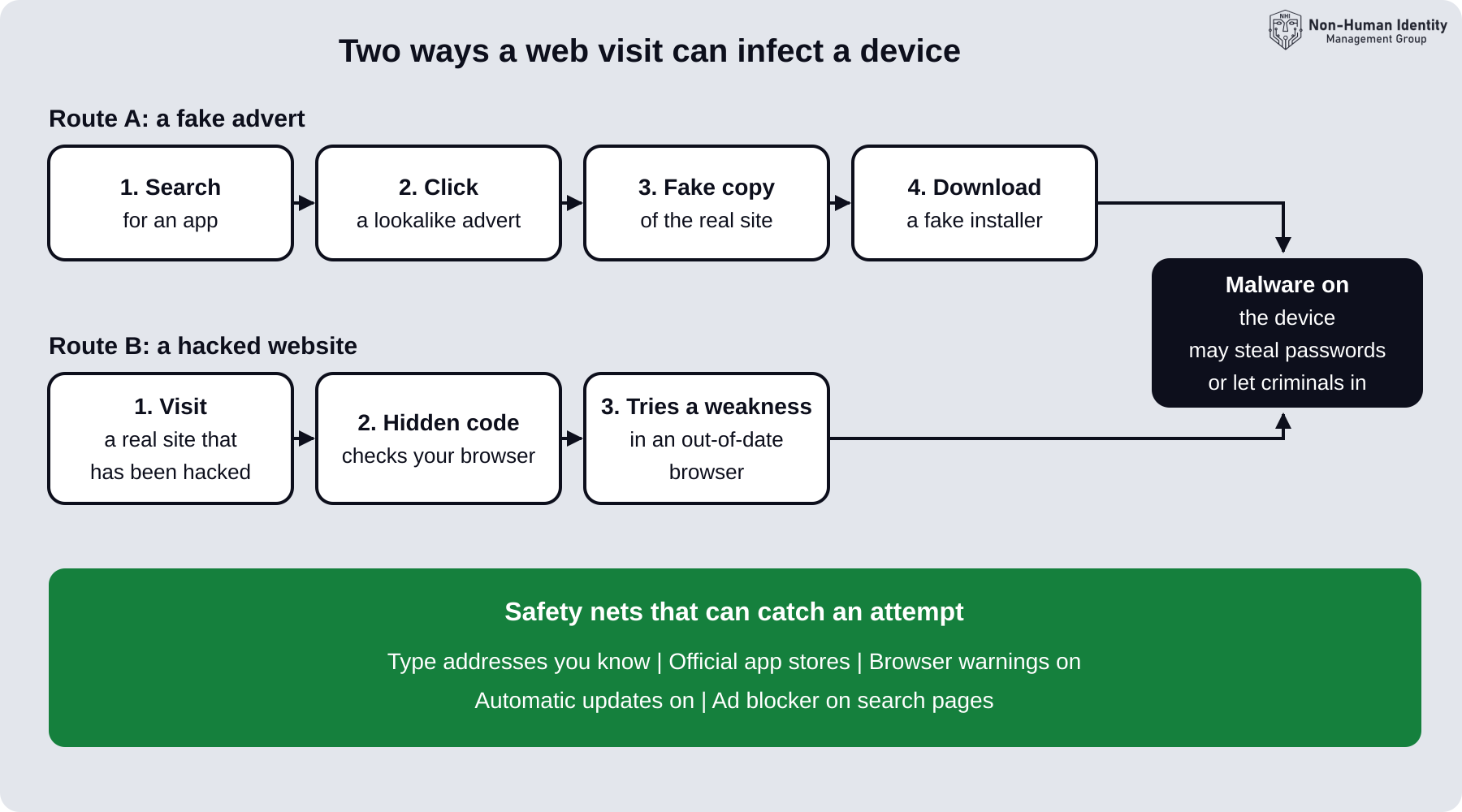
There are two common routes. The first starts with an advert. The second starts with a website.
- The bait. Criminals buy a search advert with a lookalike web address, or they hack a real website and hide code in it.[1][2] Advert networks ban both, and say they suspend accounts that spread malware, but some adverts can get through before they are caught.[3]
- The visit. You click the advert or open the hacked page. The fake site often looks the same as the real one.[1]
- The trick or the break-in. On a fake site, you are asked to download an installer, the file that sets up a program. On a hacked page, hidden code can check for an out-of-date browser and try to use a known weakness in it.[2]
- The payload. If it works, malware runs on the device. It may steal passwords, spy on you or let criminals back in later.
- The safety nets. Browser warnings, up-to-date software and ad blockers can catch some attempts at each step.[2][4]
Many browsers use warning lists. Google's Safe Browsing lists flag sites known to host malware or to trick people.[5] Microsoft's SmartScreen is built into Windows and the Edge browser. It checks sites and downloads against lists of known bad ones. It also warns about files it has not seen often.[4] These warnings help, but they only know about threats someone has already reported or rated.
A worked example
Farah Novak runs the office at Heron Brewery, a small made-up business with eight staff. She needs a free tool to merge two PDF files for a supplier.
She searches for a well-known PDF tool. The top result is marked Sponsored. It has the right logo and says "Official Free Download".
Farah moves her mouse over the link and looks at the address. It has the brand's name, but with extra words added on. That feels odd. The brand's own site appears further down, with a short, plain address.
She skips the advert and opens the plain result. Even there, she checks that the download comes from the brand's own address. The file downloads, and Windows shows no warning.
Out of interest, she tells the brewery's IT helper, Vik Jovanovic. He looks up the lookalike address in a safe way. It has been flagged by browser warning lists as a site that spreads malware.
Vik makes two small changes. He puts a short note on the shared drive listing where to download the five apps the team uses. He also checks that every office computer installs updates by itself and has browser warnings switched on.
A week later, a colleague asks where to get a new app. Farah points him to the note. Nobody on the team clicked the fake advert, as far as the records available show. That is the kind of quiet result good habits aim for.
Myths and mistakes
| What people think | What is true |
|---|---|
| The top search result must be the real company. | The top result may be a paid advert. Criminals can buy those too.[1] |
| I only get malware if I open a dodgy email. | A fake download or a hacked website can also deliver it.[2] |
| Well-known websites are always safe. | A real site can be hacked without its owner knowing.[3] Updates and warnings still matter on trusted sites. |
| A padlock in the address bar means the site is genuine. | The padlock means the connection is scrambled. A fake site can have one too. Check the address itself. |
| Updates can wait until it is convenient. | Updates fix known weak spots that hidden page code looks for. Turn on automatic updates.[6] |
What can I do this week?
- Turn on automatic updates for your computer, phone and browser.[6]
- Save bookmarks for your bank, email and the apps you use, and use them instead of searching.
- Check that your browser's safety warnings are switched on.
- Think about an ad blocker for search pages. The FBI suggests one as a way to avoid fake search adverts.[1]
- At work, write down where staff should get each app you use.
Checklist
- My computer and phone install updates automatically.
- My browser is up to date and its safety warnings are on.
- I look at the web address before I click a search advert.
- I use bookmarks or type the address for my bank and email.
- I get apps from the maker's own site or an official app store.
- I do not run a download that a browser has warned me about.
- My team knows where our approved apps come from.
- I know who to ask if I think I installed something harmful.
Common questions
Can I get malware without clicking anything?
Sometimes, yes. Hidden code on a hacked page can try to use a weak spot in an out-of-date browser. This is less likely when your browser and computer are fully updated, which is why automatic updates matter so much.[2] Fake adverts, by contrast, need you to download and run a file.
Are all search adverts dangerous?
No. Most search adverts are genuine businesses paying to be seen. The FBI notes that adverts are not harmful in themselves. The risk is that a fake one looks like the real thing. Check the address, or skip adverts when you download software or log in.
What is a fake update?
It is a pop-up on a website that says your browser or app needs updating, with a button to download the fix. Real browser updates come from the browser itself or its settings, not from a random web page. Close the page and update from the browser's own menu.
What should I do if I think I installed something harmful?
Disconnect from the internet, then run a full scan with your security software. The UK's National Cyber Security Centre says to update the device first, then scan, and to wipe and reinstall if the scan cannot clean it.[7] Then change passwords from a different, clean device.
Do ad blockers help?
They can. Blocking adverts on search pages means fake adverts are less likely to reach you. A US-based list of attack defences also notes that ad blockers can stop some harmful advert code from running.[2] Use a well-known blocker from your browser's official store.
Where next?
Ready for the detail? Read the practitioner guide: Malvertising and SEO Poisoning Guide. It goes further into how criminals push fake sites up search rankings, how security teams detect these campaigns and which company-wide controls help.
Also useful:
- Drive-by Downloads Guide
- Watering Hole Attacks for Beginners
- Fake CAPTCHA and ClickFix Attacks for Beginners
- Ad Blockers for Beginners
- Browser Security for Beginners
Related NHI Mgmt Group resources: SocGholish and Fake Browser Update Malware Guide · Malware for Beginners · Software Updates at Home for Beginners
Key terms
- Malware
- Software made to harm a device, spy on it or steal from it.
- Malvertising
- Online adverts used to send people to fake sites or harmful downloads.
- Drive-by download
- Harmful content that reaches a device because someone visited a web page.
- SEO poisoning
- Tricks that push a harmful page higher in ordinary search results.
- Typosquatting
- Using a web address that looks like a real one, often with a small spelling change.
- Fake update
- A pop-up that pretends to offer a software update but delivers malware.
- Ad blocker
- A browser add-on or setting that stops adverts from loading.
Sources and further reading
- Cyber Criminals Impersonating Brands Using Search Engine Advertisement Services to Defraud Users (I-122122-PSA). Federal Bureau of Investigation, Internet Crime Complaint Center, 21 December 2022. https://www.ic3.gov/PSA/2022/PSA221221, accessed 28 Nov 2026.
- Drive-by Compromise, T1189. MITRE ATT&CK, The MITRE Corporation. https://attack.mitre.org/techniques/T1189/, accessed 28 Nov 2026.
- Abusing the ad network. Google Ads policies, Google. https://support.google.com/adspolicy/answer/6020954, accessed 28 Nov 2026.
- Microsoft Defender SmartScreen. Microsoft Learn, Microsoft. https://learn.microsoft.com/en-us/windows/security/operating-system-security/virus-and-threat-protection/microsoft-defender-smartscreen/, accessed 28 Nov 2026.
- Google Safe Browsing. Google for Developers, Google. https://developers.google.com/safe-browsing, accessed 28 Nov 2026.
- Install the latest software and app updates. National Cyber Security Centre (UK). https://www.ncsc.gov.uk/collection/top-tips-for-staying-secure-online/install-the-latest-software-and-app-updates, accessed 28 Nov 2026.
- Hacked device: action to take. National Cyber Security Centre (UK). https://www.ncsc.gov.uk/guidance/hacked-device-action-to-take, accessed 28 Nov 2026.