An internet-exposed device is a camera, router or controller that strangers can reach over the internet.
This guide is for small business owners, students and anyone who has heard of Shodan and wondered what it finds. You do not need to be technical to be affected: if your shop, surgery or office has a camera recorder, a smart alarm or a heating controller, its settings decide who can reach it.
In short
- Search tools such as Shodan check internet addresses and list the devices that reply.
- A device that replies to anyone, and still has its factory password, is easy to take over.
- Most devices only need to be reached from inside your own network or through a secure app.
- Turn off remote access you do not use, change default passwords and keep the device updated.
What you will learn
- Explain how strangers find devices on the internet.
- Spot the settings that leave a camera or controller open to the world.
- Check, with your installer, which of your devices can be reached from outside.
- Ask for a safer way to reach a device from home.
- Reachable from anywhere (internet-exposed)
- a device that answers when someone on the internet tries to connect.
- Factory password (default password)
- the password a device comes with, often printed in the manual.
- Device search engine (Shodan)
- a website that checks internet addresses and lists what replies.
What is an internet-exposed device?
Think of a key safe fixed to the outside wall of a building. Anyone walking past can try the buttons. If it still has the code it came with, a stranger may open it quickly.
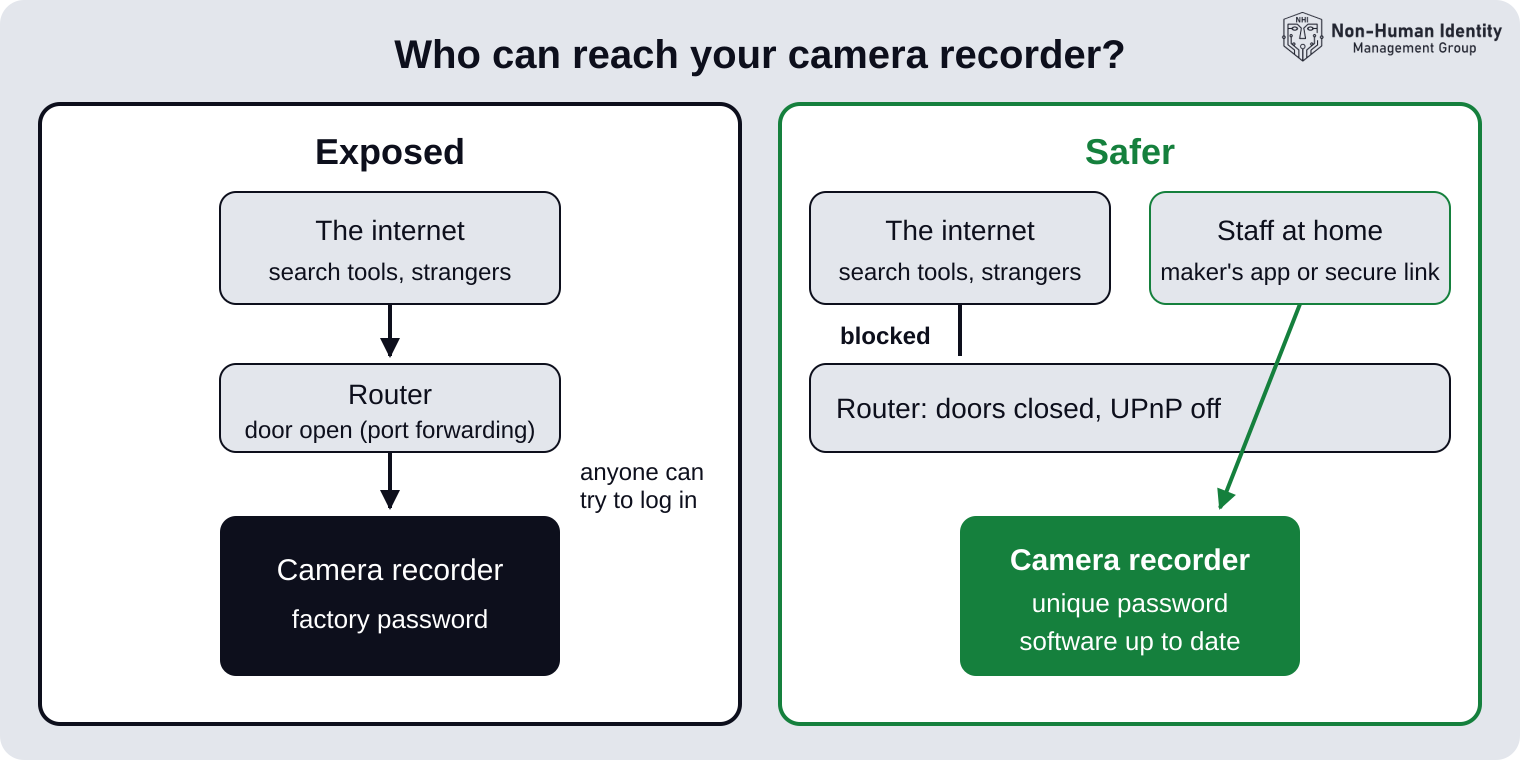
An internet-exposed device is like that key safe. It might be a camera recorder, a door entry system, a router or a controller that runs a pump or a boiler. Normally only people in the building, or a secure app, should be able to talk to it. It is exposed when it answers anyone on the internet who knocks.
Devices listen on numbered "doors" called ports. A router setting called port forwarding (a rule that passes outside traffic through to one device inside) can open a door to the street. Some routers can also open doors on their own, using a feature called UPnP (short for Universal Plug and Play).[4]
Where the comparison stops working: you can see a key safe on a wall. You cannot see an exposed device from inside the building. It works normally, so the owner may not know that the whole internet can reach it.
Why does it matter?
Nobody has to hunt for exposed devices by hand. The US government's cyber security agency says that weak spots such as default passwords and old software can be found using public search platforms. It names Shodan, Censys and Thingful.[2]
If you run a small business
What could happen: a stranger watches your shop cameras, or changes your alarm or heating settings.
Check this: ask your installer, in writing, which of your devices can be reached from the internet, and why.
If you have smart devices at home
What could happen: a camera with its factory password is viewed by someone you do not know.
Check this: change the default password and turn off remote viewing if you do not use it.
If you are a student or new to IT work
What could happen: you open a router door "just to test" a project, and forget to close it.
Check this: keep a list of every port forwarding rule you add, and remove it when you are done.
If you look after building or site equipment
What could happen: a controller for a pump, boiler or gate is changed by someone outside.
Check this: ask whether any controller has a public internet address or a modem fitted by a supplier.
What does it look like?
Shodan describes itself as a search engine for internet-connected devices. It records the short greeting, called a banner, that a device sends back when contacted.[1] Here is a made-up summary of the kind of entry such a search might show.
Example only. All values are made up.
Address ........ 192.0.2.25 (example range)
Open door ...... port 8080                       (1)
Device ......... video recorder, model EXAMPLE-0000  (2)
Login page ..... "Welcome. Default user: admin"  (3)
Location ....... Example Town (approximate)      (4)
- In a real screen, this line would show the numbered door that answered from the internet.
- In a real screen, this line would often name the make and model, which tells a stranger what to try.
- In a real screen, a greeting like this can hint that the factory login is still in use.
- Search tools often guess a rough location from the address.
Why this is risky: anyone can see this without logging in. If the factory password still works, the next step for a stranger is simply to try it.
The safer way: the recorder answers only on the local network. Staff view it from home through the maker's app or a secure connection, with a unique password and, where offered, a second sign-in step.
How does it work?
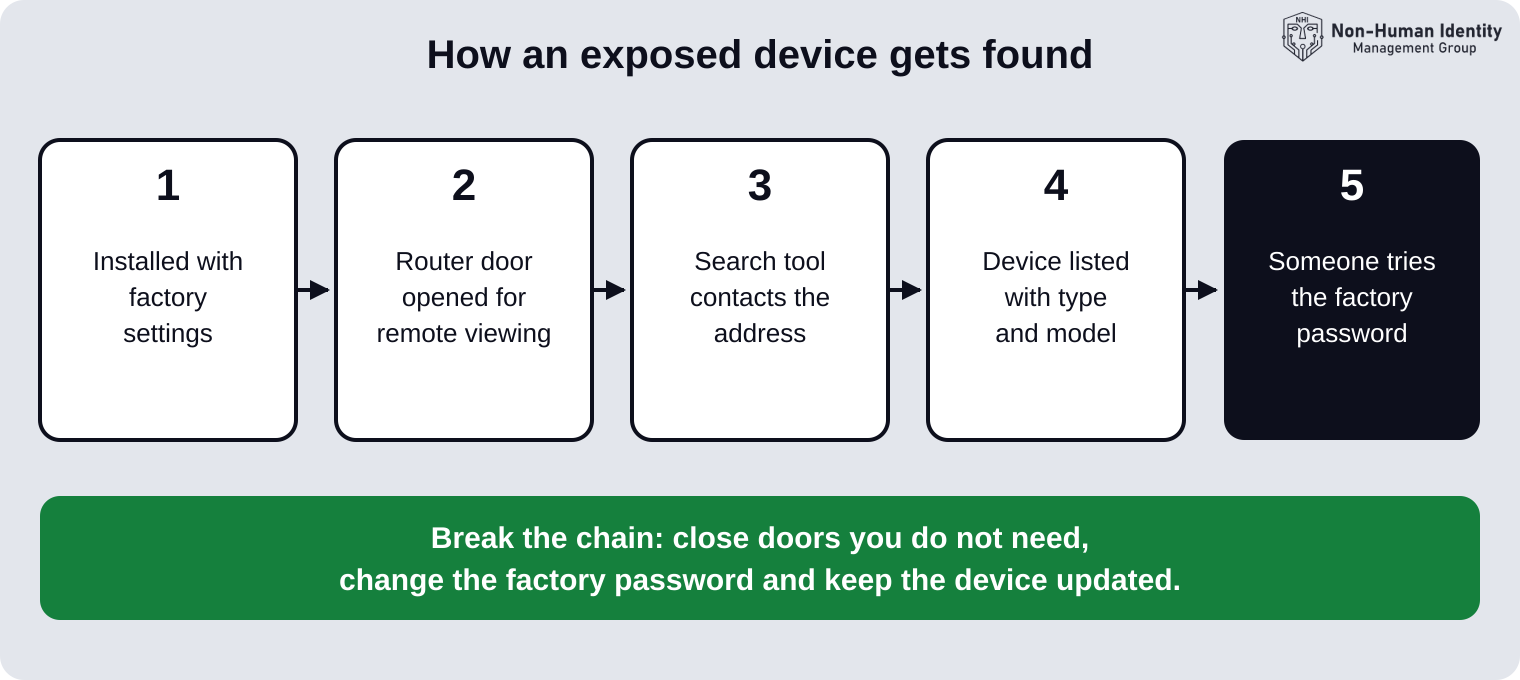
Here is how a device usually goes from "on the shelf" to "on the search results".
- The set-up. A camera, recorder or controller is installed with its factory settings.
- The open door. Someone adds a port forwarding rule so they can check it from home, or the router opens one by itself through UPnP.
- The scan. Search services contact internet addresses and record what replies.[1]
- The listing. The device appears with its type and, often, its model and software version.
- The try. Someone tries the factory password, or keeps guessing until one works. This repeated guessing is called a brute force attack.
- The fix. The owner closes the door, changes the password and updates the device. Where remote access is truly needed, they use a secure connection instead.[2]
This is not only a problem for homes and shops. US agencies reported that, in 2023 and 2024, attackers took over at least 75 industrial controllers in the US. At least 34 were in the water sector. The devices were reachable from the internet with a default password or no password.[3]
A worked example
Idris Quist runs Cedar Dental, a fictional dental practice with eight staff. A local firm fitted cameras in the waiting room and car park three years ago.
Idris asks Leila Falk, who helps with the practice's IT, to do a quick check of anything that might face the internet. He remembers the key safe on the wall: easy to use, and easy for anyone else to try.
Leila logs in to the practice router. She finds a port forwarding rule that sends outside traffic to the camera recorder. Nobody at the practice remembers asking for it. She also sees that UPnP is switched on.
Next, she checks the recorder. It still uses the login from the manual. The installer had set it up so the old practice manager could watch the cameras from home.
Idris and Leila agree a plan. First, Leila changes the recorder password to a long, unique one. Then she removes the port forwarding rule and turns off UPnP, after checking that the card machine and phones still work.
She updates the recorder's software and sets up the maker's app for Idris, with its second sign-in step turned on. Last, she checks the recorder's log for unknown logins. She sees no unknown logins in the records available to her, though the recorder only keeps a few weeks.
Idris emails the installer to ask which other sites they set up the same way. He adds "tell us before opening anything to the internet" to the next contract.
Myths and mistakes
| What people think | What is true |
|---|---|
| Nobody would bother looking for my little camera. | Search tools scan addresses automatically. They do not pick targets by size.[1] |
| If it works, it must be set up safely. | An exposed device works normally. Being reachable from the internet does not show on the device. |
| A strange port number keeps it hidden. | Changing the port can reduce casual attempts, but scanners check many ports. Close the door or protect it properly. |
| Changing the password fixes everything. | It helps a lot. Also close doors you do not need and install updates, because old software can have its own weak spots.[2] |
| Looking up other people's devices is a harmless hobby. | Logging in to a device you do not own can be a crime. Only check devices you own or are allowed to test. |
What can I do this week?
- List your connected devices, such as cameras, alarms and routers.
- Change any factory password to a long, unique one.
- Check your router for open doors and UPnP. Remove what you do not need.
- Turn on automatic updates on each device, where the option exists.[4]
- Ask your installer which devices they made reachable from outside.
Checklist
- Every connected device is on a written list, with an owner.
- No device still uses its factory password.
- Router port forwarding rules are known, needed and written down.
- UPnP is off on the router, unless you have a clear reason for it.
- Remote viewing is turned off on devices where nobody uses it.
- Where remote access is needed, it goes through the maker's app or a secure connection with a second sign-in step.
- Devices get software updates, ideally automatically.
- Installers must ask before opening any device to the internet.
Common questions
What is Shodan?
Shodan is a search engine for internet-connected devices. Instead of web pages, it lists the devices that reply when contacted, with details such as the software they run. Security teams use tools like it to find their own exposed devices. Criminals can use the same results.
How can I tell if my device is exposed?
Start with your router. Port forwarding rules and UPnP settings show which devices outside traffic can reach. Your installer or IT supplier can also check your internet address from outside. Only search for or test addresses that belong to you.
Is it illegal to search Shodan?
Searching is generally treated like using any other public search engine, but laws vary by country. Trying to log in to a device you do not own is a different matter and can be a crime. If you find someone else's open device, report it rather than touch it.
How do I watch my cameras from home safely?
Use the maker's official app or a secure connection, rather than opening a router door. Give the camera a unique password, turn on a second sign-in step if offered and keep its software updated. The UK cyber security centre suggests turning remote viewing off if you do not need it.[4]
Do new devices still come with default passwords?
Fewer should in the UK. Since 29 April 2024, UK rules have required consumer smart products to have passwords that are unique per device or set by the user.[5] Older devices, and business or industrial kit, can still ship with shared factory passwords.
Where next?
Ready for the detail? Read the practitioner guide: Reducing Internet-Exposed OT Guide. It goes further into finding exposure across your own address ranges, deciding what to fix first and replacing open access with brokered remote access.
Also useful:
- Default Passwords for Beginners
- Home Router Security for Beginners
- Exposed Databases for Beginners
- IoT Security for Beginners
- IP Camera and CCTV Security Guide
Related NHI Mgmt Group resources: Attack Surface Management Guide · OT Remote Access Guide · Unitronics Vision and UniStream PLC Hardening Guide
Key terms
- Shodan
- A search engine that lists devices and services that reply from the internet.
- Default password
- The password a device ships with before its owner sets a new one.
- Port
- A numbered door on a device that a particular service listens on.
- Port forwarding
- A router rule that passes outside traffic through to one device inside the network.
- UPnP
- A feature that lets devices ask the router to open doors for them automatically.
- Brute force attack
- Guessing passwords over and over until one works.
- IoT
- Everyday physical devices, such as cameras and sensors, that connect to a network.
Sources and further reading
- What is Shodan? Shodan Help Center, Shodan. https://help.shodan.io/the-basics/what-is-shodan, accessed 28 Nov 2026.
- Internet Exposure Reduction Guidance. Cybersecurity and Infrastructure Security Agency (CISA). https://www.cisa.gov/resources-tools/resources/stuff-search, accessed 28 Nov 2026.
- IRGC-Affiliated Cyber Actors Exploit PLCs in Multiple Sectors, Including US Water and Wastewater Systems Facilities (AA23-335A). CISA, FBI, NSA, EPA and partners, 1 December 2023, updated 18 December 2024. https://www.cisa.gov/news-events/cybersecurity-advisories/aa23-335a, accessed 28 Nov 2026.
- Smart security cameras: using them safely in your home. National Cyber Security Centre (NCSC). https://www.ncsc.gov.uk/guidance/smart-security-cameras-using-them-safely-in-your-home, accessed 28 Nov 2026.
- The UK Product Security and Telecommunications Infrastructure (Product Security) regime. Department for Science, Innovation and Technology, GOV.UK, updated 2 May 2024. https://www.gov.uk/government/publications/the-uk-product-security-and-telecommunications-infrastructure-product-security-regime, accessed 28 Nov 2026.