Security headers are short instructions a website sends with each page, telling the browser how to handle it safely.
This guide is for small website owners and new web developers. You do not need to write code to be affected: if you pay for a website, you can ask whether these settings are switched on.
In short
- Every web page arrives with hidden labels called headers, and the browser reads them first.
- A few of these labels switch on browser protections, such as "always use the secure connection".
- Many sites leave some of them out, and some sites still use old ones that are no longer advised.
- You can see your site's headers in a minute, and most hosts let you add them in settings.
What you will learn
- Explain what a security header is in one sentence.
- Name the five headers most small sites start with.
- Check which headers your own website sends.
- Ask your developer or host to add the missing ones safely.
- Hidden label on a page (HTTP header)
- a line of information a website sends with a page, which the browser reads but visitors do not see.
- Secure connection (HTTPS)
- the locked link between your browser and a website, shown by the padlock.
What are security headers?
Think of the labels on a parcel: "Fragile", "This way up", "Do not leave with a neighbour". The courier follows them without opening the box. Security headers are labels like that for web pages.
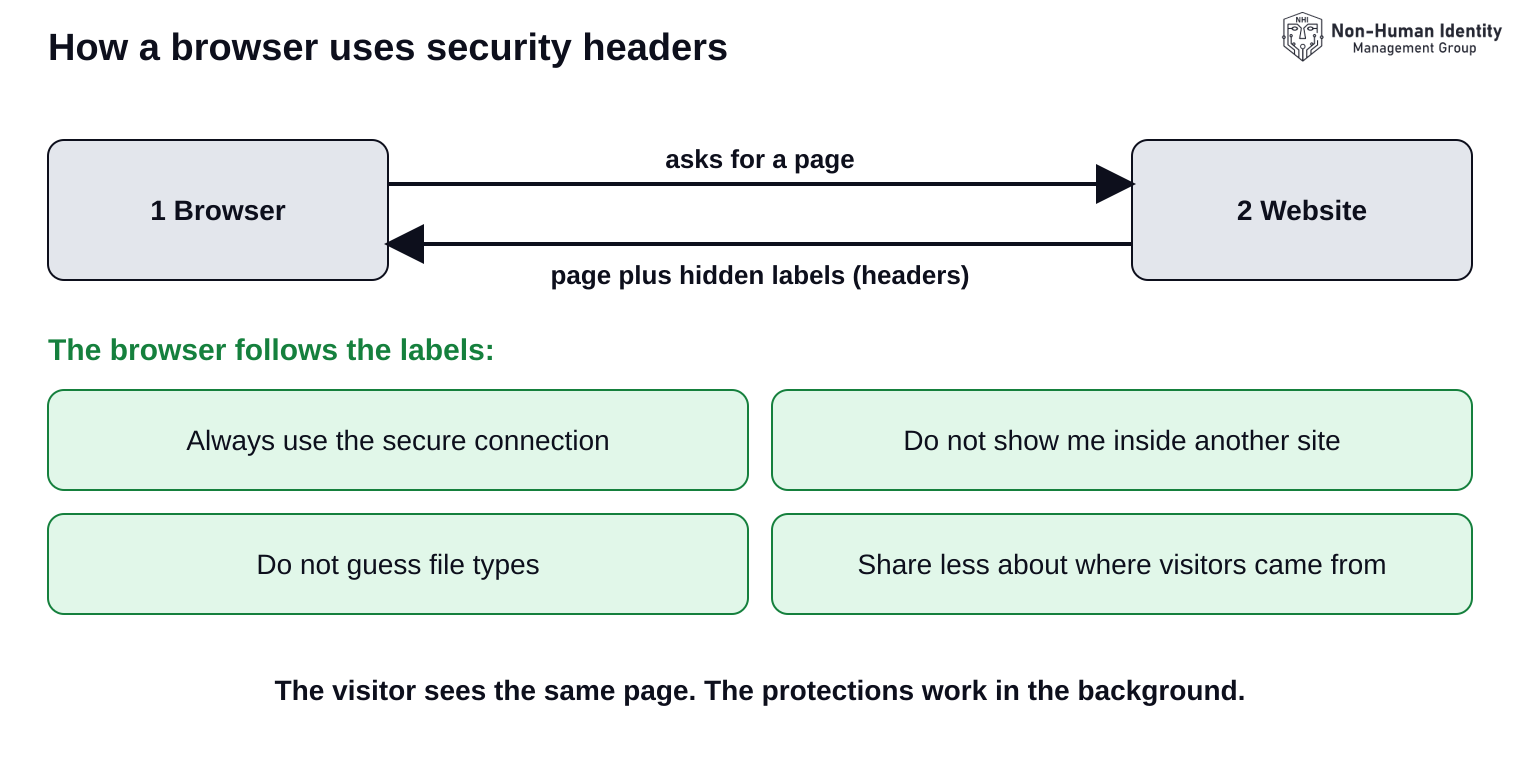
When your browser asks for a page, the website sends back the page plus a few lines of extra information. These lines are called headers.[2] Most headers are routine, such as what type of file is coming.
Some headers are about safety. They tell the browser things like "only ever use the secure connection for this site" or "do not show this page inside someone else's page". The browser then follows them.
Where the comparison stops working: a courier reads every label. A browser follows only the headers it understands, and older browsers may ignore newer ones. Headers also add protection on top of a well-built site. They do not fix flaws in the site itself.
Why does it matter?
A respected web security guide says the right headers can help protect against common attacks, such as harmful scripts and hidden-click tricks.[1] They are cheap to add, but easy to forget.
If you own a small business website
What could happen: your booking page is shown inside a fake site, and visitors are tricked into clicking your real buttons.
Check this: ask your web supplier which security headers your site sends.
If you are learning web development
What could happen: your first live site works, but tells every visitor's browser nothing about how to protect it.
Check this: look at the response headers in your browser's developer tools.
If you use a website builder
What could happen: you assume the platform sets everything, but some headers depend on your plan or settings.
Check this: search your builder's help pages for "security headers" or "custom headers".
What does it look like?
Here are made-up headers from a small shop's home page, before any work was done.
Example only. All values are made up.
HTTP/1.1 200 OK
Content-Type: text/html
Server: ExampleServer/0.0 (FAKE)          (1)
X-Powered-By: EXAMPLE-CMS 0.0             (1)
X-XSS-Protection: 1; mode=block           (2)
(no Strict-Transport-Security line)       (3)
(no frame-ancestors or X-Frame-Options)   (4)
- In a real file, these lines would name the server software and version, which helps attackers look up known flaws.
- An old header that modern advice says to leave out or switch off.
- Nothing tells the browser to always use the secure connection.
- Nothing stops other sites from showing this page inside a frame.
Why this is risky: the site gives away what it runs on, keeps an outdated setting and misses two simple protections.[1]
The safer way: remove the software details, drop the old header and add a small starter set like the one below. Test it on one page before you switch it on everywhere.
Example only. All values are made up.
Strict-Transport-Security: max-age=63072000; includeSubDomains
X-Content-Type-Options: nosniff
Referrer-Policy: strict-origin-when-cross-origin
X-Frame-Options: DENY
Permissions-Policy: geolocation=(), camera=(), microphone=()
# shop.example.com, test copy 0000
How does it work?
Here is what happens each time someone opens a page.
- The browser asks. A visitor types an address or clicks a link, and their browser asks the website for that page.
- The site replies with labels. The web server sends the page, with headers placed in front of it.[2]
- The browser reads the labels first. It notes each safety instruction it understands before it shows the page.
- The browser follows them. For example, after seeing the secure-connection header, it upgrades later plain visits to the secure connection for a set time.[3]
- Nothing changes for the visitor. The page looks the same, and the protections work quietly in the background.
Most small sites start with five headers. Each one switches on a different browser protection.[1]
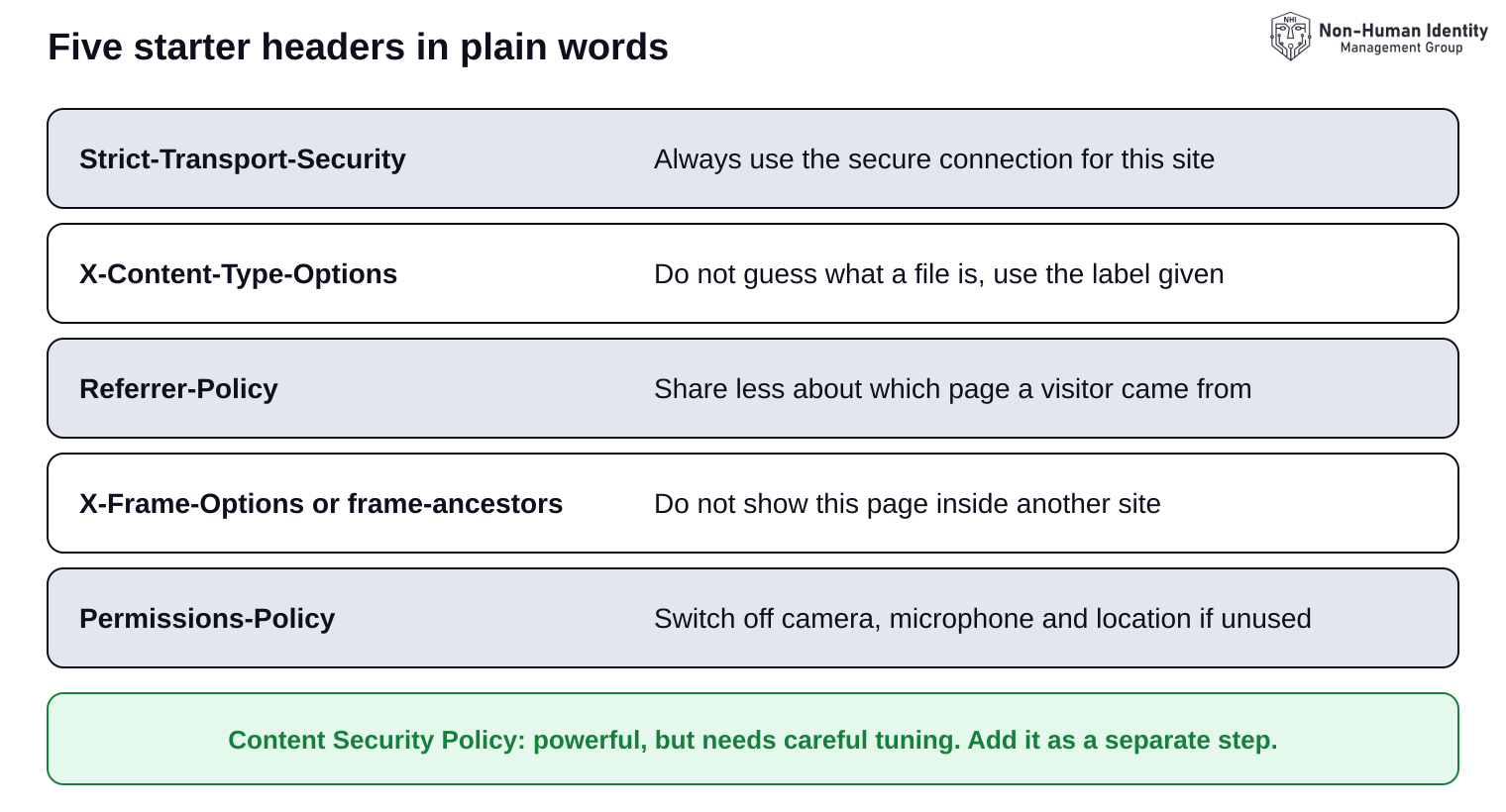
A sixth header, the Content Security Policy, controls which scripts may run. It is very useful, but the same guide calls it complex to set up, so treat it as a separate project.[1] Our Content Security Policy for Beginners guide covers it.
A worked example
Mira Ilic runs Quarry Florist, a fictional flower shop with an online order page. Her nephew, a web development student, mentions security headers over dinner. She has never heard of them.
Next morning she asks her web developer, Bruno Strand, to check. He opens the site in his browser's developer tools and looks at the response headers. He finds the sample above: software details showing, one outdated header, and no secure-connection or framing headers.
Mira thinks of the parcel labels. Her site is sending boxes with no "Fragile" sticker on them.
Bruno makes a plan. First, he hides the software details and removes the outdated header. Second, he adds the framing, file-type, referrer and permissions headers on a test copy of the site. He checks that the order form, the map and the payment page all still work.
The secure-connection header needs more care. Once a browser has seen it, that browser keeps to the secure connection for the time the header sets.[3] So Bruno first confirms every part of the site works over HTTPS. He starts with a short time, then raises it after a week with no problems.
He leaves the Content Security Policy for a later visit, because it needs testing against every script the shop uses.
The whole job takes Bruno an afternoon. Visitors see no difference. Mira adds "check the headers" to the list she gives Bruno before each yearly review.
Myths and mistakes
| What people think | What is true |
|---|---|
| The padlock means my headers are fine. | The padlock shows a secure connection. Security headers are separate settings and may still be missing. |
| Adding more headers is always better. | Some old headers are no longer advised. One can even cause problems on some sites.[1] |
| Headers fix a badly built site. | They add a layer of browser protection. Updates, strong passwords and safe code still matter most. |
| I can switch on the secure-connection header straight away. | Browsers remember it for the time set. Check every page works on HTTPS first, then start with a short time.[3] |
| My website builder handles all of this. | Some do, some do not, and some only on certain plans. Check what your site actually sends. |
What can I do this week?
- Open your site, then open the browser's developer tools and look at the response headers.
- Note which of the five starter headers are missing.
- Ask your developer or host to hide software version details.
- Agree a plan to add the missing headers on a test copy first.
Checklist
- Every page loads over HTTPS before the secure-connection header is added.
- The secure-connection header is set, starting with a short time.
- The file-type header is set to "nosniff".
- A referrer policy is set.
- Framing by other sites is blocked, unless you need it.
- Camera, microphone and location are switched off if unused.
- Software and version details are hidden.
- Outdated headers are removed, and changes are tested before they go live.
Common questions
How can I see which headers my website sends?
Use your browser's developer tools. Open your site, open the tools, choose the network tab and reload. Click the first item, the page itself, and look under response headers. Free online header checkers also exist, but only scan sites you own or have permission to test.
Can security headers break my website?
Yes, some can. The Content Security Policy can block scripts your site needs, and the secure-connection header can lock out pages that only work without HTTPS. That is why changes should be tried on a test copy first, with the riskier ones added slowly.
Do I need a developer to add them?
Not always. Many hosts, content delivery networks and website builders let you add headers in a settings screen. If your site runs on its own server, a developer usually adds them to the server settings. Either way, test the site afterwards.
What is the difference between a security header and a Content Security Policy?
A Content Security Policy is one kind of security header. It is the most detailed one, because it lists which scripts and other files a page may load. The other starter headers are simpler switches, so most sites add them first.
Where next?
Ready for the detail? Read the practitioner guide: Security Headers Guide. It goes further into recommended values, safe rollout, cookie settings and how to measure coverage across many sites.
Also useful:
- Content Security Policy for Beginners
- TLS and HTTPS for Beginners
- Website Security for Beginners
- Cross-Site Scripting for Beginners
Related NHI Mgmt Group resources: Deprecated Security Headers Reference · Permissions Policy, COOP, COEP and CORP Guide · Content Delivery Networks (CDNs) for Beginners
Key terms
- HTTP header
- A line of information sent with a web page that the browser reads but the visitor does not see.
- HSTS
- A header telling browsers to use only the secure connection for a site, for a set time.
- X-Content-Type-Options
- A header telling the browser not to guess a file's type.
- Referrer-Policy
- A header that limits how much a browser shares about the page a visitor came from.
- X-Frame-Options
- A header that stops other sites from showing your page inside a frame.
- Permissions-Policy
- A header that switches off browser features, such as the camera, that a site does not use.
- Clickjacking
- Tricking someone into clicking a hidden button on a page shown inside another page.
Sources and further reading
- HTTP Security Response Headers Cheat Sheet. OWASP Cheat Sheet Series, OWASP Foundation. https://cheatsheetseries.owasp.org/cheatsheets/HTTP_Headers_Cheat_Sheet.html, accessed 28 Nov 2026.
- An overview of HTTP. MDN Web Docs, Mozilla. https://developer.mozilla.org/en-US/docs/Web/HTTP/Guides/Overview, accessed 28 Nov 2026.
- Strict-Transport-Security header. MDN Web Docs, Mozilla. https://developer.mozilla.org/en-US/docs/Web/HTTP/Reference/Headers/Strict-Transport-Security, accessed 28 Nov 2026.