A self-signed certificate is a certificate that vouches for itself, with no outside authority signing it.
This guide is for students, home lab builders, developers and anyone who has met a warning on a router, printer or test site. If your business runs internal tools or devices, some of them probably use self-signed certificates today.
In short
- A self-signed certificate is signed by its own key, so nobody else has checked who made it.
- Browsers and apps do not trust it by default, which is why you see a warning.
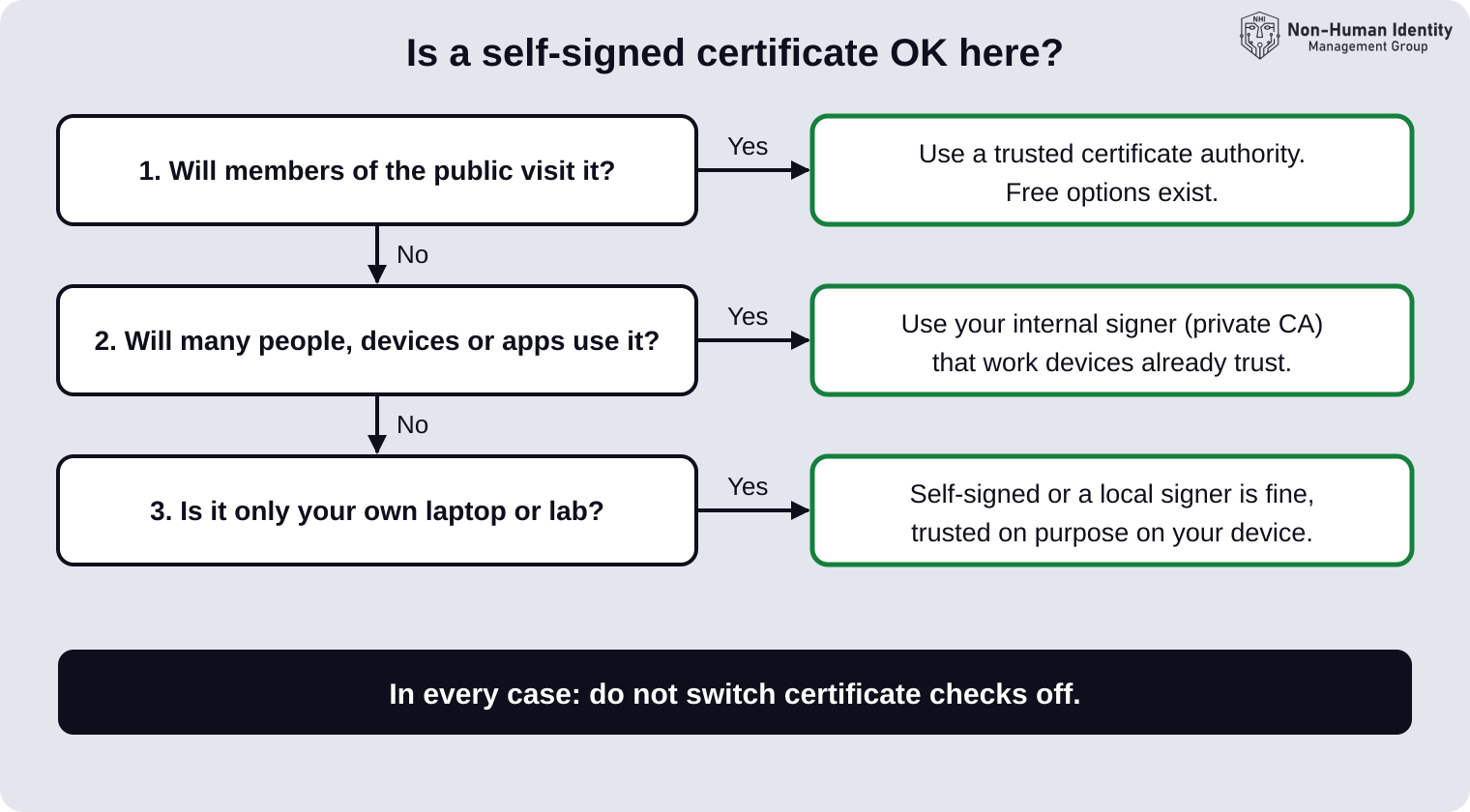
- It can be fine on your own laptop or in a lab, if you trust that one certificate on purpose.
- For public websites, use a trusted certificate authority. For shared internal tools, use a private one.
What you will learn
- Explain what a self-signed certificate is and why browsers warn about it.
- Spot a self-signed certificate by reading two of its fields.
- Check whether a self-signed certificate is a sensible choice for a given job.
- Ask for a safer option than switching certificate checks off.
- Digital ID card (certificate)
- a signed record that ties a name, such as a web address, to a public key.
- Trusted signer (certificate authority)
- an organisation that checks details and signs certificates that browsers accept.
- Trusted list (trust store)
- the list of signers a device or app already accepts.
What is a self-signed certificate?
Think of a homemade ID card. You print your own name and photo on it and sign it yourself. Your family knows it is you, but a bank or an airport would not accept it.
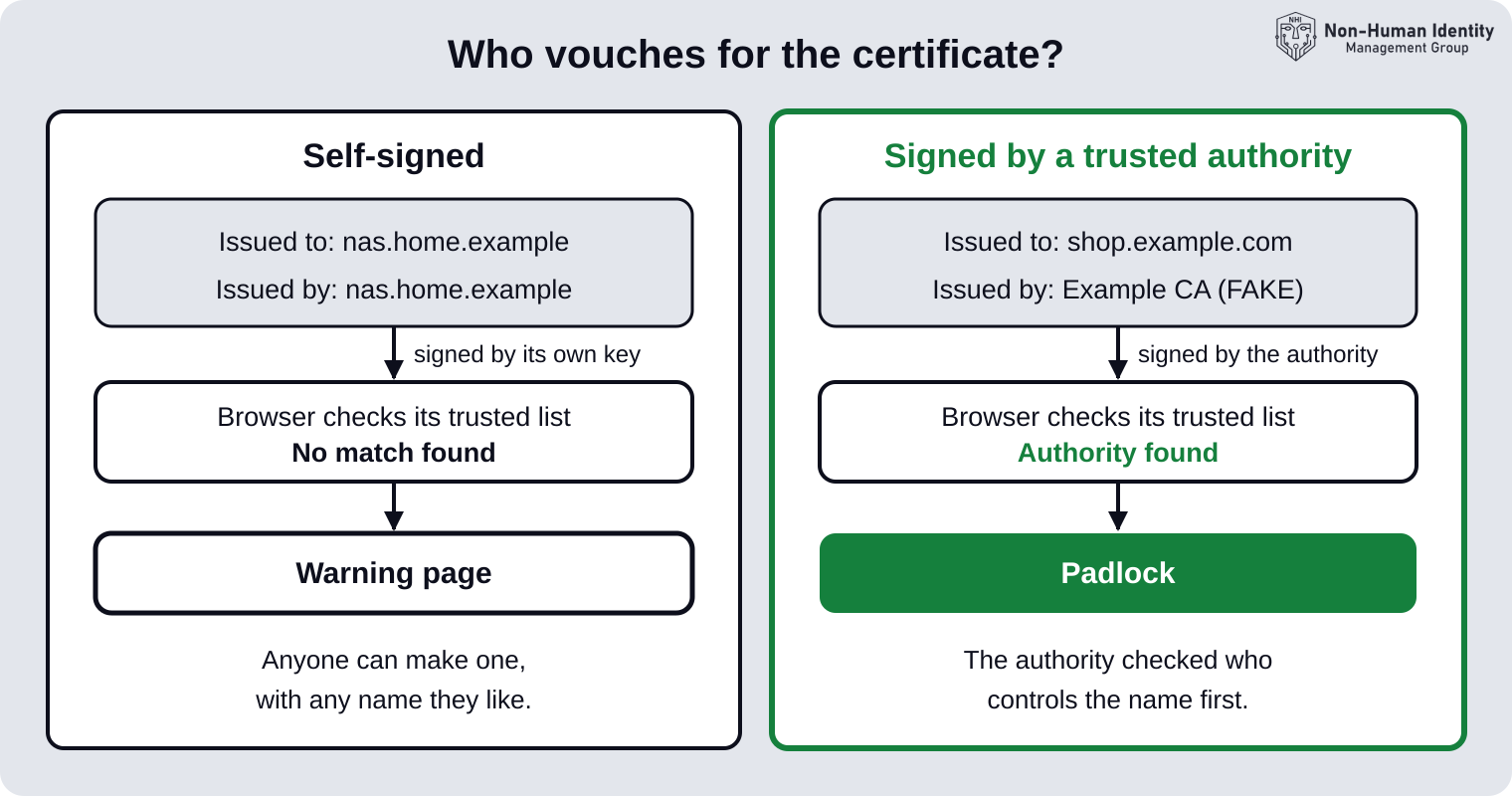
A normal website certificate is signed by a certificate authority (CA), a trusted signer that has checked the details. Your browser already trusts a short list of these signers. A self-signed certificate is different. The same key that the certificate describes is used to sign it.[1] So the "Issued to" and "Issued by" lines show the same name.
Anyone can make one in a few seconds, with free tools and without asking anyone.[2] That is handy for testing. It also means an attacker can make one with any name they like.
Servers, apps and devices use certificates to prove who they are to each other. Those certificates are a type of non-human identity (NHI): an identity used by software rather than a person.
Where the comparison stops working: a homemade ID card looks homemade. A self-signed certificate looks just like any other certificate. The only clue is that nobody else signed it, and your device may not be able to check who really made it.
Why does it matter?
The traffic is still scrambled. But the certificate does not prove who you are talking to. If people learn to click past the warning, they may click past a real attack too.
If you are learning or running a home lab
What could happen: you get used to clicking "Accept the risk" on every test site, and carry that habit into work.
Check this: trust your lab certificate on your own device on purpose, rather than clicking past the warning each time.
If you look after office equipment
What could happen: printers, routers and storage boxes often ship with a self-signed certificate, and staff are told to ignore the warning.
Check this: list devices that show a warning, and ask whether each can use a certificate from your own internal signer.
If you write or buy software
What could happen: a developer switches certificate checks off to get past an error, and that setting reaches the live system.
Check this: ask suppliers whether any part of their product turns certificate checks off.
What does it look like?
Here is a made-up certificate from a home storage box, as a browser's certificate viewer might show it.
Example only. All values are made up.
Issued to:      nas.home.example                 (1)
Issued by:      nas.home.example                 (2)
Valid from:     1 January 2026
Valid until:    1 January 2036                   (3)
Public key:     EXAMPLE-PUBLIC-KEY-0000-FAKE
Browser says:   Warning: issuer not trusted      (4)
- The name the certificate is for.
- The same name again. The certificate signed itself. This is the easiest way to spot one.
- Ten years. Self-signed ones often last far longer than public website certificates. So a stolen key stays useful for longer.
- In a real screen, this line would be a full warning page. Firefox, for example, reports that the site uses a self-signed certificate.[4]
Why this is risky: the browser has no outside signer to check. Someone on the same network could make their own certificate with the same name. The warning page would look almost the same. Clicking past it every time trains you to miss that.
The safer way: for a lab or your own device, add this one certificate to your trusted list on purpose. Then the warning goes away for the right reason.[2] For tools that many people share, issue certificates from an internal signer that every work device trusts.[5] For public websites, use a trusted certificate authority. Free ones exist.
How does it work?
Here is what happens when your browser meets a self-signed certificate.
- The site sends its certificate. The "Issued by" line names the site itself, not a known signer.
- The browser looks for the signer. It searches its trusted list for the key that signed the certificate.
- No match is found. Unless you added this certificate yourself, it is not on the list, so the browser cannot confirm who made it.
- A warning appears. The connection can still be scrambled, but the browser warns you that it cannot confirm who is on the other end.
- The fix depends on the job. You trust the certificate on purpose, replace it with one from an internal signer, or replace it with one from a public authority.
Switching certificate checks off is not the same as trusting a certificate. Programming tools often have a setting that skips the checks. Go is a programming language. Its documentation says this setting leaves the connection open to an attacker sitting in the middle. It says the setting is for testing only.[6] Trusting one known certificate keeps the checks working for everything else.
A worked example
Pia Ueda is a computing student. She is building a small booking app for a sports club as her final-year project, on her own laptop.
She sets up a secure connection for testing, and her browser shows a big warning. A forum post tells her to switch off certificate checks in her app's code. Pia hesitates.
She thinks of the homemade ID card. It is fine for her own house, but she would not want the club's members to rely on one. So she follows the advice from Let's Encrypt's page on local testing instead.[2]
She uses a small tool that creates her own private signer on her laptop and adds it to her laptop's trusted list.[3] It then makes a certificate for her test address. The warning disappears, and her app's checks stay switched on.
The tool's guide warns that the signer's private key gives complete power over secure traffic on her machine, and must not be shared.[3] Pia keeps that key off the shared project files.
A month later the club's volunteer, Cyrus Osei, asks to put the app online. Pia explains that her laptop's signer is for testing only. Members' phones do not trust it, and they should not.
Cyrus sets up the live site with a free certificate from a public authority, which renews itself. The app's checks stay on in the live version too.
Pia adds a line to her project notes. "Self-signed for my laptop. Trusted signer for everyone else. Checks left on." She scores well on the security section of her project.
Myths and mistakes
| What people think | What is true |
|---|---|
| A self-signed certificate is not encrypted. | The connection can be encrypted. What is missing is an outside check of who made the certificate. |
| Clicking past the warning is harmless on a site I know. | The warning page can look the same for an attacker's certificate. Trust the right certificate on purpose instead. |
| Switching off certificate checks is a quick, safe fix. | It accepts any certificate, including an attacker's. Go's documentation limits it to testing.[6] |
| Internal tools do not need proper certificates. | Shared internal tools are better served by an internal signer that work devices already trust.[5] |
| Self-signed and internal signer mean the same thing. | An internal signer issues certificates for many systems and is trusted once on each device. A self-signed certificate covers just itself. |
What can I do this week?
- Open a device or test site that shows a warning and compare its "Issued to" and "Issued by" lines.
- List the internal tools and devices that staff are told to "just click through".
- Ask your IT team or supplier whether an internal signer could issue certificates for them.
- Search your own projects for settings that switch certificate checks off, and ask why each one is there.
Checklist
- I can spot a self-signed certificate from its "Issued to" and "Issued by" lines.
- Public websites use certificates from a trusted certificate authority.
- Shared internal tools use certificates from an internal signer that work devices trust.
- Self-signed certificates are limited to personal labs and test machines.
- Where we use one, we trust it on purpose instead of clicking past warnings.
- No live system has certificate checks switched off.
- Private keys for any signer we create stay off shared files and code.
Common questions
Is a self-signed certificate secure?
It can be, in the right place. The encryption can be as strong as any other certificate. The weak point is trust: nobody outside has checked who made it. On your own laptop, where you trust it on purpose, that is usually fine. For a public site, it is not suitable.
Why does my router or printer show a warning?
Because many devices create a self-signed certificate when they are first set up. Your browser cannot check who made it, so it warns you. On a network you control, you can trust that device's certificate, or ask IT to give it one from your internal signer.
Can I use a self-signed certificate for my public website?
We suggest not. Every visitor would see a warning, and many would leave. Free certificates from trusted authorities are widely available and can renew themselves. A public authority will not issue a certificate for "localhost", so self-signed or local signers are the usual choice for local testing.[2]
What is the difference between self-signed and a private certificate authority?
Scale and control. A private certificate authority is your own signer. Devices trust it once, and it then issues many certificates. A self-signed certificate signs only itself, so each one must be trusted separately. Private signers suit organisations. Self-signed certificates suit one-off tests.
Should I add a permanent exception in my browser?
Only on networks you control, and only for a device you recognise. Mozilla says permanent exceptions weaken your security and are for internal, controlled networks.[4] On public Wi-Fi or an unknown site, go back instead.
Where next?
Ready for the detail? Read the practitioner guide: x509 Certificate Signed by Unknown Authority Troubleshooting Guide. It goes further into the error messages each tool shows, how to add a signer to the right trusted list and the safe fix for each platform.
Also useful:
- Certificate Errors for Beginners
- Public Key Infrastructure for Beginners
- Free Automatic TLS Certificates for Beginners
- Private PKI vs Public PKI
Related NHI Mgmt Group resources: Certificate trust stores and root CA management · Machine Identities and Certificates for Beginners · Non-Human Identities for Beginners
Key terms
- Self-signed certificate
- A certificate signed by its own key, with no outside authority vouching for it.
- A trusted organisation that checks details and signs certificates.
- An organisation's own signer, trusted by its own devices, for internal certificates.
- Trust store
- The list of signers and certificates a device or app already accepts.
- Default certificate
- A certificate a device or product creates or ships with, often self-signed.
- Validation bypass
- Switching off or skipping certificate checks, so any certificate is accepted.
Sources and further reading
- RFC 5280, Internet X.509 Public Key Infrastructure Certificate and Certificate Revocation List (CRL) Profile. IETF, May 2008. https://www.rfc-editor.org/rfc/rfc5280, accessed 28 Nov 2026.
- Certificates for localhost. Let's Encrypt. https://letsencrypt.org/docs/certificates-for-localhost/, accessed 28 Nov 2026.
- mkcert README. FiloSottile/mkcert, GitHub. https://github.com/FiloSottile/mkcert, accessed 28 Nov 2026.
- Error codes on secure websites. Mozilla Support. https://support.mozilla.org/en-US/kb/error-codes-secure-websites, accessed 28 Nov 2026.
- Transport Layer Security Cheat Sheet. OWASP Cheat Sheet Series, OWASP Foundation. https://cheatsheetseries.owasp.org/cheatsheets/Transport_Layer_Security_Cheat_Sheet.html, accessed 28 Nov 2026.
- Package tls, Config.InsecureSkipVerify. Go standard library documentation. https://pkg.go.dev/crypto/tls, accessed 28 Nov 2026.