A certificate error is a browser warning that it could not confirm a website's identity safely.
This guide is for anyone who has seen "Your connection is not private" and wondered whether to worry. If you run a website, the same warning is what your customers see when something goes wrong with yours.
In short
- The warning means the browser could not check the site's ID card, called a certificate.
- Common causes are an expired certificate, a wrong clock on your device or a Wi-Fi sign-in page.
- The same warning can also appear when someone is trying to listen in, so do not sign in or pay past it.
- Check your clock and your network first. If the warning stays, leave the site and tell its owner.
What you will learn
- Explain what a certificate warning is telling you.
- Spot the common causes from the error code.
- Check the simple things on your own device first.
- Decide when to go back and when to ask for help.
- Website ID card (certificate)
- a small digital file that proves a website is who it says it is.
- Trusted issuer (certificate authority)
- an organisation that checks a website and then issues its certificate.
- Error code
- a short technical label on the warning page that names the problem.
What is a certificate error?
Think of a door attendant at a concert checking tickets. They look at three things: the right event, the right date and a real box office stamp. If one is wrong, you are stopped at the door.
Your browser does the same with websites. Each secure website shows a certificate, a digital ID card for the site. The browser checks that the certificate names the site you typed. It checks that the certificate is in date. It also checks that a trusted issuer, called a certificate authority, signed it. If any check fails, the browser shows a full-page warning instead of the site.[1]
Chrome says this warning means there is a problem with the site, the network or your device.[2] So the fault is not always the website's.
Where the comparison stops working: a door attendant can call the box office to ask. Your browser only has the certificate in front of it, so it cannot tell an honest mistake from a trick. That is why it stops you either way.
Why does it matter?
Most warnings are honest mistakes. But the same screen can appear when someone sits between you and the site to read what you send. Firefox advises going past a warning only when you are confident about both the site and your connection.[1]
If you shop or bank online
What could happen: you click past a warning on public Wi-Fi and type your password into a fake page.
Check this: do not sign in or pay on a page that showed a certificate warning.
If you run a small business website
What could happen: your certificate runs out and customers see a warning instead of your shop.
Check this: find out when your certificate ends and who renews it.
If you are new to IT support
What could happen: you tell staff to "just click through", and they learn to ignore real warnings.
Check this: read the error code before giving any advice.
What does it look like?
Each browser words it a little differently. Here is a made-up warning, with the details you see after pressing Advanced.
Example only. All values are made up.
Your connection is not private                     (1)
Attackers might be trying to steal your information
from shop.example.com

[ Back to safety ]      [ Advanced ]

Error code: CERT_DATE_INVALID_EXAMPLE              (2)
Certificate for: www.shop.example.com              (3)
Valid until: 1 January 0000                        (4)
- The headline. It looks the same for an honest mistake and for an attack.
- The error code names the failed check. In a real message, this line would show the browser's own code.
- The name on the certificate. Compare it with the address you typed.
- The end date. If it is in the past, the certificate has expired, or your device's clock is wrong.
Why this is risky: the big "Advanced" button makes it easy to carry on without reading. Anything you type after that may not be private.
The safer way: read the code, check your own clock and network, and press Back if you are unsure. Firefox notes that real public sites will not ask you to add an exception for their certificate.[1]
How does it work?
The error code tells you which check failed. Firefox lists codes like these, and other browsers have their own versions.[1]
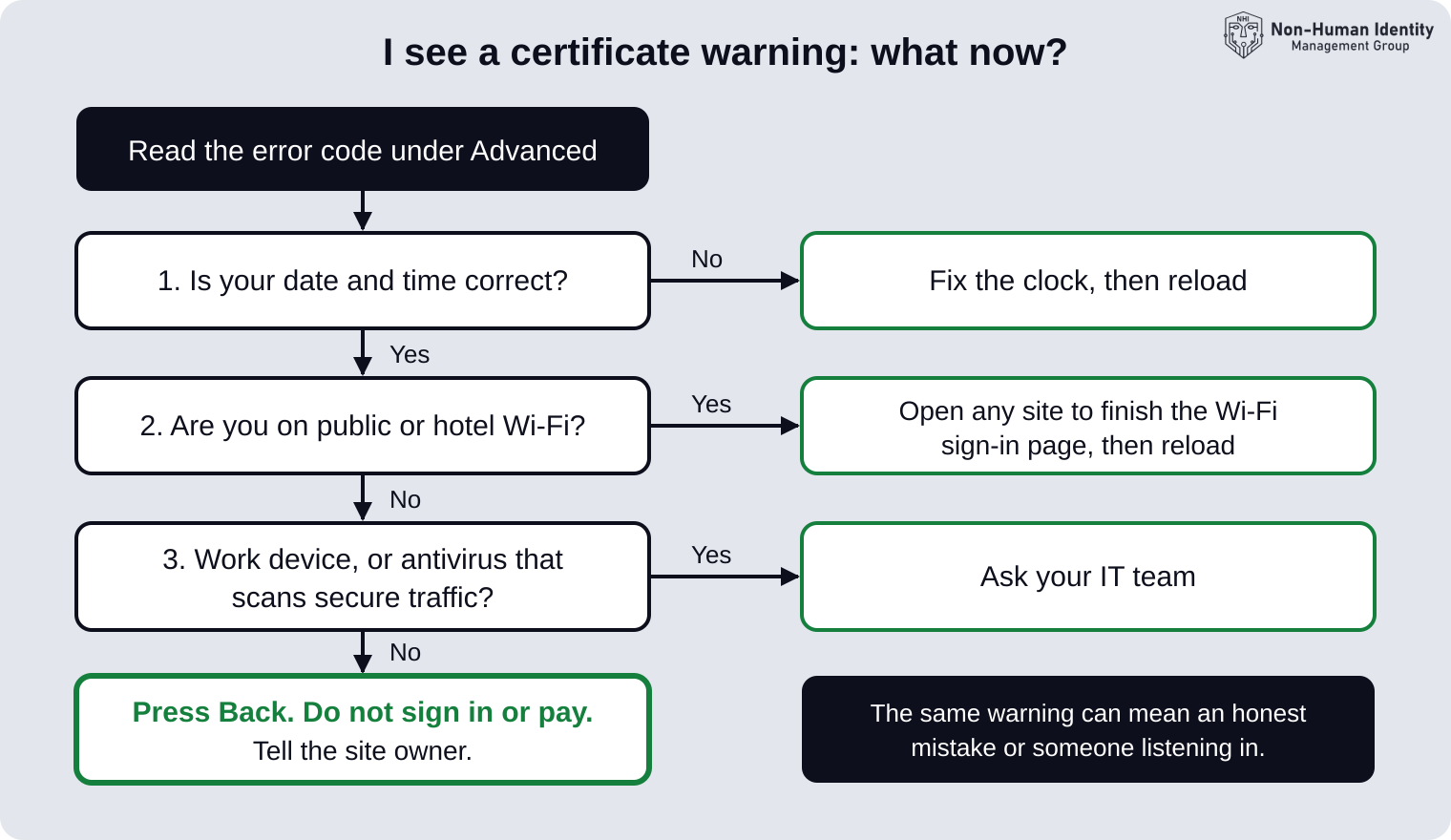
- Out of date. The certificate has expired (Firefox: SEC_ERROR_EXPIRED_CERTIFICATE). Firefox suggests checking your computer's date and time as well, since a wrong clock causes the same error.
- Wrong name. The certificate is for a different address (SSL_ERROR_BAD_CERT_DOMAIN). Only the site owner can fix this.
- Unknown issuer. The browser does not recognise who signed it (SEC_ERROR_UNKNOWN_ISSUER). This often means the site is set up wrongly.
- Self-made. The site signed its own certificate (ERROR_SELF_SIGNED_CERT). Firefox says this is common on private work sites, but a public site should not need one.
- Something in the middle. A tool between you and the site is reading the connection (MOZILLA_PKIX_ERROR_MITM_DETECTED). Firefox says antivirus that scans secure traffic, or family safety settings, can cause this.
Some warnings will not let you continue at all. Firefox says some cannot be bypassed.[1] Public Wi-Fi is another common cause: cafes and hotels often send you to a sign-in page first, which can trigger a warning.[3]
Certificates end on purpose, so they get replaced regularly. One free issuer, Let's Encrypt, gives certificates that last 90 days by default.[4] If renewal fails, the warning is often the first sign.
A worked example
Leila Sorensen is at a railway station, waiting for a late train. She joins the free station Wi-Fi and opens her bank's website to check a payment.
A full red page appears: "Your connection is not private". The Advanced button is right there. Leila remembers the door attendant. A ticket can fail for an honest reason, but it can also be fake, and she cannot tell which from here.
She does not press Advanced. First she checks her phone's clock, which is right. Next she opens a plain news site. Instead of the news, she gets the station's Wi-Fi sign-in page asking her to accept the terms. She accepts and goes back to her bank. This time the bank's site loads with no warning.
Later that week her brother, Dario Iyer, calls. Customers say his bakery's ordering page shows a warning. Leila asks him to read the error code. It says the certificate has expired. Dario rings his web host, who renews it the same morning and turns on automatic renewal with an email alert if it fails.
Leila also tells him one more thing. Until it is fixed, customers should not be told to click past it. That habit is what a fake page would rely on.
Myths and mistakes
| What people think | What is true |
|---|---|
| The warning is just a glitch, so click past it. | It is often an honest mistake, but it can also mean someone is listening in. Do not sign in or pay past it. |
| It always means the website is broken. | A wrong clock, a Wi-Fi sign-in page or security software on your device can cause it too.[1] |
| A padlock means the site is honest. | A padlock means the connection is private, not that the site is honest. Chrome advises checking the site name even on a secure connection.[2] |
| Adding an exception fixes it. | It only hides the warning on your device. Real public sites will not ask you to do this.[1] |
| Certificates last for years, so we can forget them. | Many now last 90 days or less, so renewal needs to be automatic.[4] |
What can I do this week?
- Set your phone and computer to take the date and time automatically.
- Agree with your household or team: no signing in or paying past a certificate warning.
- If you run a website, write down when your certificate ends and who renews it.
- Ask your web host whether renewal is automatic and who gets the alert if it fails.
Checklist
- I read the error code before deciding what to do.
- My devices set their clock automatically.
- On public Wi-Fi I finish the sign-in page before visiting important sites.
- I do not sign in, pay or add an exception on a public site that shows a warning.
- At work, I report certificate warnings to the IT team.
- Our own website renews its certificate automatically.
- Someone gets an alert if renewal fails.
Common questions
Is "Your connection is not private" a virus?
No, the warning itself is not a virus. It is your browser refusing to load a site because a safety check failed. The cause may be the site, your network or your device. Read the error code under Advanced to see which check failed, then go back if you are unsure.
Why does my clock matter?
Your browser compares the certificate's dates with your device's date. If your clock is wrong, a valid certificate can look expired or not yet valid. Setting the date and time to update automatically fixes this, and Firefox suggests checking it for expiry errors.
Is it ever safe to click past the warning?
Rarely, and not on a public site where you sign in or pay. Firefox says to go past a warning only when you are sure of both the site and your connection. Some work systems use self-made certificates, and your IT team can tell you which ones are expected.
Why do I only see the warning on public Wi-Fi?
Many public networks show a sign-in page before letting you online, and that can trigger a warning. Open a plain website to bring up the sign-in page, accept it, then try again. If the warning stays on an important site, wait until you are on a network you trust.
My customers see the warning on my site. What do I do?
Ask your web host or developer to check the certificate straight away. An expired certificate is a common cause and is usually quick to renew. Then ask for automatic renewal and an alert if it fails. See the Expired Certificate Outage Troubleshooting Guide.
Where next?
Ready for the detail? Read the practitioner guide: Expired Certificate Outage Troubleshooting Guide. It goes further into finding which certificate failed, fixing missing links in the certificate chain and setting up renewal alerts.
Also useful:
- TLS and HTTPS for Beginners
- Public Key Infrastructure for Beginners
- Machine Identities and Certificates for Beginners
- Wi-Fi Security for Beginners
Related NHI Mgmt Group resources: Free Automatic TLS Certificates for Beginners · Browser Security for Beginners · TLS Inspection for Beginners
Key terms
- Digital certificate
- A digital file that ties a website's name to the key it uses for secure connections.
- An organisation that checks who runs a website and then signs its certificate.
- HTTPS
- The secure version of the web address system, shown by "https" at the start of an address.
- Certificate expiry
- The end date of a certificate, after which browsers stop trusting it.
- Self-signed certificate
- A certificate a site signs for itself, without a trusted issuer.
- HSTS
- A website setting that tells browsers to connect to it only over secure connections.
Sources and further reading
- What does "Your connection is not secure" mean? Mozilla Support, Mozilla. https://support.mozilla.org/en-US/kb/what-does-your-connection-is-not-secure-mean, accessed 28 Nov 2026.
- Check if a site's connection is secure. Google Chrome Help, Google. https://support.google.com/chrome/answer/95617, accessed 28 Nov 2026.
- Fix connection and loading errors in Chrome. Google Chrome Help, Google. https://support.google.com/chrome/answer/6098869, accessed 28 Nov 2026.
- FAQ. Let's Encrypt. https://letsencrypt.org/docs/faq/, accessed 28 Nov 2026.