The Windows registry is a central database where Windows and its programs keep their settings.
This guide is for students, new IT staff and anyone who has been told to "check the registry" and wondered what it is. You do not need to edit it to be affected: if your business uses Windows computers, the registry decides a lot of what starts up and how it behaves.
In short
- The registry is a tree of folders, called keys, holding named settings, called values.
- It is stored in a few files on disk, with one file per user for their own settings.
- Some keys tell Windows which programs to start at sign-in, so attackers like to add entries there.
- Investigators read the registry to see what was set up and when, so change it only with care and a backup.
What you will learn
- Explain what the registry is in one sentence.
- Spot a key, a value and the data inside it.
- Explain why attackers add entries to startup keys.
- Check which programs start when you sign in, without editing the registry.
- Settings folder (key)
- a named folder in the registry that can hold other folders and settings.
- Single setting (value)
- a named item inside a key, holding a piece of data such as text or a number.
- Registry file (hive)
- one of the files on disk where a part of the registry is stored.
What is the Windows registry?
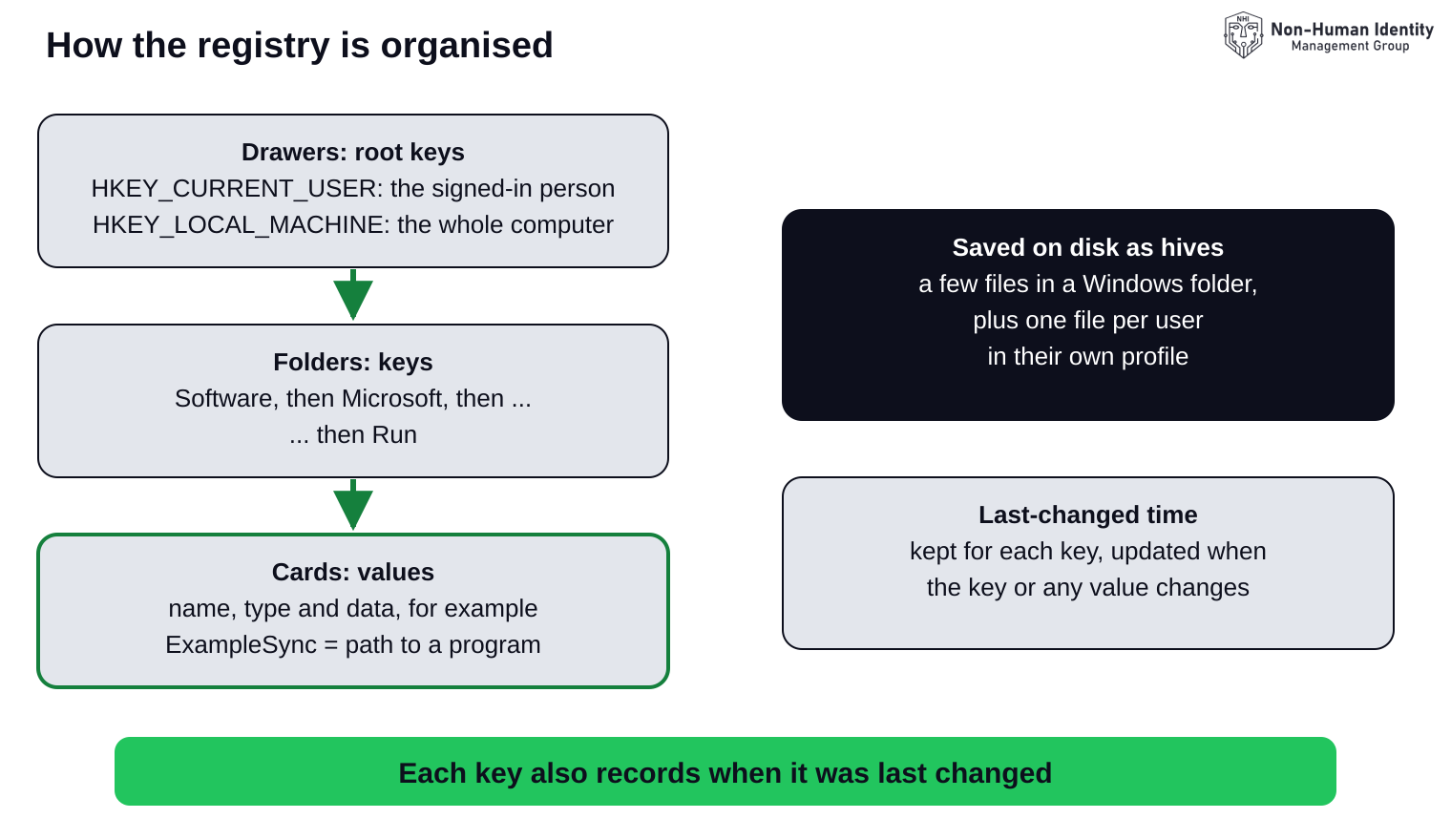
Think of a large filing cabinet in an office. It has a few big drawers, each drawer has labelled folders, and each folder holds index cards with one setting written on each.
The registry works the same way. It is a database that Windows, its services and its programs read to find out how they should behave.[1] The folders are called keys. A key can hold smaller keys and settings called values. Each value has a name and some data.[1]
The top drawers have names that start with HKEY. For example, one holds settings for the person signed in, and another holds settings for the whole computer.[3]
Behind the scenes, the registry is saved in a handful of files called hives. Most sit in a Windows system folder. Each user also has their own hive file in their profile, which holds their personal settings.[2]
Where the comparison stops working: people rarely open a filing cabinet, but Windows and its programs read and write the registry all the time. Windows also notes when each key was last changed, which a paper folder does not do.[6]
Why does it matter?
The registry decides a lot about how a computer behaves, including what starts when someone signs in. That makes it useful to attackers who want to come back, and to investigators who want to see what changed.
If you use a Windows computer at home
What could happen: a "registry cleaner" or a random fix from a forum changes settings and leaves Windows unstable.
Check this: use the normal Settings app first. Only edit the registry when a trusted guide tells you exactly what to change, and back it up first.
If you are new to IT support
What could happen: a strange program keeps coming back after you remove it, because a startup entry still points to it.
Check this: look at the startup list, and treat an unknown entry as a possible security problem, not just clutter.
If you are studying digital forensics
What could happen: you read a registry value as proof of an action, when it only shows a setting existed.
Check this: for each finding, ask what the key shows and what it does not show, and look for other traces that agree.
What does it look like?
Here is a made-up view of one well-known key. It lists programs that start each time this user signs in.[4]
Example only. All values are made up.
Key: HKEY_CURRENT_USER\...\CurrentVersion\Run           (1)
Name           Type     Data
ExampleSync    REG_SZ   C:\Program Files\ExampleSync\sync.exe     (2)
FakeUpdater    REG_SZ   C:\Users\EXAMPLE\AppData\upd0000.exe      (3)
Key last changed: 2026-11-03 21:47 UTC                    (4)
- The key's path, read from the top drawer down. This one belongs to the signed-in user.
- In a real system, this line would contain a program the user installed on purpose, such as a file sync app.
- In a real system, this line would contain an entry worth questioning: an odd name, in a user's personal folder.
- The time the key was last changed. It shows when something in the key changed, not which value.
Why this is risky: an entry in this key runs a program every time the user signs in. If an attacker adds one, their program can return after every restart.[5] Deleting the program file alone may leave the entry behind, and deleting the entry alone may leave the program.
The safer way: review startup entries with tools built for it. Most people can use the Startup apps list in Task Manager. IT staff often use Microsoft's free Autoruns tool.[7][8] Treat an unknown entry as a sign to investigate, not just to delete.
How does it work?
Here is what happens to the registry during a normal day, and why that leaves a trail.
- Windows starts. It loads the computer-wide hives from disk into memory.[2]
- A person signs in. Windows loads that person's own hive, which holds their desktop, program settings and network drives.[2]
- Startup entries run. Windows reads keys such as Run and RunOnce and starts the programs listed there. Run entries start at every sign-in. RunOnce entries start once and are then removed.[4]
- Programs save settings. As you work, programs write their settings back to the registry.
- Windows notes the change. Each key keeps a last-changed time, updated when the key or any of its values changes.[6]
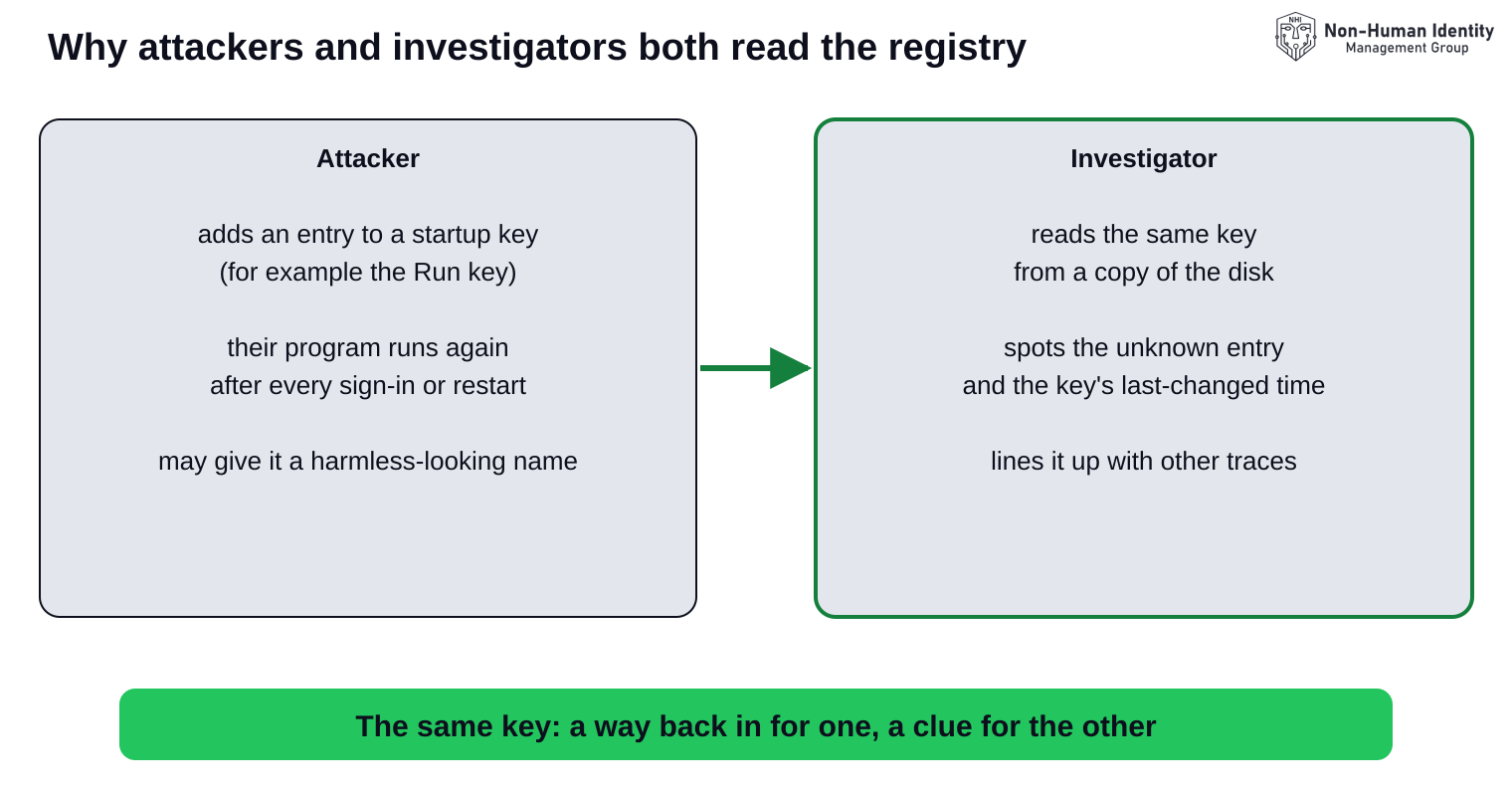
Attackers use these startup keys to keep their access after a restart. Security teams call this persistence.[5] Investigators read the same keys, often from a copy of the hive files, to find out what was set up and roughly when.
A worked example
Freya Bergmann manages the office at a small, fictional charity. Each morning a pop-up appears on her computer offering to "speed up your PC", even though she has uninstalled the program twice.
Vik Tanaka, a student volunteer who helps with IT, has a look. He remembers the filing cabinet. If the program comes back, something must still be telling Windows to start it.
He does not open the registry editor. He opens Task Manager and the Startup apps list. There he sees an entry with an odd name, pointing to a file in Freya's personal folders.
Vik is tempted to switch it off and move on. Instead, he tells the charity's IT partner, because an unknown startup entry can be a sign of something worse than a nuisance.
The partner checks the computer with Autoruns. The entry sits in Freya's own Run key. The key's last-changed time is the same evening Freya downloaded a "free PDF converter" from an advert.
The partner removes the program and the startup entry together, then runs a full security scan. Freya changes the passwords she used on that computer, as a precaution. The partner finds no other unknown startup entries in the places they checked.
Freya now asks before installing free tools. Vik writes a short note of what was found and done, with times, for the charity's records.
Myths and mistakes
| What people think | What is true |
|---|---|
| Registry cleaners make Windows faster. | Microsoft warns that wrong registry changes can cause serious problems. Use normal settings first.[3] |
| Deleting a program removes everything it set up. | Startup entries and settings can stay behind. Check the startup list as well. |
| A key's last-changed time shows which value changed. | It covers the whole key. It shows when something in it changed, not exactly what.[6] |
| The registry is one big file. | It is several hive files, including one for each user.[2] |
| Every startup entry is suspicious. | Most are normal programs you installed. Look for odd names and odd file locations. |
What can I do this week?
- Open Task Manager, go to Startup apps and check that you recognise every entry.
- Switch off startup apps you do not need, using Settings or Task Manager.[7]
- Avoid "registry cleaner" tools and forum fixes you do not understand.
- If you work in IT, try Autoruns on a test computer and learn what normal entries look like.
Checklist
- Staff know the registry is not something to edit casually.
- Any registry change follows a trusted guide and starts with a backup.
- Unknown startup entries are reported, not just switched off.
- IT staff know the main startup keys and a tool to review them.
- Only IT staff have rights to change computer-wide settings.
- A suspect computer is copied before anyone changes its registry.
Common questions
Is it safe to edit the registry?
It can be, with care. Microsoft warns that wrong changes can stop Windows working properly and may mean reinstalling it. Use the normal settings first. If you must edit, follow trusted instructions exactly and back up the keys you change.
Where is the registry stored?
In a few files called hives. Most are kept in a Windows system folder, and each user has their own hive file in their profile folder. Windows loads them when it starts and when each person signs in.
Why do attackers use the registry?
Mainly to come back. By adding an entry to a startup key, an attacker's program can run again after every sign-in or restart. They may give the entry a harmless-looking name, so it blends in with normal software.
Do I need special tools to look at it?
Not for a first look. Windows includes Registry Editor, and the Startup apps list in Task Manager is safer for checking what starts. IT staff often use Microsoft's free Autoruns tool, and investigators use forensic tools that read copied hive files.
What is the difference between a key and a value?
A key is like a folder, and a value is like a card inside it. Keys can hold other keys and values. Each value has a name, a type, such as text or a number, and the data itself.
Where next?
Ready for the detail? Read the practitioner guide: Windows Registry Forensics Guide. It goes further into hive files and their logs, how to collect registry evidence and what key timestamps can and cannot tell you.
Also useful:
- How to Hunt for Persistence on Windows
- RDP Lateral Movement Forensics Guide
- Persistence for Beginners
- Windows Event Logs for Beginners
Related NHI Mgmt Group resources: Digital Forensics for Beginners · DPAPI and Windows secret stores · Windows Security for Beginners
Key terms
- Windows Registry
- The database where Windows and its programs keep their settings.
- Registry key
- A folder in the registry that can hold other keys and values.
- Registry value
- A named setting inside a key, with a type and some data.
- Registry hive
- A part of the registry saved as a file on disk, loaded at start-up or sign-in.
- Run key
- A registry key that lists programs to start when a user signs in.
- Persistence
- Ways an attacker keeps access after a restart or sign-out.
Sources and further reading
- Structure of the Registry. Microsoft Learn, Microsoft. https://learn.microsoft.com/en-us/windows/win32/sysinfo/structure-of-the-registry, accessed 28 Nov 2026.
- Registry Hives. Microsoft Learn, Microsoft. https://learn.microsoft.com/en-us/windows/win32/sysinfo/registry-hives, accessed 28 Nov 2026.
- Windows registry information for advanced users. Microsoft Learn, Microsoft. https://learn.microsoft.com/en-us/troubleshoot/windows-server/performance/windows-registry-advanced-users, accessed 28 Nov 2026.
- Run and RunOnce Registry Keys. Microsoft Learn, Microsoft. https://learn.microsoft.com/en-us/windows/win32/setupapi/run-and-runonce-registry-keys, accessed 28 Nov 2026.
- Boot or Logon Autostart Execution: Registry Run Keys / Startup Folder (T1547.001). MITRE ATT&CK, MITRE. https://attack.mitre.org/techniques/T1547/001/, accessed 28 Nov 2026.
- RegQueryInfoKeyW function (last write time). Microsoft Learn, Microsoft. https://learn.microsoft.com/en-us/windows/win32/api/winreg/nf-winreg-regqueryinfokeyw, accessed 28 Nov 2026.
- Configure startup applications in Windows. Microsoft Support, Microsoft. https://support.microsoft.com/en-us/windows/configure-startup-applications-in-windows-115a420a-0bff-4a6f-90e0-1934c844e473, accessed 28 Nov 2026.
- Autoruns for Windows v14.3. Microsoft Sysinternals, Microsoft, June 2026. https://learn.microsoft.com/en-us/sysinternals/downloads/autoruns, accessed 28 Nov 2026.