Incident containment means stopping an attack from spreading while you work out how to remove it.
This guide is for anyone who might be first on the scene when something goes wrong at work, and for students new to security. You do not need to be technical to help: in many small firms, the person who spots the problem is also the one who has to act fast.
In short
- Containment is the "stop it getting worse" step. It comes before cleaning up and before getting back to normal.
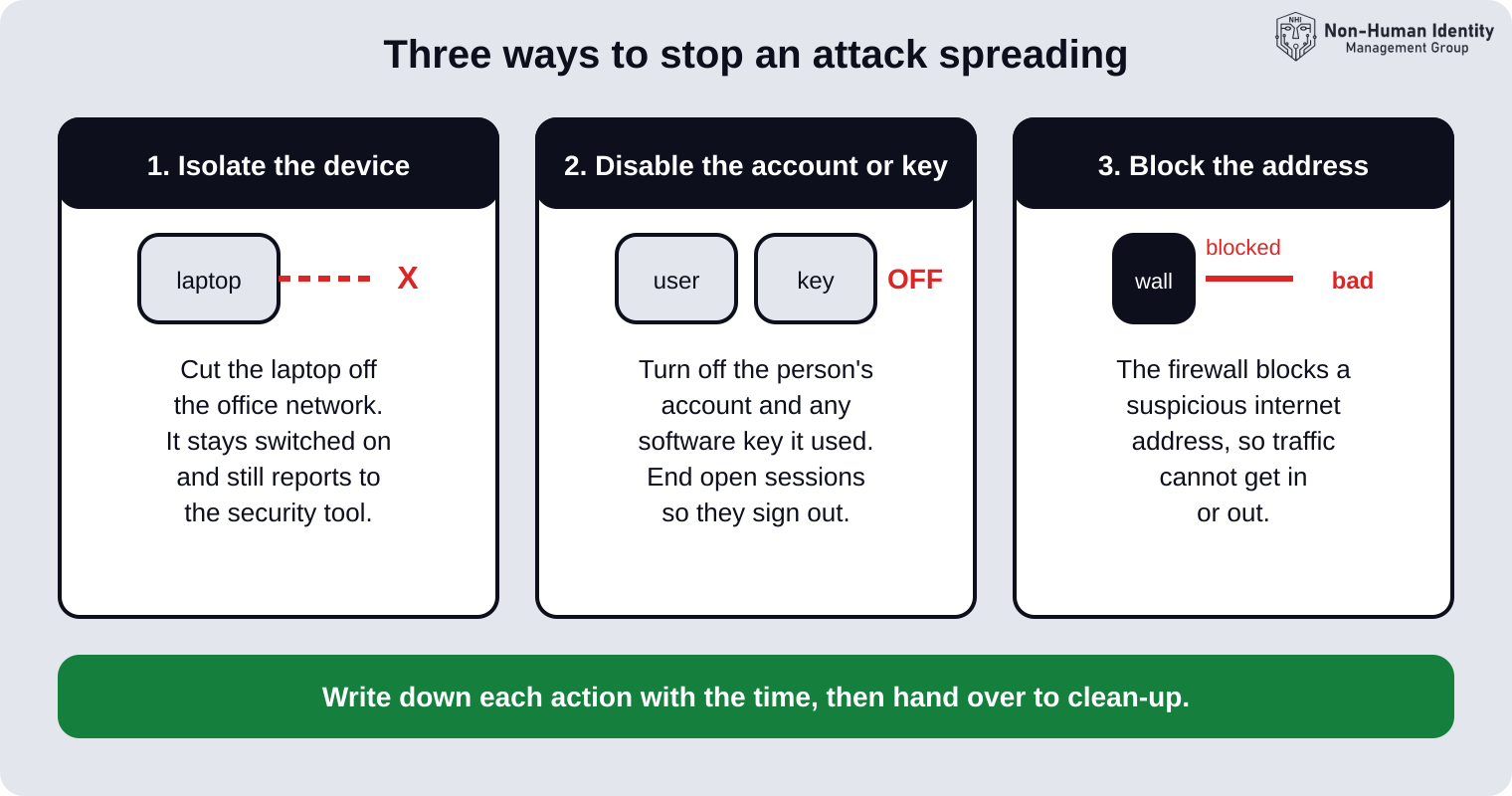
- The three main moves are: cut a device off from the network, turn off an account or key, and block a bad address.
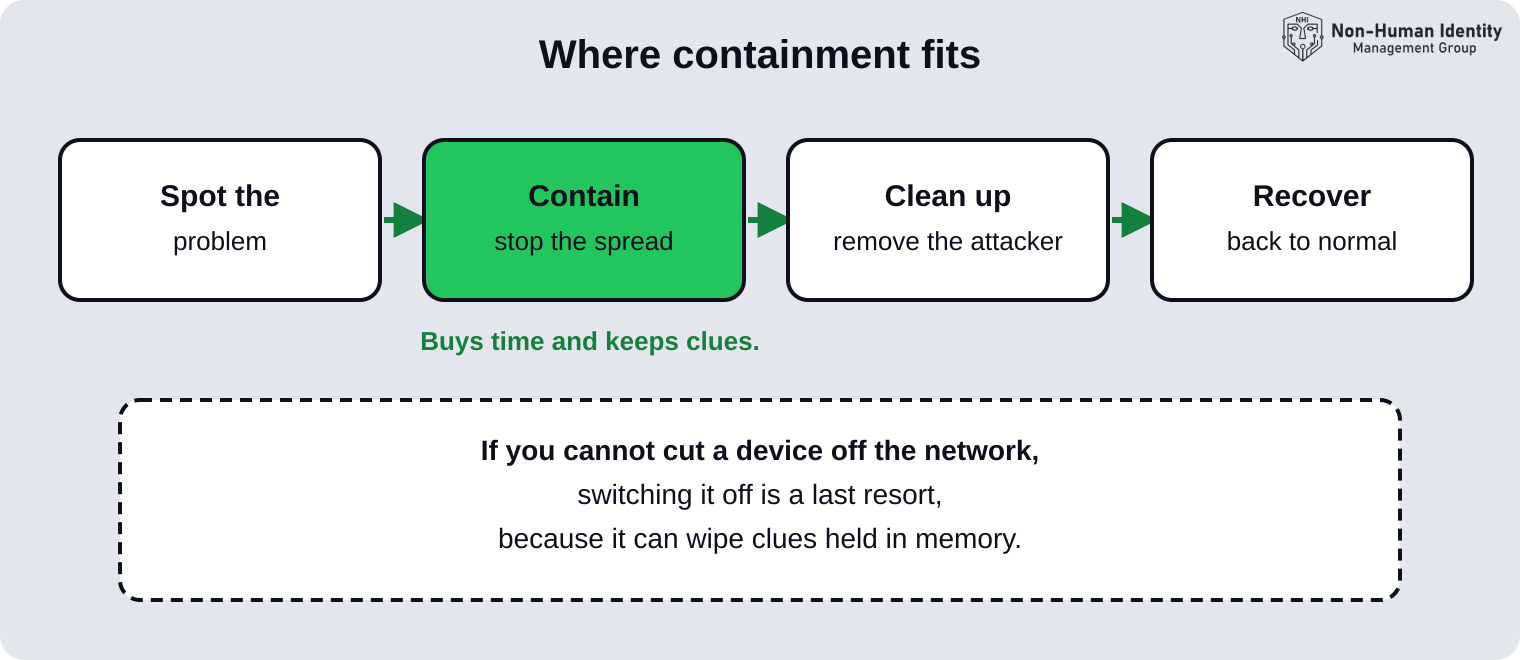
- Try not to switch a device off unless you have no other way to cut it off, because that can wipe useful clues.
- Write down what you did and when. Containment buys time; it does not remove the attacker.
What you will learn
- Explain what containment is and where it fits in a response.
- Spot the three main ways to contain an attack.
- Check that your team knows who can isolate a device or disable an account.
- Ask the right questions before anyone pulls the plug.
- Stopping the spread (containment)
- quick actions that limit the damage while the full fix is worked out.
- Cutting a device off (isolation)
- removing a computer from the network so it cannot talk to other machines.
- Moving sideways (lateral movement)
- when an attacker uses one computer or account to reach others.
What is incident containment?
Think of a burst pipe at home. Before you call a plumber, you turn off the water at the stopcock. The pipe is still broken, but the water stops spreading to other rooms.
Containment does the same job in a cyber attack. An incident is a security problem, such as a laptop with harmful software or a stolen password. Containment is the set of quick actions that stops the problem reaching more computers, accounts or data.
It sits in the middle of a response. First someone spots the problem. Then the team contains it. After that comes eradication (removing the attacker and their tools) and then recovery (getting systems back to normal).
Where the comparison stops working: a pipe does not fight back. An attacker may notice what you are doing and change tactics, and they may have more than one way in. So containment needs a bit of thought, not just speed.
Why does it matter?
Attackers rarely stay on the first computer they reach. They try to move to other machines and accounts. Containment aims to close those paths early. Then a problem on one laptop does not become a problem for the whole firm.
The UK's national cyber security agency says containment is about cutting the harm and stopping things getting worse. Its typical actions are blocking activity, cutting off systems and resetting accounts.[1]
If you run a small business
What could happen: one infected laptop spreads harmful software to the shared drive while everyone waits for the IT supplier to call back.
Check this: ask your supplier who is allowed to cut a device off the network, and how fast they can do it.
If you work on a help desk
What could happen: you switch off a suspicious laptop to be safe, and the clues held in its memory are lost.
Check this: find out whether your team's tools can isolate a device while leaving it switched on.
If you look after software keys or service accounts
What could happen: a person's account is locked, but a leaked API key keeps working for the attacker.
Check this: include non-human identities (NHIs), such as API keys, tokens and service accounts, in the containment plan.
If you are a manager
What could happen: containment means taking an important system offline, and nobody knows who can make that call.
Check this: agree in advance who can approve a shutdown and what it would cost the business.
What does it look like?
Here is a made-up containment log, the kind of short record a team might keep in the first hour.
Example only. All values are made up.
CONTAINMENT LOG - incident EXAMPLE-0001
09:12  Alert: odd program on laptop FAKE-LT-07          (1)
09:18  LT-07 isolated from network, left switched on      (2)
09:21  Account u.example disabled, sessions signed out    (3)
09:25  API key EXAMPLE-KEY-0000 turned off by supplier    (4)
09:30  Address 192.0.2.10 blocked at the firewall         (5)
09:40  Manager told; no other alerts so far               (6)
- In a real file, this line would record what was spotted and on which device.
- The laptop is cut off from the network but still powered, so clues stay in place.
- The user's account is turned off and their open sessions are ended.
- A software key the laptop used is turned off too, so it cannot be reused elsewhere.
- A suspicious internet address is blocked. The address shown is a test address reserved for examples.
- The manager is told, and the team keeps watching for signs of spread.
Why this is risky: without a log like this, people repeat steps, miss steps or forget what they changed. That makes clean-up harder and weakens any later review.
The safer way: one person writes down each action with the time, who did it and why. UK government guidance stresses keeping careful track of decisions and actions, because the response may be reviewed later.[1]
How does it work?
Most containment uses three moves: isolate, disable and block. Here is the usual order of thinking.
- Get a quick picture. Which devices, accounts and keys seem to be involved? You will not know everything yet, and that is normal.
- Isolate devices. Cut affected computers off from the network. Many security tools can do this while keeping the device on and still reporting to the security team.[3]
- Disable accounts and keys. Turn off accounts the attacker may control, and end their open sessions. Do the same for software keys and service accounts.[4]
- Block the way in and out. Block suspicious internet addresses or websites at the firewall, the gate between your network and the internet.[1]
- Keep the clues. Avoid switching devices off unless you have no other way to cut them off. US guidance says powering down can destroy evidence held in memory.[2]
- Watch and hand over. Keep watching for new signs, then pass to the clean-up stage when the spread has stopped.
Timing matters. Turning off an account stops new sign-ins, but some apps may keep working for a short time. In Microsoft's sign-in service, for example, access passes last one hour by default, so an app can keep access until its pass runs out.[4] That is why teams end sessions as well as disabling the account, and keep watching afterwards.
Sometimes the team waits a little before acting. The UK's National Cyber Security Centre (NCSC) notes that an attacker may react to what you do. Watching for a short time can help you see the full picture first.[1] This is a judgement call for the person leading the response.
A worked example
Gideon Rinaldi runs Larchfield Opticians, a fictional business with three branches and 20 staff. Uma Varga is the firm's part-time IT support, working from home.
At 2pm a receptionist calls Gideon. Her screen shows a message saying files are locked. A second computer at the same branch looks slow.
Gideon remembers the stopcock idea. He does not try to fix anything. He calls Uma, who opens the firm's security tool and isolates both computers from the network. They stay switched on, so the clues on them are kept.
Next, Uma disables the receptionist's account and signs it out everywhere. She sees that the booking app uses a software key stored on that computer. She asks the app's supplier to turn that key off and issue a new one later.
The security tool shows the first computer contacting an unknown internet address. Uma blocks that address at the firewall.
Gideon writes each step and its time in a shared note. He tells the other two branches to report anything odd. For the next hour, no other computers show signs of trouble in the records Uma can see.
The branch runs on paper bookings for the afternoon. That is annoying, but far better than losing all three branches. The next day an outside specialist starts the clean-up, using Gideon's notes and the clues left on the computers.
Myths and mistakes
| What people think | What is true |
|---|---|
| The first thing to do is switch the computer off. | Cutting it off the network is usually better. Powering down can wipe clues in memory, so keep it as a last resort.[2] |
| Once it is contained, the problem is solved. | Containment only stops the spread. The attacker's tools may still be there until clean-up is done.[1] |
| Changing the person's password is enough. | Open sessions and software keys may keep working. End sessions and turn off keys too.[4] |
| Faster is always better. | Speed matters, but acting without a plan can alert the attacker or shut down the wrong system.[1] |
| We will remember what we did. | Under pressure, people forget. Write each step down with the time. |
What can I do this week?
- Find out who in your team or supplier can isolate a device, and how.
- Write down who can approve taking an important system offline.
- List the software keys and service accounts your main systems use, and who can turn them off.
- Print a simple containment log template and keep it with your incident plan.
- Tell staff to report problems quickly and leave suspicious devices switched on.
Checklist
- We know who can isolate a device from the network.
- We know who can disable a user account and end its sessions.
- We know who can turn off API keys, tokens and service accounts.
- We know who can block an address at the firewall.
- Someone senior can approve taking a key system offline.
- Staff know to leave suspicious devices switched on unless told otherwise.
- We keep a written log of every containment step, with times.
- Our incident plan says when containment ends and clean-up starts.
Common questions
Should I unplug a computer I think is hacked?
Unplugging the network cable or turning off Wi-Fi is usually a good first step. Pulling the power plug is different: it can wipe clues held in memory. If you have a security tool that can isolate the device, use that, and ask your IT contact before powering it down.
What is the difference between containment and eradication?
Containment stops the attack spreading. Eradication removes the attacker and their tools. Containment is quick and temporary; eradication is careful and thorough. See Containment vs Eradication for how teams move from one to the other.
How long does containment last?
It lasts until the spread has stopped and the team is ready to clean up. That can be hours or days. Some security tools lift isolation automatically after a set time, so check how yours works.[3]
Can a device still be monitored after it is isolated?
Often, yes. Some security tools cut a device off from the network but keep its link to the security service. The team can then still watch it and collect clues. Some also let chosen apps, such as email, keep working.[3]
Do software keys and service accounts need containing too?
Yes. Attackers often reuse API keys, tokens and service accounts they find on a hacked computer. If those keep working, the attacker may still have a way in after the person's account is locked. Turn them off or replace them as part of containment.
Where next?
Ready for the detail? Read the practitioner guide: Containment vs Eradication. It goes further into timing the hand-off to clean-up, the order for resetting credentials, and keeping evidence across both stages.
Also useful:
- How to Isolate a Compromised Endpoint
- Incident Scoping and Containment Strategy Guide
- Incident Response for Beginners
- Ransomware for Beginners
- Digital Forensics for Beginners
Related NHI Mgmt Group resources: Incident Response Guide · Ransomware Response and Recovery Guide · Non-Human Identities for Beginners
Key terms
- Incident response
- The actions used to spot, contain, investigate and recover from a security problem.
- Containment
- The stage of a response that limits the spread of an attack, before eradication and recovery.
- Eradication
- The stage after containment that removes the attacker's presence, such as harmful files and stolen access.
- Lateral movement
- An attacker moving from the first computer or account they reach to others, often with stolen credentials.
- Endpoint detection and response
- Security software that watches devices for suspicious activity and can help contain threats, for example by isolating a device.
- Credential revocation
- Turning off a password, key or token so it can no longer be used to get in.
Sources and further reading
- Plan: your cyber incident response processes. National Cyber Security Centre (NCSC), UK. https://www.ncsc.gov.uk/collection/incident-management/cyber-incident-response-processes, accessed 28 Nov 2026.
- #StopRansomware Guide. Cybersecurity and Infrastructure Security Agency (CISA), September 2023. https://www.cisa.gov/stopransomware/ransomware-guide, accessed 28 Nov 2026.
- Take response actions on a device in Microsoft Defender for Endpoint. Microsoft Learn, Microsoft. https://learn.microsoft.com/en-us/defender-endpoint/respond-machine-alerts, accessed 28 Nov 2026.
- Revoke user access in Microsoft Entra ID. Microsoft Learn, Microsoft. https://learn.microsoft.com/en-us/entra/identity/users/users-revoke-access, accessed 28 Nov 2026.