Okta is a service many employers use to control who can sign in to which work apps.
This guide is for new starters, students and new IT staff who have met an Okta sign-in page and want to know what it is. You do not need a technical background. If your employer uses Okta, one account and one phone app may open most of the tools you use at work.
In short
- Okta is a company that runs a sign-in service for workplaces, so staff can reach many apps with one account.
- You usually sign in once, prove it is you with a second check, then open apps from one page.
- The Okta Verify phone app sends you a prompt or a code to confirm it is really you.
- Because one account opens so much, never approve a sign-in you did not start, and never share your codes.
What you will learn
- Explain what Okta does in one sentence.
- Spot the parts of an Okta sign-in: the sign-in page, the second check and the app page.
- Check that a sign-in prompt on your phone is one you started.
- Ask your IT team the right questions on your first day.
- Sign in once (single sign-on)
- signing in one time to reach many apps without new passwords.
- Second check (multi-factor authentication)
- an extra step, such as a phone prompt, that proves it is really you.
- Sign-in service (identity provider)
- a service that checks who you are for many other apps.
What is Okta?
Think of the reception desk in a large office. You show your ID once, and reception gives you a badge for the floors you are allowed on. Okta does a similar job for work apps.
Okta is a company that sells an identity platform, a service that keeps track of who people are and what they may reach. Its workplace product combines single sign-on, a second sign-in check, and tools that give and remove app access as staff join and leave.[1]
So when you open your email, chat or HR app at work, it may send you to Okta first. Okta checks who you are, then tells the app it can let you in. Okta also offers a separate product for customer sign-in on websites and apps.[1]
Where the comparison stops working: a reception desk sees your face. Okta only sees what you type and what your phone confirms. That is why the second check matters so much.
Why does it matter?
One Okta account can open many apps. That makes life easier for staff, and it also makes the account worth stealing. Attackers try to trick people into handing over passwords, codes or phone approvals.
If you are starting a new job
What could happen: you approve a phone prompt you did not start, and a stranger gets into your work apps.
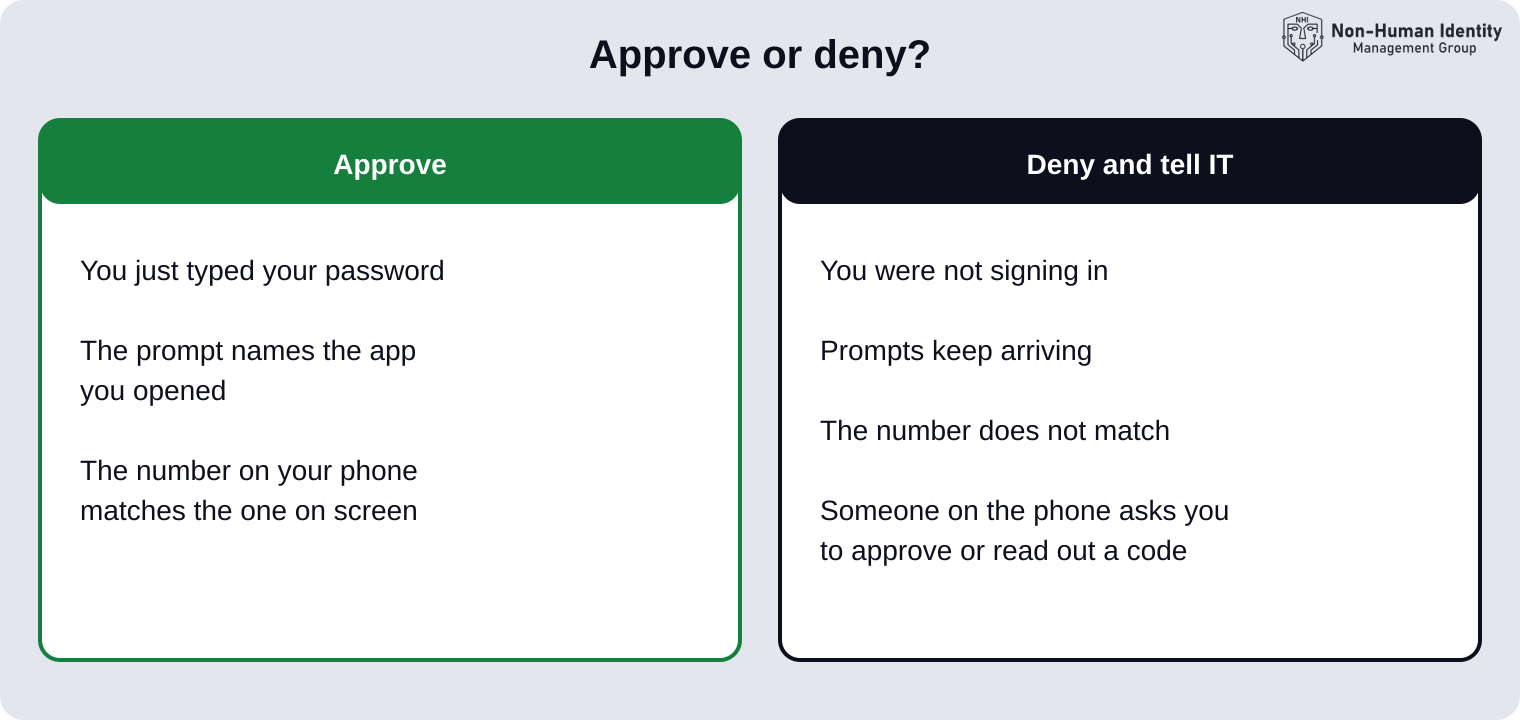
Check this: only approve a prompt straight after you have tried to sign in yourself.
If you are new to IT support work
What could happen: a caller says they are a manager who lost their phone and asks you to reset their sign-in.
Check this: follow your team's identity check before any reset, however urgent the caller sounds.
If you manage a team
What could happen: a leaver's account stays open and still reaches company apps.
Check this: ask IT how quickly access is removed when someone leaves.
What does it look like?
Here is a made-up version of what a new starter might see on day one. The company and values are fake.
Example only. All values are made up.
  example-company.example.invalid      (1)
  Sign in
  Username: [email protected]    (2)
  [ Next ]

  Verify it's you with Okta Verify      (3)
  Pick 47 on your phone                (4)

  My Apps: Email | Chat | Payroll      (5)
- In a real screen, this line would show your employer's own Okta web address. Check it before you type anything.
- Your work username, usually your work email.
- The second check. Your phone gets a prompt from the Okta Verify app.
- A number to match. You pick the same number on your phone, which shows the sign-in is yours.
- The app page, where each tile opens one work app.
Why this is risky: a fake page can copy this look. If you type your password there and approve the prompt, an attacker may get in as you.
The safer way: reach Okta from a bookmark or the link your IT team gave you, and only approve prompts you just started.
How does it work?
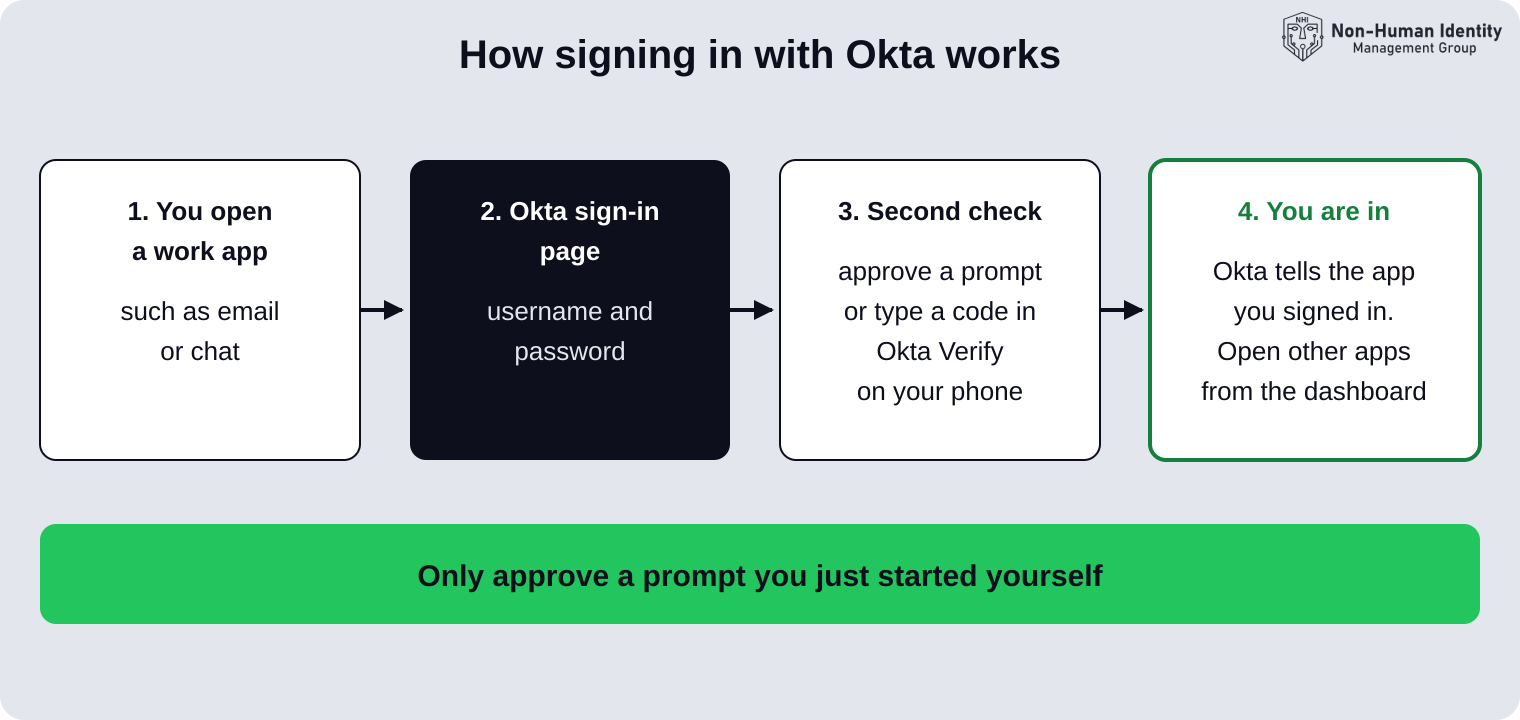
- You open a work app. The app sends you to your employer's Okta sign-in page.[2]
- You enter your username. Okta then asks you to pick a way to prove it is you, such as a text code, an email or the Okta Verify app.[2]
- You do the second check. Okta Verify is a phone app for multi-factor authentication. You approve a push notification (a pop-up on your phone) or type a one-time code from the app.[3] Some employers add a number to match, which Okta says is there to counter phishing, the use of fake messages or pages to trick people.[4]
- Okta vouches for you. Okta tells the app you have signed in, and the app opens. You can open other apps from your Okta dashboard, the page that lists your work apps.[2]
- Access follows your job. Okta can give a new starter their apps and remove them when that person leaves, if the employer has set this up.[1]
Okta is also a target itself. In 2023, an attacker used a stolen service account to reach files in Okta's customer support system. A service account is an account used by software rather than a person. Okta said files for 134 customers were accessed.[5] Read our Okta support system breach page for the full story.
A worked example
Xena Haddad starts her first office job at Hazel Accountants, a fictional firm with 40 staff. On day one, Idris Ueda from IT hands her a laptop and a sheet of paper.
The sheet has three steps. Install Okta Verify on her phone. Sign in at the company's Okta address, which is already saved as a bookmark. Set up her second check.
Xena thinks of the reception desk downstairs. She showed her ID once this morning, and her badge now opens the right doors. Okta, Idris explains, is the same idea for apps.
She signs in, and her phone buzzes. The screen shows a number, and she taps the same number on her phone. Her dashboard opens with tiles for email, chat, the timesheet tool and the client files app.
That evening, at home, her phone buzzes again. "Are you trying to sign in?" She is not. She remembers Idris's advice and taps the option to say it was not her. Then she messages him.
Idris checks the sign-in records. Someone had tried her username and an old, leaked password from a personal account she had reused. He asks her to change her Okta password to a new one she has never used anywhere else.
No one got into her apps in the records Idris could see. Xena now uses a password manager, and she knows that a prompt she did not start is a warning, not a nuisance.
Myths and mistakes
| What people think | What is true |
|---|---|
| Okta is an app I need to download to work. | Okta is mostly a web sign-in service. Okta Verify is the phone app that does the second check.[3] |
| A phone prompt is safe to approve, because it came from Okta. | The prompt is real, but the sign-in behind it may not be yours. Only approve prompts you just started. |
| IT staff may ask me to read out my code. | Treat any request for your code or approval as a warning sign, and check with IT through a channel you trust. |
| With Okta, my password matters less. | Your Okta password guards many apps at once. Make it long, unique and never reused elsewhere. |
| Okta means nothing can go wrong. | Okta adds strong checks, but it depends on how the employer sets it up and on people spotting tricks. |
What can I do this week?
- Bookmark your employer's Okta address and use only that bookmark.
- Check which second-check methods are set up in your Okta settings.
- Make sure your Okta password is not used on any other site.
- Ask IT what to do if you get a prompt you did not start.
- If you lose your phone, tell IT straight away.
Checklist
- I reach Okta from a bookmark or a link IT gave me.
- Okta Verify or another second check is set up on my account.
- I only approve prompts I have just started.
- I never share my password, codes or approvals with anyone, even IT.
- My Okta password is unique and kept in a password manager.
- I know how to report a strange prompt or a lost phone.
- Managers know how leavers' access is removed.
Common questions
Is Okta the same as single sign-on?
Not quite. Single sign-on is the idea of signing in once to reach many apps. Okta is one company whose service provides single sign-on, along with second checks and tools for giving and removing access. Other companies offer similar services.
What is Okta Verify?
Okta Verify is Okta's phone app for the second sign-in check. It can send you a prompt to approve or show a one-time code to type. Okta says it can also act as an authenticator app for some other sites.
What should I do if I get a prompt I did not start?
Deny it and tell your IT team. An unexpected prompt can mean someone has your password and is trying to sign in. Do not approve it to make it stop, even if more prompts arrive.
Can my employer see my personal phone through Okta Verify?
Okta Verify is a sign-in app, so its main job is to confirm it is you. What your employer can see depends on how they set up your phone and any other tools they use. Ask your IT team for their privacy notice.
Why do I keep being asked to sign in again?
Employers set how long a sign-in lasts and when to check again, for example from a new device or place. Being asked again is normal. A prompt that appears when you are not signing in is not.
Where next?
Ready for the detail? Read the practitioner guide: Okta Security Hardening Guide. It goes further into admin roles, sign-in and session policies, help desk reset checks and watching Okta's activity records.
Also useful:
- Single Sign-On for Beginners
- Multi-Factor Authentication for Beginners
- MFA Fatigue Attacks for Beginners
- Passkeys for Beginners
- How to investigate a compromised Okta account
Related NHI Mgmt Group resources: Phishing-Resistant MFA Guide · Identity and Access Management for Beginners · Non-Human Identities for Beginners
Key terms
- Okta
- A company whose identity platform controls sign-in to work and customer apps.
- Identity provider
- A service that checks who you are and vouches for you to other apps.
- Single sign-on
- Signing in once to reach many apps.
- Multi-factor authentication
- Proving who you are with more than one thing, such as a password and a phone prompt.
- Push notification MFA
- A second check where you approve a pop-up on your phone.
- Workforce identity
- The accounts and access an organisation gives its staff, contractors and partners.
- Deprovisioning
- Removing someone's access when they leave or no longer need it.
Sources and further reading
- Workforce Identity. Okta. https://www.okta.com/workforce-identity/, accessed 28 Nov 2026.
- Sign in to resources protected by Okta. Okta End-User Help, Okta. https://help.okta.com/eu/en-us/Content/Topics/end-user/eu-sign-in-to-apps.htm, accessed 28 Nov 2026.
- Okta Verify. Okta Help, Okta. https://help.okta.com/en-us/Content/Topics/mobile/okta-verify-overview.htm, accessed 28 Nov 2026.
- Okta Verify: Push authenticator settings (number challenge). Okta Help, Okta. https://help.okta.com/oie/en-us/content/topics/identity-engine/authenticators/ov-push-settings.htm, accessed 28 Nov 2026.
- Unauthorized Access to Okta's Support Case Management System: Root Cause and Remediation. Okta Security, 3 November 2023. https://sec.okta.com/articles/2023/11/unauthorized-access-oktas-support-case-management-system-root-cause/, accessed 28 Nov 2026.