A Microsoft account is the one sign-in for Outlook, OneDrive, Xbox and Windows, so it needs strong protection.
This guide is for families and anyone who uses a personal Microsoft account at home. It does not cover work or school accounts, which your employer or school looks after.
In short
- One Microsoft account can open your email, files, games, purchases and Windows PC.
- Turn on two-step verification, so a stolen password alone is not enough.
- You can go further and remove the password, using the Authenticator app or a passkey instead.
- Keep two or more recovery methods current and print a recovery code, or a lockout can take weeks to fix.
What you will learn
- Explain what a Microsoft account unlocks and why that matters.
- Check your sign-in and recovery settings on the security page.
- Spot unusual sign-in activity and know what to do about it.
- Ask the right questions before you go passwordless.
- Second check (two-step verification)
- a code or approval on another device, as well as your password.
- Password-free sign-in (passkey)
- signing in with your face, fingerprint or PIN on your own device instead of a typed password.
- Backup way in (recovery code)
- a 25-digit code that helps you get back into your account if you are locked out.
What is Microsoft account security?
Think of a key ring that holds your front door key, your car key and your post box key. Lose it, and someone may open all three.
A Microsoft account is like that key ring. The same email address and sign-in open Outlook.com email, OneDrive files, Xbox games and saves, Microsoft Store purchases and often your Windows PC.
Microsoft account security means protecting that one sign-in. It has three parts. You prove who you are. You keep a way back in if something goes wrong. And you watch for anyone else using the account.
Where the comparison stops working: you notice when a key ring goes missing. A copied password leaves your own sign-in working, so you may not notice someone else using it.
Why does it matter?
Because one account opens so much, a single stolen password can expose years of email and photos, or let someone spend money in your name.
If you are a parent
What could happen: someone gets into your account and buys games or add-ons with your saved card.
Check this: turn on two-step verification and check the devices signed in to your account.
If you keep family photos in OneDrive
What could happen: you lose your phone and your old email, and cannot prove the account is yours.
Check this: add more than one recovery method and print a recovery code.
If you play on Xbox
What could happen: a fake "free game" site tricks you into typing your password.
Check this: sign in only from the real Microsoft site or app, never from a link in a message.
Next: Phishing for Beginners
What does it look like?
Here is a made-up version of what you might see on the Recent activity page.
Example only. All values are made up.
Account: [email protected]
Recent activity
  Today 08:12   Windows PC, home        Successful sign-in
Unusual activity                                      (1)
  Yesterday 02:47  Unknown browser       Successful sign-in   (2)
  Location: EXAMPLE CITY (approximate)                (3)
  [ This was me ]   [ This wasn't me ]                (4)
- A separate section that only appears when something looks out of the ordinary.
- A sign-in at a time nobody in the house was awake.
- The place is a guess based on the network, so it can be wrong.
- You tell Microsoft whether you recognise it.
Why this is risky: if this was not you, someone may know your password and could be reading your email right now.
The safer way: choose "This wasn't me", change your password, then review your security info. Microsoft says to sign in to the account directly, not through a link in an email about it.[3]
How does it work?
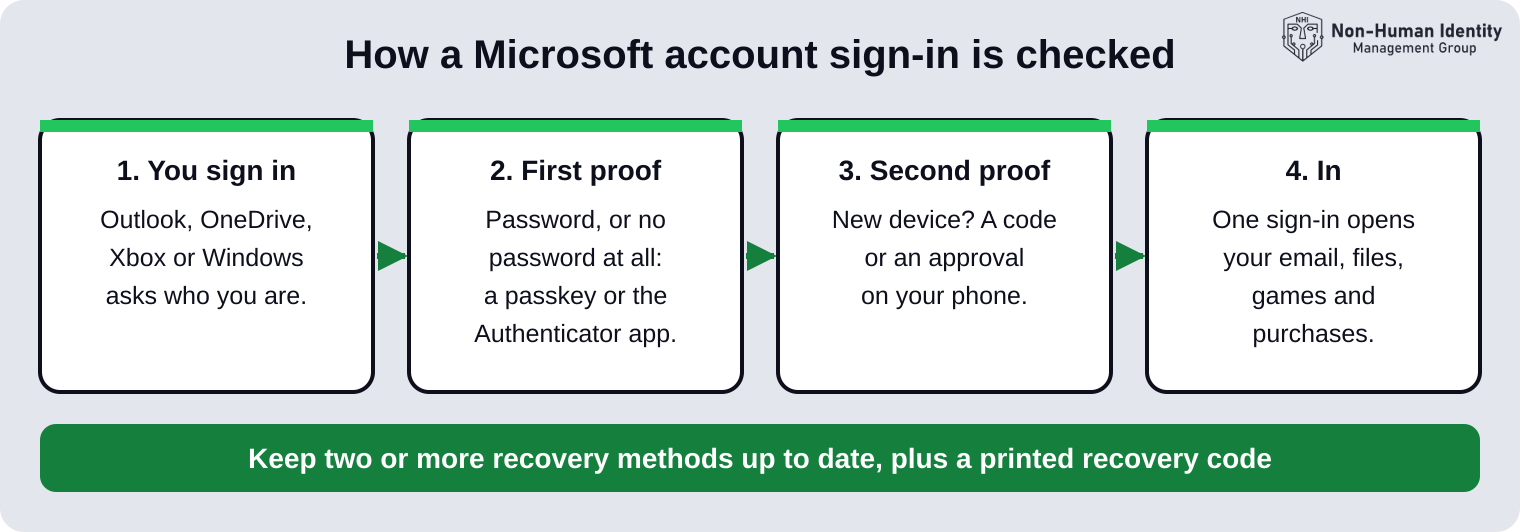
Every time you sign in, Microsoft checks who you are in a few steps.
- You ask to sign in. Outlook, OneDrive, Xbox or Windows asks for your account.
- First proof. You type your password. Or, if you have gone passwordless, you approve the sign-in in the Microsoft Authenticator app or use a passkey.[2]
- Second proof. With two-step verification on, a device Microsoft does not yet trust also needs a code by email, phone or the Authenticator app. Microsoft says it is phasing out text messages as a sign-in and recovery method for personal accounts.[1]
- Recovery. If you forget your password with two-step verification on, you need two contact methods to reset it. Microsoft suggests adding three.[1]
- Watching. The Recent activity page shows when and where your account was used in the last 30 days.[3]
Two settings are worth knowing. A passkey lets your device check your face, fingerprint or PIN instead of you typing a password. It can be saved in a password manager, on a phone, on a security key or on a Windows PC.[5] A recovery code is a 25-digit code you print and keep safe. Making a new one cancels the old one.[4]
A worked example
Otto Falk uses one Microsoft account for his Outlook email, the family OneDrive photos and his son's Xbox purchases. One Saturday he gets an email saying there was unusual sign-in activity.
He does not click the link in the email. Instead, he opens a new browser tab and types the Microsoft account address himself, as Microsoft advises.[3]
On the Recent activity page he sees a sign-in from a city he has never visited, at three in the morning. He chooses "This wasn't me" and changes his password to a new one he has never used anywhere else.
Next he opens the security page and turns on two-step verification. He scans the QR code with his phone to set up the Authenticator app.[1]
He checks his security info. The phone number is right, but the backup email is an old address he cannot open any more. He replaces it with his partner's email, so the account has two working recovery methods.
Last, he generates a recovery code, prints it and puts it in the drawer with the house papers, away from his PC.[4]
A week later the activity page shows only the family's own devices. Otto sets a reminder to look again each month.
Myths and mistakes
| What people think | What is true |
|---|---|
| Microsoft support will reset my password if I call. | Microsoft says its support agents will not send password reset links or change account details for you.[3] |
| A strong password is enough on its own. | A strong password can still be stolen by a fake site. A second check helps. |
| Going passwordless works everywhere. | Some older devices and apps, such as Xbox 360 and older Office versions, still need a password.[2] |
| I can sort out recovery later. | Without working recovery methods, getting back in can take up to 30 days, and you may lose the account.[1] |
| Keeping my recovery code on my laptop is safe enough. | Microsoft says not to store it on a device you use to sign in. Print it instead.[4] |
What can I do this week?
- Open your Microsoft account security page and check your phone number and backup email.
- Turn on two-step verification.
- Print a recovery code and store it away from your devices.
- Look at the Recent activity page for anything you do not recognise.
- Remove old phones and computers you no longer use.
Checklist
- My password is not used on any other site.
- Two-step verification is on.
- I have at least two working recovery methods.
- I have a printed recovery code stored safely.
- I have checked Recent activity in the last month.
- Old devices and app passwords I no longer use are removed.
- I sign in by typing the address myself, not from links in emails.
Common questions
Is my Microsoft account the same as my Outlook email?
Often, yes. Many people use their Outlook.com or Hotmail address as their Microsoft account. You can also make a Microsoft account with another email address. Either way, the same sign-in usually opens OneDrive, Xbox and the Microsoft Store as well.
Should I go passwordless?
It is worth thinking about once two-step verification and recovery are sorted. Without a password, there is nothing to steal through a fake sign-in page. Check first that you do not rely on older devices or apps that still need a password.
What is an app password?
It is a separate password for older apps or devices that cannot handle the second check. It only appears once two-step verification is on. Remove app passwords you no longer need from the security page.
Why does the activity page show a city I have not been to?
The location is an estimate. Mobile networks can route your traffic through other places, so a phone sign-in may show the wrong city. If the device and time also look wrong, treat it as suspicious.
What should I do if I lose the phone with my Authenticator app?
Use another recovery method to sign in. Then remove the lost phone's sign-in methods from your security settings, so whoever finds it cannot use them to approve sign-ins. Then add a new phone as soon as you can.
Where next?
Ready for the detail? Read the practitioner guide: Microsoft Account Security Guide. It goes further into passkey options, family and device controls, connected apps and a full recovery plan if the account is taken over.
Also useful:
- Apple and Google Account Security for Beginners
- Passkeys for Beginners
- Hacked Account Recovery for Beginners
- Windows Hello for Beginners
Related NHI Mgmt Group resources: Account Takeover for Beginners · Password Managers for Beginners · Windows Security for Beginners
Key terms
- Microsoft account
- A personal sign-in for Outlook.com, OneDrive, Xbox, the Microsoft Store and Windows.
- Two-step verification
- Needing a second proof, such as a code or app approval, as well as your password.
- Authenticator app
- A phone app that shows codes or asks you to approve a sign-in.
- Passkey
- A password-free sign-in that your own device unlocks with your face, fingerprint or PIN.
- Recovery code
- A one-off code you keep safe to get back into your account if you are locked out.
- App password
- A separate password for older apps that cannot use two-step verification.
Sources and further reading
- How to use two-step verification with your Microsoft account. Microsoft Support, Microsoft. https://support.microsoft.com/en-us/account-billing/how-to-use-two-step-verification-with-your-microsoft-account-c7910146-672f-01e9-50a0-93b4585e7eb4, accessed 28 Nov 2026.
- How to go passwordless with your Microsoft account. Microsoft Support, Microsoft. https://support.microsoft.com/en-us/account-billing/how-to-go-passwordless-with-your-microsoft-account-674ce301-3574-4387-a93d-916751764c43, accessed 28 Nov 2026.
- What is the Recent activity page? Microsoft Support, Microsoft. https://support.microsoft.com/en-us/help/13782, accessed 28 Nov 2026.
- How to get a Microsoft account recovery code. Microsoft Support, Microsoft. https://support.microsoft.com/en-us/accounts-billing/manage/how-to-get-a-microsoft-account-recovery-code, accessed 28 Nov 2026.
- Create and save a passkey. Microsoft Support, Microsoft. https://support.microsoft.com/account-billing/signing-in-with-a-passkey-09a49a86-ca47-406c-8acc-ed0e3c852c6d, accessed 28 Nov 2026.